Roles and permissions
Every person on your workspace holds exactly one role, set when they’re invited and changeable any time from Users. It decides what they can do across Boards, Wiki, Chat and Settings.
The built-in roles
| Role | What it can do |
|---|---|
| Account Owner | Full control. Everything below, plus organization settings, guests, and the role catalogue. Can’t be deleted. |
| Administrator | Manages users, projects, clients, teams and roles — everything an Account Owner can, except organization details, the logo and guest settings. |
| Manager | Creates and edits work items, comments, and starts channels in Chat. No access to the management tabs. |
| Member | Edits existing work items — assigns themselves, comments, attaches files — and posts in Chat. Cannot create new work items. |
| Commenter | For someone who joins the conversation without changing the work: everything a Reader holds, plus commenting on work items and on documents. No permission to create or edit either. |
| Reader | For someone who needs to follow the work: reads boards, documents and chat, reacts, and ticks off wiki action items. Holds no authoring permissions. |
| Guest | An unpaid external account. Comments on work items in its projects, views documents shared with it directly, and chats in the one channel an admin assigns to it. Cannot be edited. |
A role is never enough on its own — to work on a card you also have to be a member of the project it belongs to, which is set per project in Projects. Wiki pages add their own per-page sharing on top; see Sharing and access.
The Roles tab
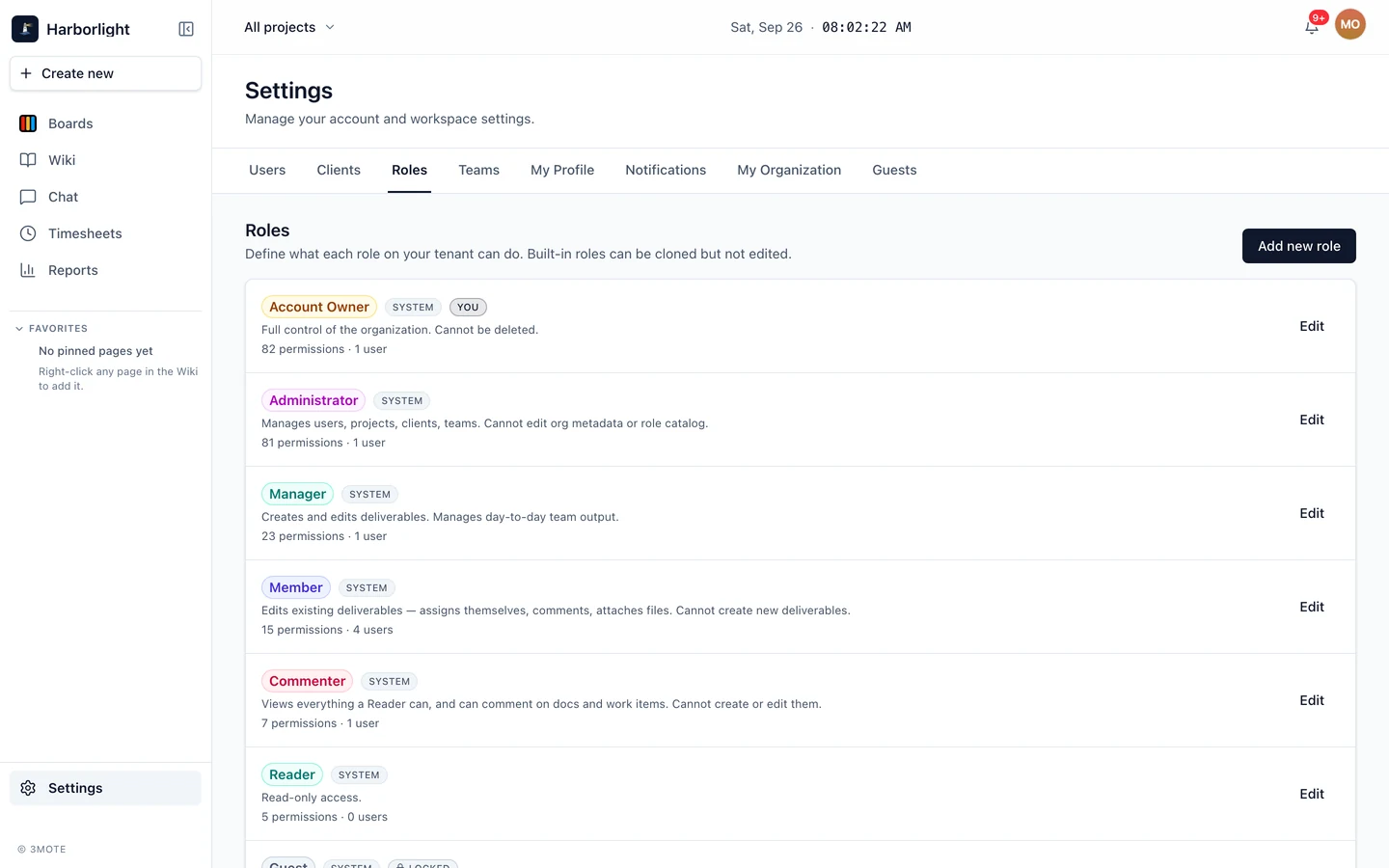
Settings → Roles lists every role on your workspace. Each row shows the name, the description, and how many permissions it holds and how many people are on it. Badges mark the built-ins:
- System — one of the seven roles above. The name and description are fixed, but the permission set can be changed.
- Locked — the permission set is fixed too. Only Guest is locked, because the whole point of a guest seat is that it stays narrow.
- You — your own role.
Editing what a role can do
Click Edit on any unlocked role (or View on a locked one). The dialog shows the Name and Description, then every permission as a checkbox, grouped by area, with a Select all toggle per group.
So role names are a starting point, not a guarantee. An Administrator can widen or narrow what Manager, Member, Commenter or Reader may do, and permission sets are per workspace — check this tab rather than assuming from the name.
Two limits apply while you edit. You can only switch a permission you hold yourself — anything else shows a padlock and stays read-only, so you can see it’s on but can’t be the one to turn it off. And a locked role shows the padlock on every row, with Close in place of Save.
Custom roles
Click Add new role to build your own. Give it a Name, an optional Description, tick the permissions it should hold, and click Create role. It then appears everywhere a role is picked, including the invite dialog.
Delete is offered on custom roles only, and it’s blocked while anyone is assigned to the role — the dialog tells you how many people to reassign first.
Project roles
A project has its own, separate roster. When you add someone you pick a project role — Reader, Commenter, Member, Manager, Admin or Owner — which governs what they do on that board specifically. Project owners and admins are the only people who can open a project’s settings, and guests can’t hold either.