Creating and moving cards
Two ways to create a card
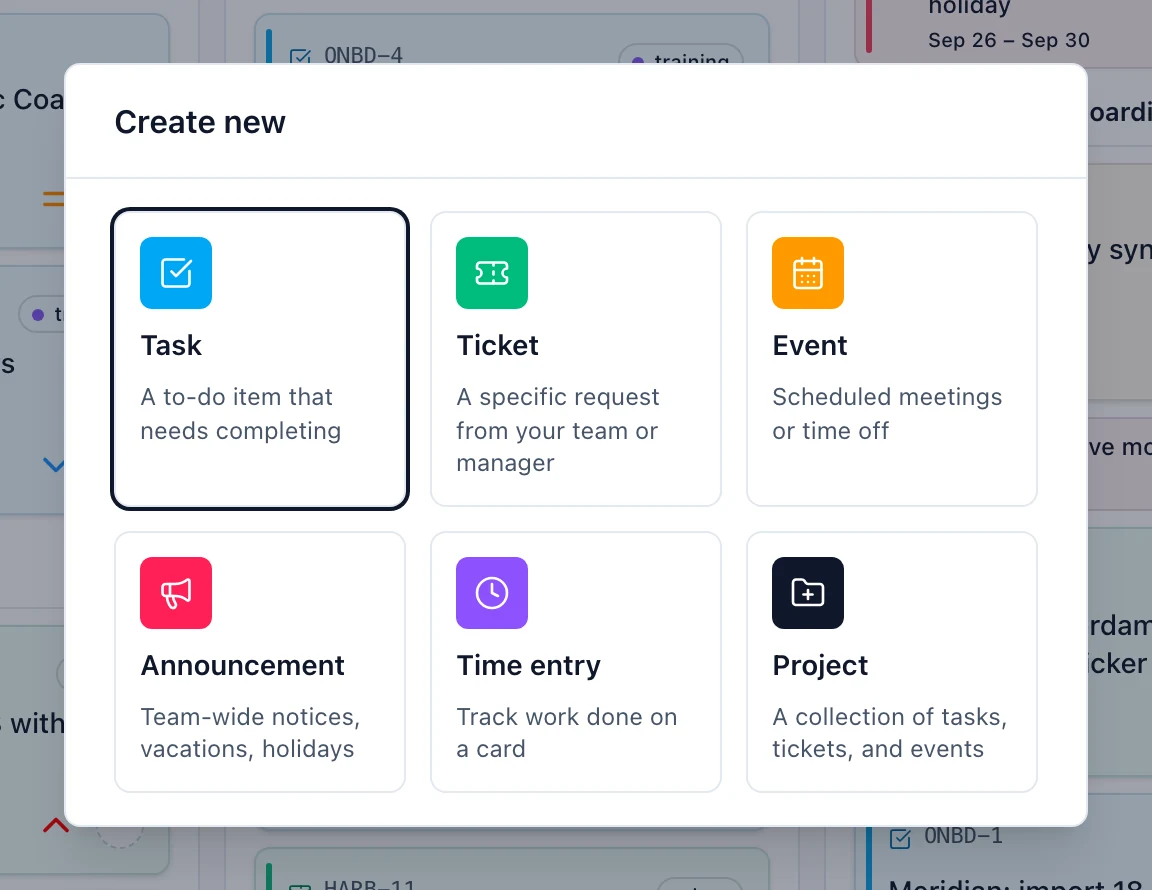
Create new in the sidebar opens a picker of tiles: Task, Ticket, Event, Announcement, Time entry, and Project. You only see the tiles your role allows, and if just one thing is available 3mote skips the picker and opens it directly.
The + button in a column header creates a card that lands in that column. This route offers Task and Ticket only — events and announcements are always created from Create new, because their column is decided by their dates rather than by where you clicked.
The create form
Title is the only required field. Project is pre-filled when you started from a project board; for announcements it is optional, and leaving it blank broadcasts workspace-wide. Description (optional) is the full rich-text editor — announcements label it Body (optional).
The rest of the form follows the kind you picked: Priority, Assignee (optional) and Due date (optional) for tasks and tickets; Starts at, Ends at (optional) and Meeting link (optional) for events; Dates for announcements; Attendees (optional) for both date-driven kinds.
Create card finishes; Cancel discards. Tasks and tickets get their card code automatically.
Dragging cards
Drop a card in another column to change its status, or higher or lower in the same column to reorder it. Every column that can accept the card outlines itself while you drag, and the one under the cursor highlights strongly.
The All Projects board’s Headers and Swimlanes layouts support dragging too, but only to change a card’s status — there is no manual reordering there. Drags stay within the card’s own project, and other projects dim while you drag so the card’s own project is easy to follow. See All Projects views for those layouts and the board’s other, click-to-open-only views.
Keyboard
Tab to a card, then Enter to open it or Space to pick it up. While
a card is held, arrow keys move it between positions and columns,
Space drops it, and Esc cancels the move.
What cannot be dragged
- Events and announcements. Their column comes from their dates, so change the dates instead.
- Cards on a board where your role does not allow editing. The drag is simply not offered; clicking still opens the card. See Roles and permissions.
Cloning a card
Open a card, click More actions (the ⋯ in the header) and choose
Clone. Title is pre-filled with CLONE - in front of the
original, and tasks and tickets get an Assignee picker seeded from
the source. Clone drops the copy in the same column.
A clone copies the card’s core fields, labels, and attendees. It does not copy comments, attachments, time entries, or a recurrence rule.
Recurring cards
Tasks and events can repeat. Tick Recurring in the create form, or add a recurrence later from the card’s detail view. The editor asks for Repeats every and Interval, Repeat on (weekdays, or a day of the month), Ends (After a count, On a date, or Never), and Completion behavior — Manually complete each occurrence, where the card waits for you to move it to Done, or Auto-complete and create next occurrence, where it moves itself and spawns the next.
A recurring card shows a repeat glyph on its face; hover it for the rule. A card spawned from a previous occurrence shows a Cloned glyph instead, with a Cloned from link in its detail view and Next occurrence once the next one exists.
When the current occurrence is sitting in Done, its detail view offers Create next occurrence — one click makes the next one without dragging this card out of Done and back again.