Links and attachments
Most of what gets shared in Chat isn’t prose — it’s a link, a screenshot, or a file someone needs.
Link previews
Type or paste a web address into the composer — 3mote.com works as well as https://www.3mote.com — and 3mote fetches a preview card while you keep typing. It appears above the editor, so the reading order is the one chat is used to: here’s the link, here’s my note about it.
The card shows the site name (and the author, when the page names one), the title, a short description, and a small thumbnail. A video link — YouTube, Vimeo — gets a play badge on the thumbnail. A link with no image drops the thumbnail and lets the text fill the card. A URL pointing straight at an image or GIF renders as a bounded image tile instead.
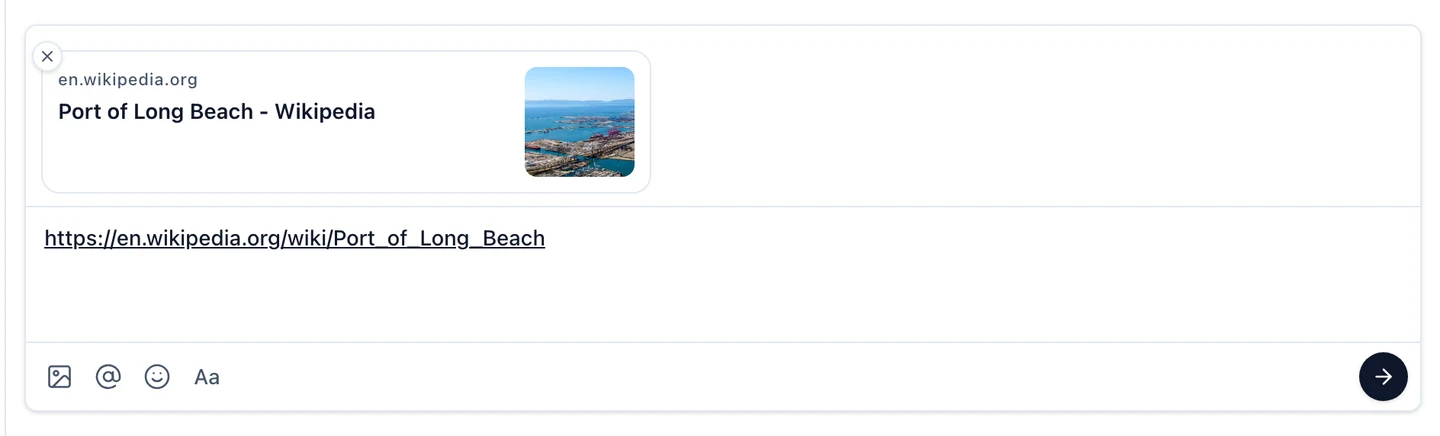
The card carries an always-visible Remove link preview control in its corner. Click it and the card goes away and stays away for that URL, so the message sends without a preview; type a different URL and a fresh preview resolves. If the page can’t be read you’ll see Couldn’t load preview — sending still works.
Once sent, the preview renders below the message body as the same compact card, with the whole card acting as the link. Play badges carry over, so a video is recognisable at a glance in the timeline.
A typed address becomes a link the moment you follow it with a space. An address that ends a sentence works too: type see example.com. and a space, and the address becomes a link while the full stop stays plain text. Keep typing to extend the address and the link follows the text; erase it and the link goes away with it, so what you type next is plain text again.
Attaching files
Three ways to attach:
- Click Attach files in the composer’s bottom bar and pick them.
- Drag files from your desktop anywhere onto the conversation. The pane dims and shows Drop files to attach.
- Paste a file straight from your clipboard into the composer. Pasting text is unaffected.
Each file appears in a strip above the editor with a thumbnail or a file glyph, its name, and a progress bar. Every row has an X to Cancel upload or Remove the file. Press Enter while uploads are running and the send is queued until the last one finishes.
Limits
- Up to 10 files per message.
- A single file must be under 100 MB; MP4 and MOV videos may be up to 200 MB.
- Images, video, PDFs, Word, Excel and PowerPoint files, CSV, JSON, XML, plain text, Markdown, archives and audio are accepted. Anything else is refused with a note naming the file.
- Folders can’t be uploaded — drop the individual files instead.
Attachments count toward your workspace’s storage. See Plans and storage.
Viewing what’s been shared
Images land in a tight cluster under the message rather than stretched across the pane: one image hugs its own size, and two to four arrange into a small grid. Beyond four, the fourth tile carries a +N count for the rest.
Click any image to open the lightbox, where you can move between that message’s images with the arrows or the Left and Right arrow keys (a counter shows your position, such as 2 / 5), Download the image, and close with the X or Esc.
Video plays inline in the message on the web. PDFs and every other type render as a chip with the file name and size — click it to open the file in a new tab, or use the row’s download control to save it.
In the iPhone app
Tap an image or a video to open it full screen. Tap once to show or hide the controls; they also fade away on their own after a few seconds, and stay put while a video is paused. The top of the screen shows Close and the file name; the bottom holds a share button and Download.
- Images: pinch to zoom, double-tap to zoom in or out, and swipe down to close. An image you’ve opened before opens instantly, even offline.
- Video: a tile shows the first frame with a play button, the file name and the size. In the player you get play and pause, skip back or forward 10 seconds (or double-tap the left or right half), a scrubber, playback speed from 0.5× to 2×, mute, and AirPlay. Turn the phone sideways to watch in landscape. Swipe down on the picture to close.
- Download saves the image or video to Photos. Progress shows in the button with an X to cancel, and closing the viewer doesn’t stop the download — Saved to Photos appears when it finishes.
Other files appear as a card with a small document icon marked with the file type, the file name, and the type and size, such as PDF · 2.4 MB. Tap it to download — the card shows progress with an X to cancel — and the file opens in a preview. Use the preview’s share button to send it on or choose Save to Files. Files you’ve opened stay on your phone, so opening them again is instant, and a PDF you’ve opened shows a preview of its first page in the conversation. Archives such as ZIP files can’t be previewed, but can still be shared and saved. If a download fails you’ll see Couldn’t download followed by the file name.
Emoji
Click Insert emoji in the composer’s bottom bar to drop an emoji into the message you’re writing; it’s a plain character, so you can keep typing around it. A message containing nothing but emoji, up to three of them, renders large.
Reacting to a message uses a separate picker with search, categories and skin tones — see Messages.
Next: Search and threads.