Search and threads
Once a conversation has history, two things matter: finding what was said, and keeping follow-ups from burying the room.
Searching a conversation
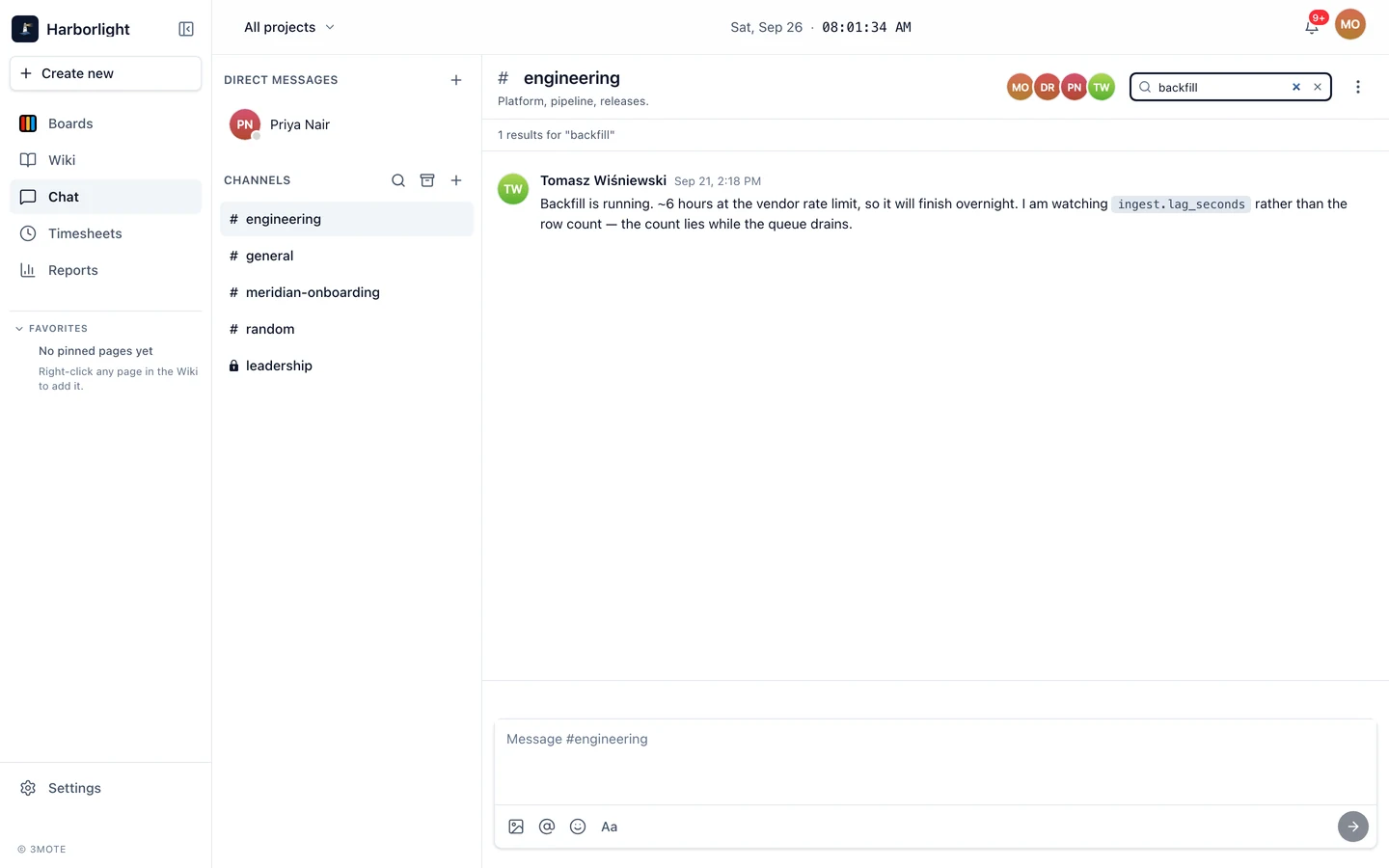
Every conversation header carries a Search messages box — direct message or channel, it’s the same control. Type at least two characters and the timeline is replaced by a results list, newest first, under a line reading N results for “your query”. Clear the box with its X (or delete back below two characters) and the timeline returns at its newest point.
- Search looks only inside the conversation you’re in. To find something elsewhere, open that room and search there.
- At most 50 matches come back. If what you want isn’t there, narrow the query.
- Replies inside threads appear as their own rows, so a reply is findable without opening its thread.
- System lines such as “Alice added Bob to the channel”, and deleted messages, don’t appear.
Results render exactly like timeline rows — same author, reactions and attachments. If a result has replies, its View thread link opens the thread it belongs to. Your draft and any open thread survive a search; your scroll position doesn’t.
Threads
A thread keeps a side-conversation attached to one message instead of spreading down the room.
Hover a message and click Reply in thread. A Thread panel opens on the right: the original message at the top as read-only context, replies below it oldest first, and a Reply… composer at the bottom. The timeline stays visible beside it. The composer behaves like the main one — Enter sends, Shift+Enter breaks the line, and mentions, formatting, emoji and attachments all work. See Messages.
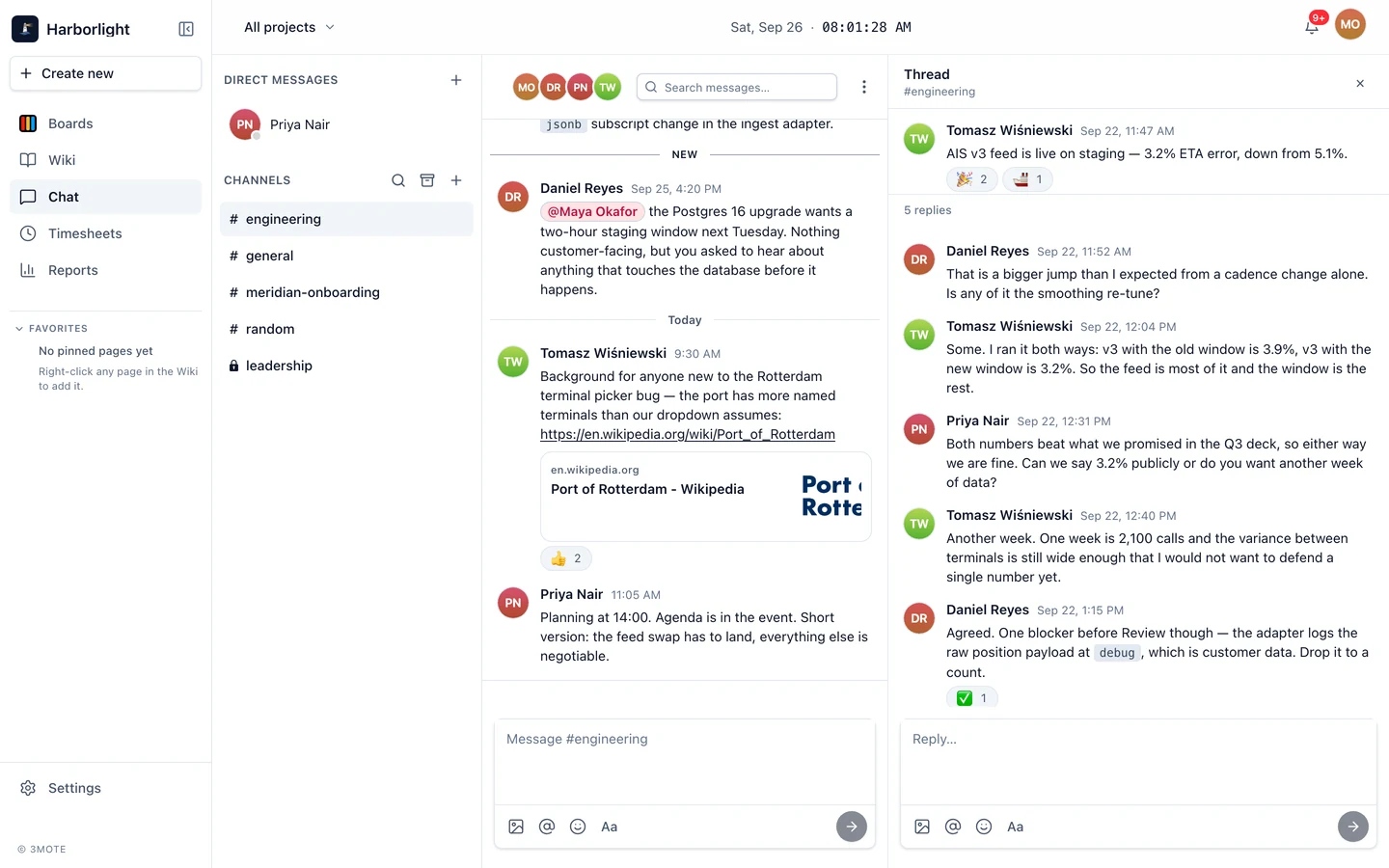
A message with replies grows a footer showing up to three of the people who replied, a 1 reply / N replies count, and View thread. Click anywhere on it to open the thread. Threads are one level deep — you can’t reply to a reply; if a discussion needs a new direction, post a fresh message in the conversation.
A thread with replies you haven’t read shows a count on that footer. Opening it clears the count for you; your teammates keep their own.
To close the panel, press Esc, click Close thread, or move to another conversation.
A reply notifies the same way a top-level message does: if it mentions you, you get a row in your notifications drawer and a badge tick. A reply that doesn’t mention you surfaces as the thread’s unread count rather than a desktop alert. See Notifications.
Muting a conversation
Open the ⋯ menu in the conversation header and pick Mute notifications. A crossed-out bell appears beside that conversation in the sidebar.
Mute turns off the desktop alert that pops over your other windows. Two things still get through: a mention — either a direct @-mention of you or an @all in the channel, because muting silences ambient activity, not someone addressing the room — and the unread count, because mute doesn’t pretend the messages didn’t arrive.
To undo it, open the same menu and pick Unmute notifications. Mute is yours alone and changes nothing for anyone else in the room.
Read state
Read state is automatic — there’s no “mark all read” button. A conversation clears when you scroll far enough that the newest message is fully on screen, when you click into the composer, or when you come back to the window with the conversation open.
A message that arrives while the window isn’t focused stays unread until you return, so a notification on your phone isn’t cleared by a background tab.
The New divider stays put for the whole visit, even after the badge clears, so you can still see where you left off. To keep messages unread for later, leave the conversation without scrolling to the bottom.
Keyboard shortcuts
| Keys | What it does |
|---|---|
| Enter | Send the message or reply |
| Shift+Enter | Line break inside the message |
| Cmd/Ctrl+Enter | Send from anywhere, including inside a list or code block |
| Cmd/Ctrl+B, Cmd/Ctrl+I | Bold, italic |
| Enter / Esc while editing | Save / cancel the edit |
| Esc | Close the thread panel |
| Left / Right, Esc in the lightbox | Previous / next image, close |
Related: Messages and Links and attachments.