Notifications
3mote tells you when something needs you — a mention, an assignment, a comment, a reply — and it all arrives in one place: the bell in the top bar.
The bell
The bell sits to the left of your avatar. When you have unread items, a small badge shows the count, capped at 9+. The badge updates live, so a mention lands there within a second of being sent — no refresh needed.
Click the bell to open the tray.
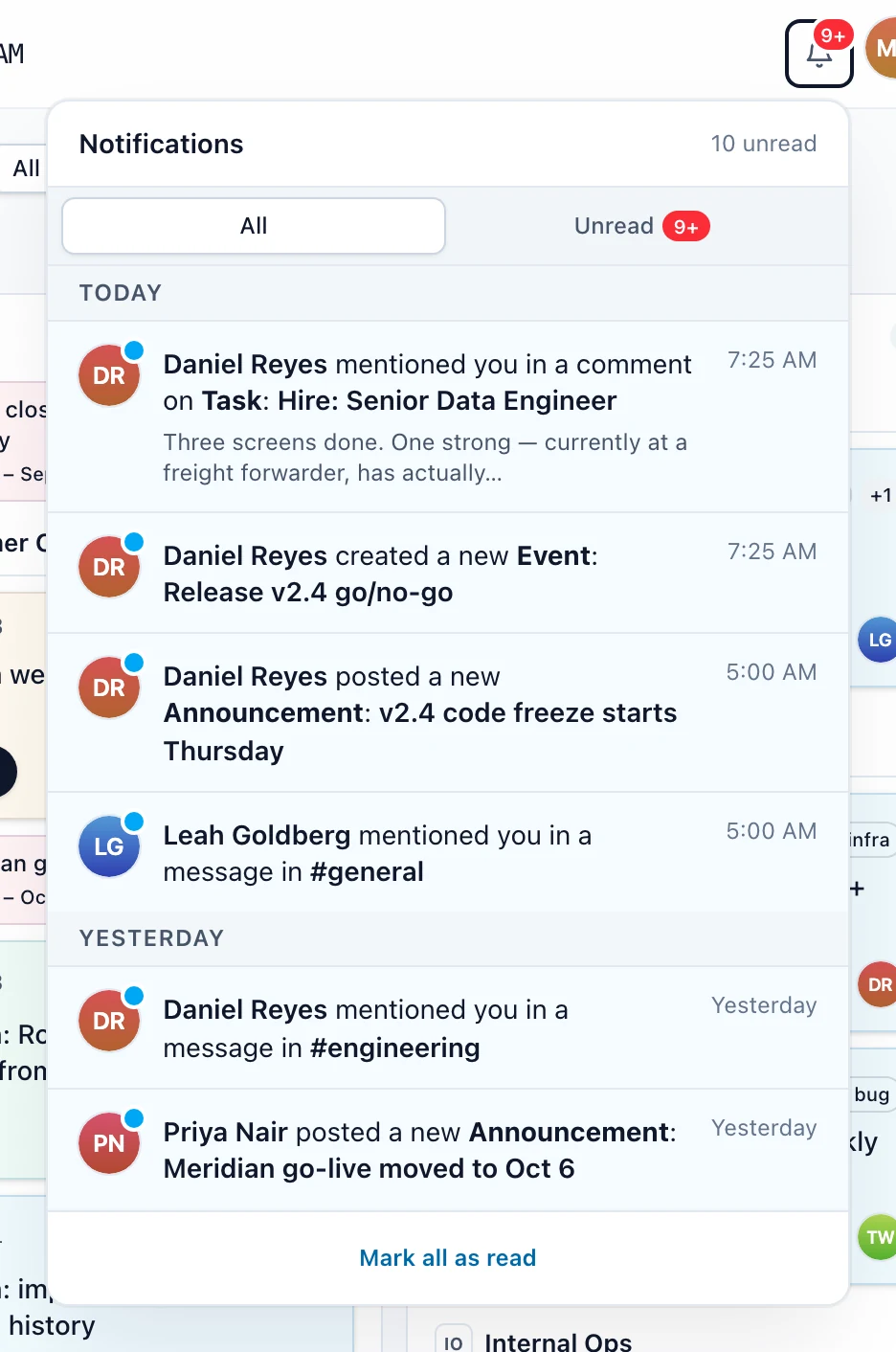
The header shows Notifications and either the unread count or All caught up. Two tabs filter the list: All is everything, Unread is only what you haven’t opened yet.
Each row carries the avatar of whoever caused it, a sentence describing what happened, and a timestamp. Unread rows sit on a tinted background with a small blue dot on the avatar.
Grouping
Rows are grouped under date headings, newest first: Today, Yesterday, a weekday heading such as “Mon, Apr 28” for the rest of the last week, then a full date for anything older. Each row’s timestamp follows the same logic. Scroll to the bottom and older notifications load automatically.
Marking as read
- Clicking a notification marks it read — the usual way the badge goes down.
- Mark all as read sits in a footer whenever you have unread items. It clears everything at once and disappears when you’re caught up.
With nothing waiting, the tray shows No unread notifications or No notifications yet instead of a list.
Clicking through to the source
Every notification opens the thing it’s about, from anywhere in the app:
- A card notification — mention, assignment, move, comment, reply, a new event or announcement — opens that card on its board. If it’s about a specific comment, that comment is scrolled into view and briefly highlighted.
- A wiki mention opens the page. A wiki comment notification also surfaces its thread, either in the comments rail or in the discussion at the bottom of the page.
- A chat mention opens the conversation and flashes the message. Being added to a channel opens that channel.
- A storage warning opens the storage meter in workspace settings.
Two kinds don’t navigate, because there’s nothing left to open: a deleted card, and being removed from a channel. Clicking those marks them read and closes the tray.
Browser notifications
3mote can raise a desktop notification for new chat messages. The first time you visit Chat, a prompt appears: Get notified about new messages, with Enable and Maybe later. Either button dismisses it for good — 3mote won’t keep asking.
These fire only when 3mote is in a background tab or window. If you’re looking at the conversation, the message simply appears in it.
Turning them on or off later
Go to Settings and pick the Notifications tab. The Browser notifications section has one toggle — Show browser notifications for new chat messages — and a status pill telling you where your browser stands:
- Allowed by this browser — permission granted; the toggle does the rest.
- Not yet asked — turn this on to allow — switching the toggle on triggers your browser’s permission prompt.
- Blocked by this browser — permission was refused. 3mote can’t ask again; allow notifications for the site in your browser’s own settings first.
You can revoke the permission from your browser settings at any time, independently of this toggle.
Related pages
- Messages — mentions and muting.
- Comments and activity — wiki threads.