Time tracking
Time tracking in 3mote starts where the work already lives: on a card. Click the timer on a card, do the work, click stop, and the entry lands on your timesheet for that day. Nothing to re-key at the end of the week.
Where it lives
Time tracking sits under Timesheets in the left sidebar. Clicking it opens the Timesheets menu beside the main rail:
- Time entries — your timesheet, the main surface for reviewing, editing, and adding time. See Your timesheet.
- Approval — the review queue for submitted timesheets. Only Account Owners, Administrators, and Managers see this entry. See Submitting and approvals.
Reports live under Reports in the left sidebar — see Performance reports.
The Timesheets area isn’t available to Guest accounts.
Starting a timer from a card
Hover any card on a board and a small clock button appears on the card face. Click it to start tracking time against that card. Inside the card detail view the same control renders as a labelled Start timer button.
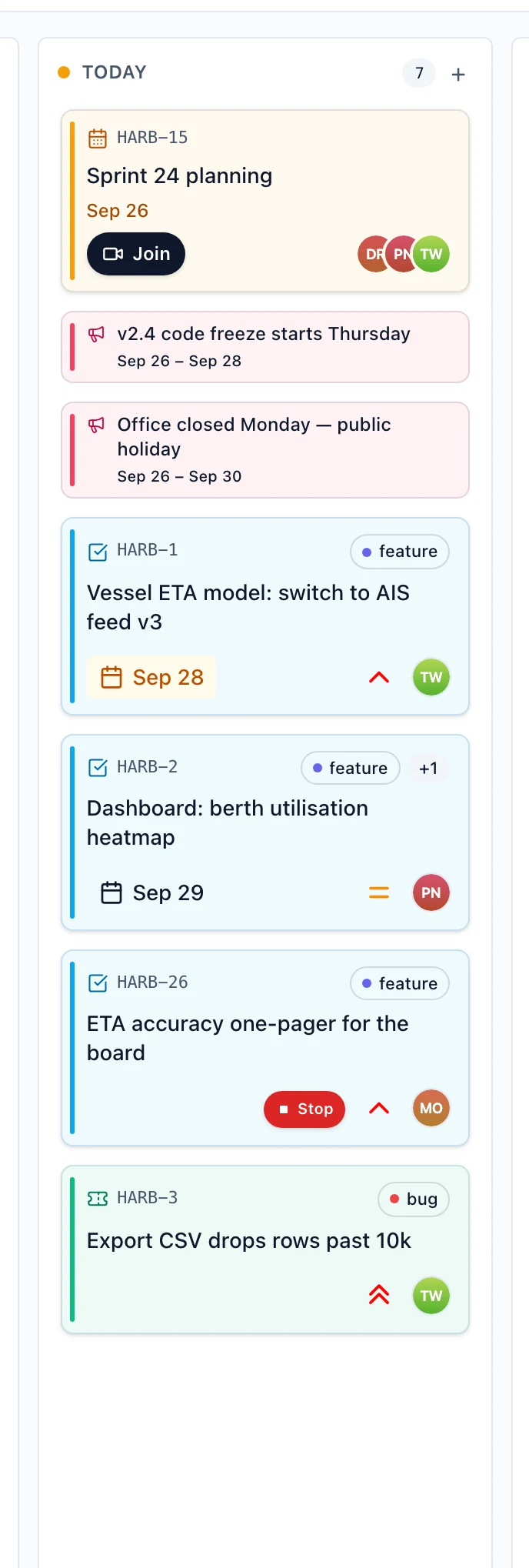
While the timer runs, that card shows a red Stop timer pill — it stays visible rather than hiding on hover, so you can always find the card you’re clocked into. Click it to stop.
Timers are only available from columns that allow timing. Out of the box that’s Today, Review, and Done; your workspace can change this per column. On a card in a column that doesn’t allow timing, the clock shows with a slash through it and the tooltip explains that timers are off for that column. You can still add time for that card by hand from your Timesheet — column settings only affect the timer. A timer already running on a card can always be stopped, even if the card has since moved to a column that doesn’t allow new timers.
One timer at a time
You can only have one timer running. Starting a timer on a second card stops the first one automatically and files it on your timesheet — you never end up double-billing two cards for the same minutes.
While a timer is running you’ll see it in three places:
- the red Stop timer pill on the card itself
- a Running badge on the card in the Available work rail of your timesheet
- a live block on the timesheet calendar whose bottom edge grows every second
Forgotten timers stop at 8 hours
A timer that has been running for more than 8 hours is stopped automatically, with its end time set to exactly 8 hours after it started. The 8 hours still count: the entry is filed on that day’s timesheet like any other stop, so your day total doesn’t quietly undercount. You don’t need to do anything to trigger this — it’s applied the next time you or the app touches your timer.
If you forgot to start a timer, or a timer ran long, just fix the start and end times on the entry afterwards. See Your timesheet.
What’s on this section
- Your timesheet — Day and Week views, Calendar and List, adding and editing entries, the available-work rail, and your timesheet preferences.
- Submitting and approvals — submitting your days for review, what locks when you do, and how managers approve or reject.
Your workspace can round every time entry to a regular minute boundary — see Organization settings.