Signing in
Sign-in for every 3mote workspace happens on one page, at
login.3mote.com. If you open your workspace address directly while
signed out, 3mote sends you there and brings you back to the page you were
after once you’re in.
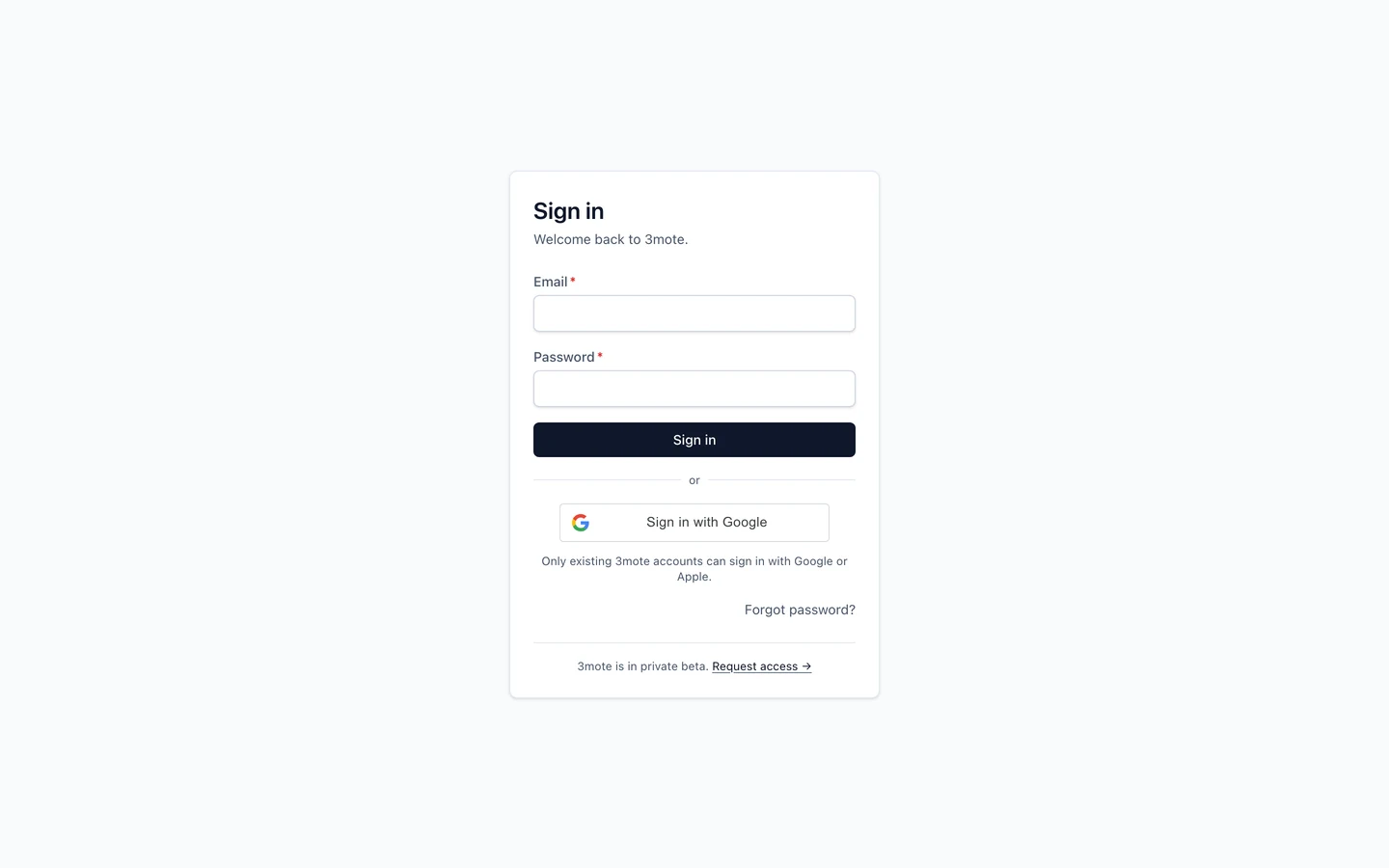
Signing in with a password
Enter your Email and Password and click Sign in.
If something’s wrong, the page tells you which:
- Incorrect email or password — check both and try again.
- Account temporarily locked — too many failed attempts in a row. Wait a few minutes, or use the Reset your password link in the message.
- Email not verified — your account was created but never confirmed. Click Resend code, then enter the 6-digit code from your email and Verify and sign in.
Choosing your workspace
After you sign in, 3mote looks at which workspaces your account belongs to.
- One workspace — you go straight there.
- Several — you see Choose a workspace with a card per workspace showing its name, logo and address. Click one to open it.
- None — you see No workspace found. Your account isn’t a member of any workspace yet; ask an administrator in your organization to invite you.
If you came from a workspace address, 3mote returns you to that workspace rather than asking.
Continue with Google or Apple
Below the password form, where your workspace has them enabled, are Continue with Google and Continue with Apple.
These sign you in to an account that already exists in 3mote — they don’t create one. If your email isn’t already a member of a workspace, the sign-in is refused; ask an administrator to invite you first, then use the button.
Using Google or Apple doesn’t replace your password. Both keep working on the same account, so use whichever is convenient.
Forgot your password
Click Forgot password? on the sign-in page.
- Enter your email and click Send reset code. 3mote emails you a 6-digit code. The confirmation screen also offers Resend code and Use a different email.
- Click Continue → Reset password.
- Enter the code, then your New password and Confirm new password, and click Reset password.
Your password must be at least 12 characters and include an uppercase letter, a lowercase letter, a number and a symbol.
Codes expire. If yours has, or the code is rejected, the page says so and you can request a new one from the link at the bottom of the form.
Signing out
Open the account menu under your avatar in the top bar and choose Sign out. 3mote ends the session everywhere and returns you to the sign-in page. Signing out of one workspace signs you out of the others too, since it’s one account and one session.
If your account has been deactivated
An administrator can deactivate an account. When that happens:
- 3mote emails you to say your access to the workspace has been suspended.
- Any tab you have open is signed out right away, with a message that your access has been revoked, and you’re returned to the sign-in page.
- Your password still works, but signing in won’t get you back into that workspace until an administrator reactivates you — which also sends you an email.
Nothing you created is deleted by a deactivation.
Related pages
- Accepting an invite
- Your profile
- Users — for administrators who invite, deactivate and reactivate people.