Workspace settings
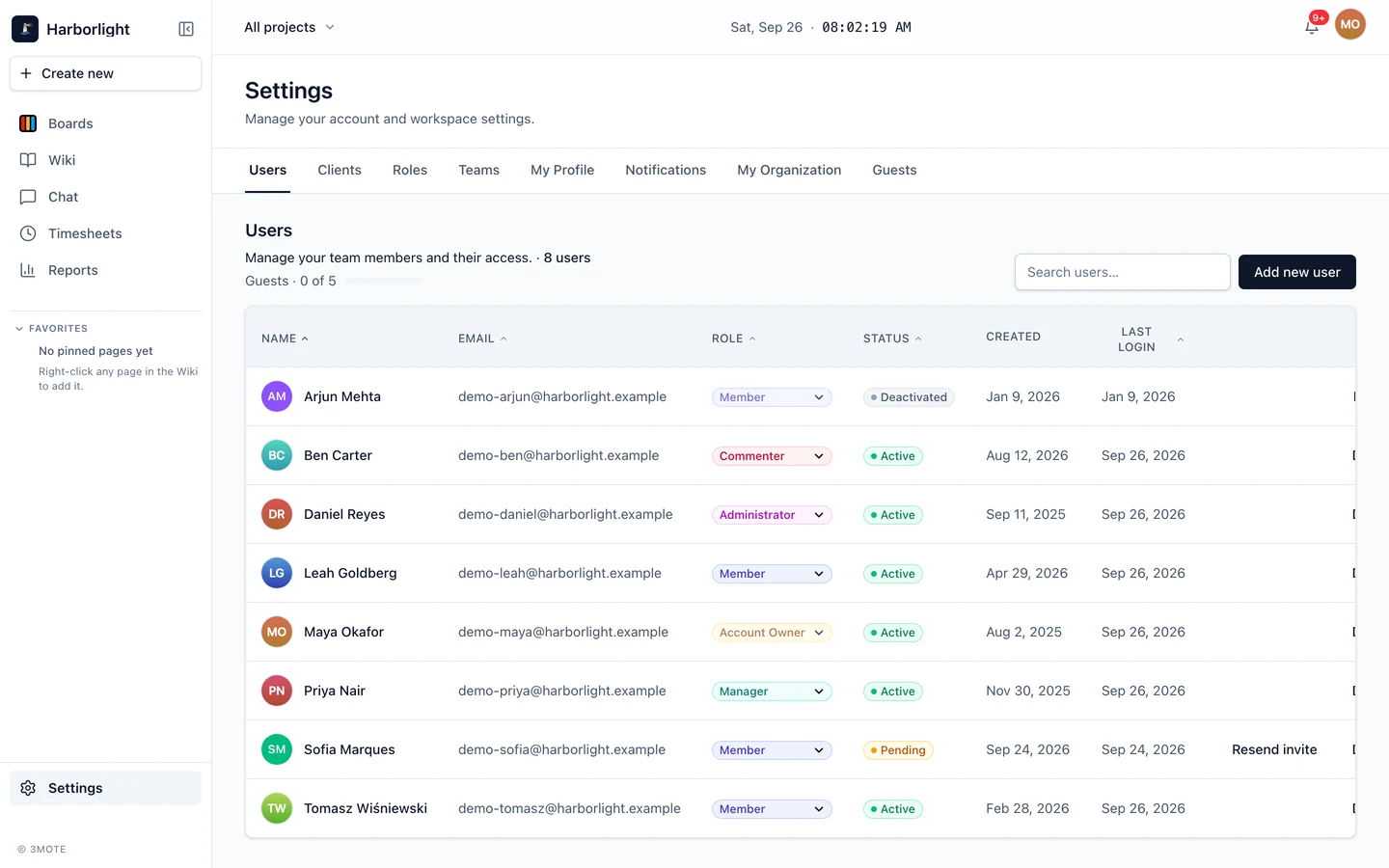
Settings sits at the bottom of the left sidebar, below the product sections. Everyone sees the entry, but the tabs inside it filter themselves to what your role is allowed to change — so two people on the same workspace can open Settings and see a different set of tabs.
Settings is workspace-wide. Anything scoped to a single board — its columns, its labels, its members — lives in that project’s own settings instead. See Projects.
The tabs
In the order they appear:
| Tab | What it covers | Who sees it |
|---|---|---|
| Users | Invite people, change roles, deactivate and reactivate accounts | Account Owner, Administrator |
| Clients | The companies you do the work for | Account Owner, Administrator |
| Roles | The role catalogue and what each role may do | Account Owner, Administrator |
| Teams | Named groups of people you can add to a project in one go | Account Owner, Administrator |
| My Profile | Your own name, photo, timezone, theme, language, first day of the week | Everyone |
| Notifications | Which events notify you, and how | Everyone |
| My Organization | Organization name, logo, website, storage, time rounding, Done-card visibility | Account Owner |
| Guests | External guest accounts, their seat allowance and each guest’s chat channel | Account Owner |
Visibility follows permissions, not job titles. Each management tab is shown only to someone who holds the matching permission, so if an Administrator is granted organization permissions through a custom role, the My Organization tab appears for them too. The reverse holds as well — a role stripped of a permission loses the tab. See Roles and permissions.
Manager, Member, Commenter and Reader see My Profile and Notifications only.
What’s on this section
- My Organization — your organization’s name, logo, website, storage usage, and the window that controls how long finished cards stay on a board.
- Users — invites, roles, the Pending / Active / Deactivated status pill, and deactivation.
- Roles and permissions — the built-in role ladder, what each role can do, and how to build a custom role.
- Teams, clients and guests — grouping people, tracking who you bill against, and external guest access.
- Projects — creating a project and everything on its own settings page: details, labels, statuses, members, archiving.
- Plans and storage — what Starter, Standard and Premium include, and what happens when you go over a limit.
Your personal settings are covered separately in Your profile and Notifications.