My organization
Settings → My Organization holds the settings that belong to the whole workspace rather than to you or to one board. The tab is shown to the Account Owner; anyone else who can reach it sees a read-only notice (“You’re viewing this in read-only mode. Ask an admin if you need changes.”) instead of editable fields.
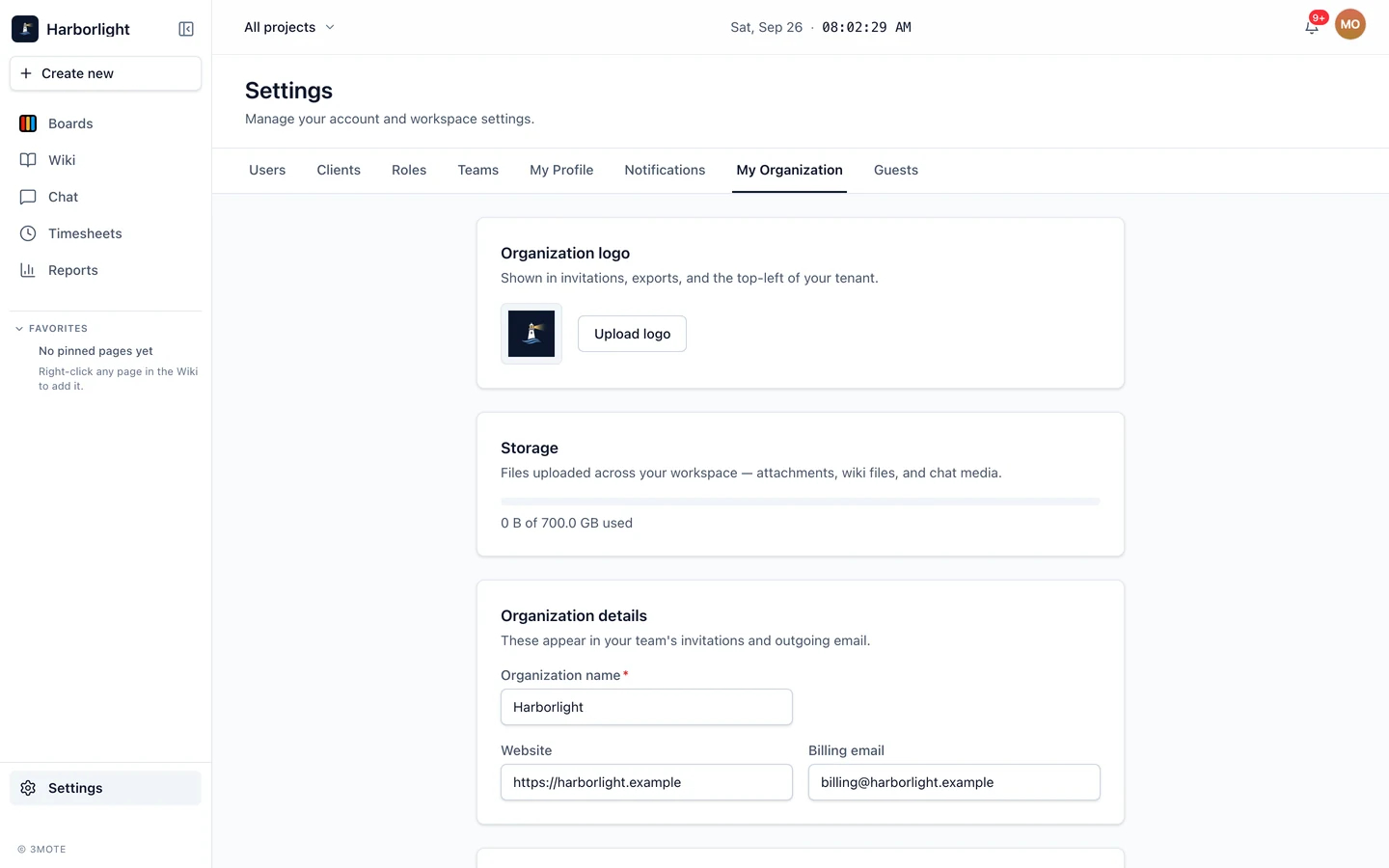
Organization logo
The first card is Organization logo. Click Upload logo and pick a file — the logo saves as soon as the upload finishes, separately from the rest of the page. Until you upload one, the card shows the first letter of your organization name.
The logo appears in invitations and exports. On a paid plan it also replaces the 3mote wordmark at the top of the sidebar, so your team sees your brand instead of ours. On Starter the sidebar keeps the 3mote wordmark. See Plans and storage.
Storage
The Storage card is a read-only meter: a bar plus a line reading “X of Y used”. It counts every file your workspace has uploaded — card attachments, wiki files, and chat media. The bar turns amber past 80% and red once you are at or over the limit, where it also tells you that new uploads are paused. Nothing is ever deleted automatically. Details in Plans and storage.
Organization details
These appear in your team’s invitations and outgoing email.
- Organization name — required. This is the name your workspace goes by, and it also names your own internal client on the Clients tab.
- Subdomain — read-only. The label in front of
3mote.comthat your workspace lives at. - Website — optional, for example
https://acme.com. - Billing email — optional, for example
billing@acme.com.
Time entries rounding
Round every time entry to a regular minute boundary. Start times and Stop times are configured independently: switch each one on, pick a Rounding increment (5, 6, 10, 15 or 30 minutes, or 1 hour) and a Rounding direction (Up, Down or Nearest). A live example — “Example: 9:07 → 9:15” — shows the effect of your pick, and a short note explains who each direction favours.
Rounding applies everywhere a time entry is created or changed: manual entries, the timer, edits, and dragging on the timesheet calendar. With both switches off, times are stored exactly as entered. See Time tracking.
Done cards
Hide Done cards from the board after sets the organization-wide window for how long a finished card keeps showing in a Done column. Choose Never (nothing is ever hidden) or 1, 3, 7, 14, 30 or 90 days. New workspaces start at 7 days.
Hidden cards are not deleted. They keep every field, comment and attachment, and they still turn up in search, in notification links, and anywhere a card is referenced. An individual project can override this window — see Projects — and Cards covers what the Done column does.
Saving
One Save changes button at the bottom commits the organization details, the rounding settings and the Done-cards window together. The logo is the exception: it saves on upload.