Users
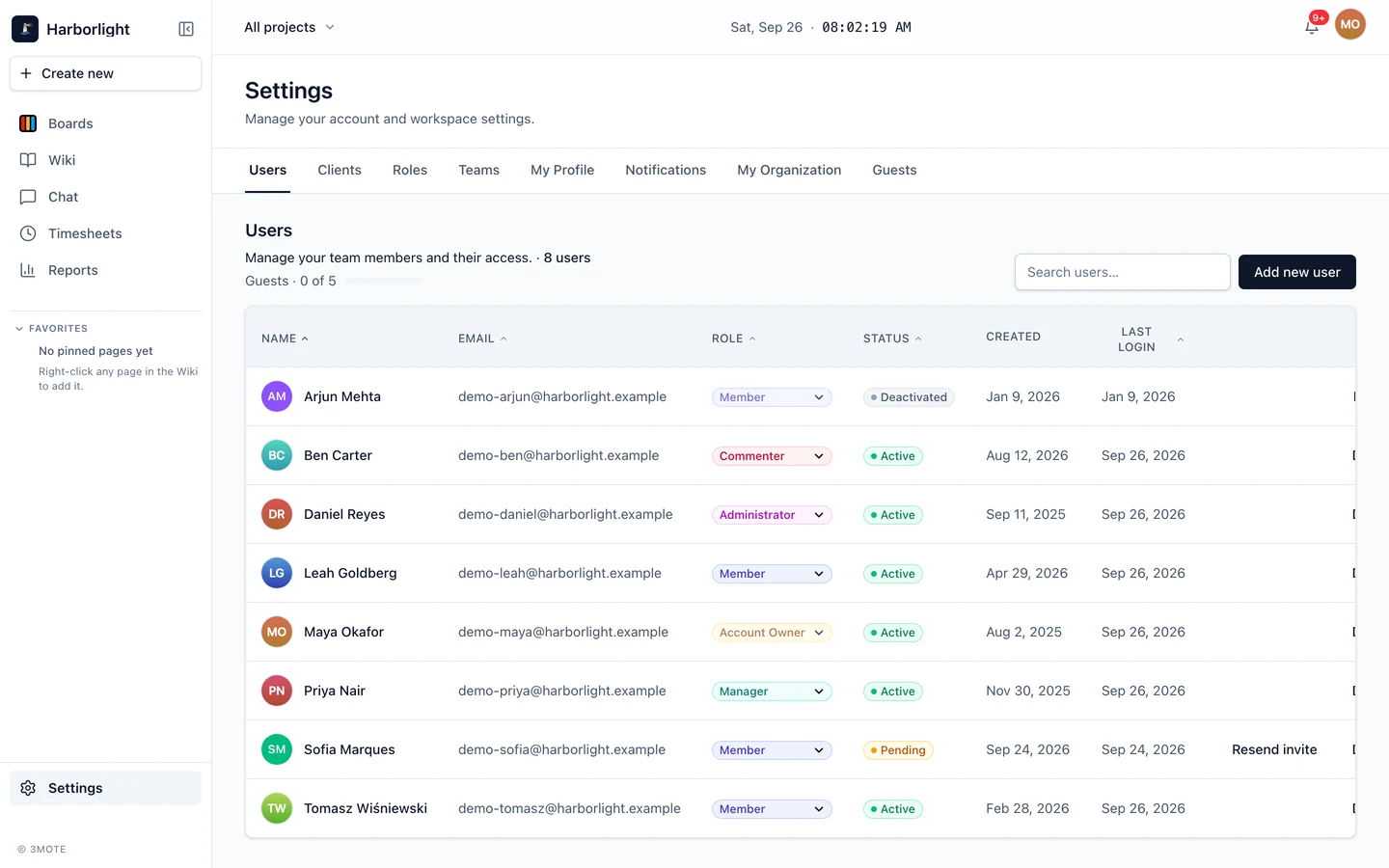
Settings → Users is the roster of everyone on your workspace. The tab is shown to the Account Owner and to Administrators, and to any custom role granted the user-management permission.
The subheading counts your users, and the search box on the right filters the table as you type — it matches on name, email and role. Every column header except Created sorts; click it again to reverse the direction.
| Column | What it shows |
|---|---|
| Name | Avatar and display name (their email, if they haven’t set a name yet) |
| The address they sign in with | |
| Role | A dropdown you can change in place |
| Status | Pending, Active or Deactivated |
| Created | When the account was added |
| Last login | The last time they signed in |
Inviting someone
Click Add new user. The Invite a new user dialog asks for:
- Full name — required.
- Email — required.
- Role — defaults to Member. See Roles and permissions for what each one can do.
- Chat channel — appears only when the role is Guest. Defaults to No channel; see Teams, clients and guests.
Click Send invite. 3mote emails them a sign-in link; they pick their own password on first use. Walk them through Accepting an invite.
If your plan’s guest allowance is full, the Guest option in the role list is marked “limit reached” and a line under the field explains why. Picking it snaps the selection back. See Teams, clients and guests.
Editing a user
Click Edit on a row to open Edit user. It changes:
- Full name, Job title, Phone and Timezone. The email is shown but can’t be changed.
- Role — the same options as the invite dialog. You can’t change your own role, and a deactivated user’s role is locked until you reactivate them.
- Chat channel — shown only while the role is Guest. Pick a public channel or a private one you belong to, or No channel. A deactivated guest’s channel is locked until you reactivate them.
Click Save changes. Turning a Member into a Guest from the Role dropdown in the table opens Edit user with Guest selected, so you choose the chat channel in the same step. Switching a guest to any other role saves straight away.
Status
- Pending — invited, but they haven’t finished signing in yet.
- Active — signed in at least once and able to work.
- Deactivated — the account is switched off.
Resend invite
A Resend invite action appears on pending rows only. It issues a fresh link and emails it again, which is the fix for an invite that was lost, deleted, or left too long.
Changing someone’s role
Use the dropdown in the Role column (or Role in Edit user). The change applies immediately and a confirmation appears. Choosing Guest opens Edit user first, as described above. Two rules:
- You can’t change your own role from this table.
- A deactivated user’s role is locked. Reactivate them first.
You can only assign a role you’re allowed to hand out, and someone who is the last remaining owner of a project can’t be moved to a role that would leave that project without one — add another project owner first.
Deactivating and reactivating
Deactivate switches an account off, and it takes effect at once: any tab they have open is signed out immediately, and they can’t sign back in. Nothing they created is deleted — their cards, comments, messages and documents all stay exactly where they are, so history reads correctly.
Reactivate turns the account back on. They sign in the way they always did; if they’ve forgotten their password they can reset it from the sign-in page. See Signing in.
Deactivating is the right move when someone leaves. It is also how you free a guest seat without losing the record of their work.