Messages
Chat is the conversation surface inside your workspace, running beside your boards so you can talk through work without leaving the app.
The Chat sidebar
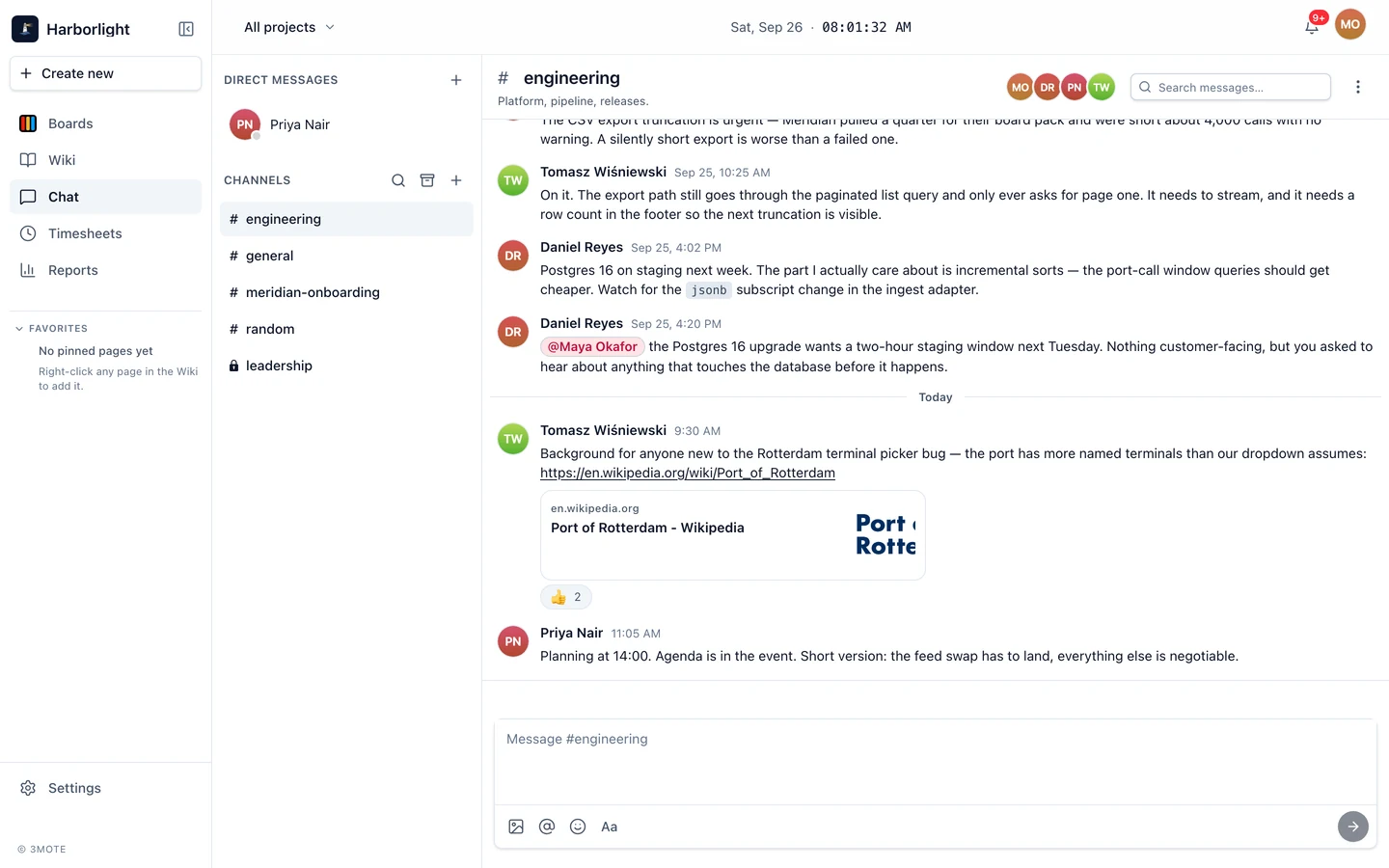
Open Chat from the left sidebar. The pane splits into Direct Messages (one-on-one, each row showing an avatar with a presence dot) and Channels (rooms you’ve joined — a lock instead of # marks a private one, italics mark an archived one).
An unread count sits at the end of any row with messages you haven’t seen, and the Chat nav item carries the total; counts cap at 999+. A crossed-out bell marks a muted conversation.
The Direct Messages heading has a +. The Channels heading has up to three buttons: Browse channels, View archived channels (only if you can manage channels), and Create a new channel.
Starting a direct message
Click + beside Direct Messages and search by name or email. A DM between you and a given person is one conversation forever — starting a “new” one re-opens your existing history.
Creating a channel
Click + beside Channels. New channel asks for a Name (up to 80 characters; lowercase letters, numbers, dashes and underscores, starting with a letter or number), an optional Description (up to 1000 characters, shown in the header and in browse), and Make private — off by default, and private channels are invite-only.
Browse channels lists every public channel you haven’t joined with its description and member count; click Join. Private channels never appear there — someone who manages the channel adds you.
Sending a message
Enter sends. Shift+Enter adds a line break. Cmd/Ctrl+Enter also sends, including from inside a list or code block where bare Enter continues the list or the code instead. If a file is still uploading, Enter queues the send until it finishes.
Your message appears immediately, and while you type, the others see a ”… is typing” line below the timeline.
Formatting
Click Aa in the composer’s bottom bar for the formatting row: Bold, Italic, Underline, Strikethrough, Insert link, Ordered list, Bullet list, Quote, Inline code and Code block. Shortcuts work too (Cmd/Ctrl+B, and so on), and a bubble menu appears when you select text. If the composer is too narrow for every button, the rest move into a searchable More actions (⋯) menu. A message made only of emoji, up to three, renders large.
Mentioning someone
Type @ and pick a person. In a channel you can also pick all to address everyone: every member of the channel gets a notification and a push to their phone, the same as if you had mentioned each of them by name. @all isn’t available in direct messages. Type # to link a channel — navigation, not a mention, so it notifies nobody.
Mentioning yourself does nothing, and neither does mentioning someone who isn’t in the conversation. Editing a message to add a mention notifies only the newly-added people. Both a direct @-mention and an @all reach you even in a muted conversation. See Notifications.
Referencing a card
Type a card’s code followed by a space or punctuation — HARB-12 — and it becomes a chip showing the card’s kind, code, title and column. Nothing happens until 3mote confirms the card exists, so a code that doesn’t resolve stays as plain text. The chip’s ⋯ menu offers Open card, Copy link and Convert to text. See Cards.
Pasting or typing a link to a task, ticket or event makes the same chip — either the card’s own page address or the address of a board with that card open. Only links to cards in this workspace convert, and only once 3mote confirms the card, so a link it can’t resolve stays an ordinary link. Announcements stay links.
Reactions, edits and deletes
Hover a message for Add reaction, Reply in thread, and — on your own messages — More actions.
Add reaction opens a picker with search, categories and skin tones. Your reaction becomes a chip with a count; click it again to remove. One message can carry many emoji, each its own chip, and hovering a chip shows who reacted.
Under More actions, Edit Message turns the row into an editor — Enter saves, Esc cancels, and the message then shows (edited). Delete Message asks you to confirm; the row stays as [message deleted] so reply chains hold, but the text is gone. Only the author can edit or delete.
Online presence
The dot on a direct-message avatar is green while that person has 3mote open and grey otherwise, in both the sidebar and the conversation header. It updates live — there is no status to set by hand.
Channel settings
If you created a channel, or your role lets you manage channels, open the channel’s ⋯ menu and pick Channel settings:
- About — the Name, Description, and the Private channel toggle.
- Members — the roster (the creator is labelled Creator), Remove, and search-and-Add. Both write a line into the timeline.
- Admin — Archive channel, which hides it from everyone’s sidebar while keeping its messages.
Everyone else sees the same tabs read-only.
An archived channel is read-only: sending, editing, deleting and reacting are all refused until it’s restored, and its header reads (archived). View archived channels in the Channels heading lists what’s archived and when; Unarchive brings one back for everyone still in it.
Guests
A Guest gets one channel of their own, chosen for them by an Administrator, plus direct messages with the people currently in it — and those people can message them back. A guest can have no channel, in which case they have no chat. Guests can’t be added to or removed from a channel here; an Administrator changes a guest’s channel from Edit user. Archiving a guest’s channel leaves them with no channel. Browse, create and archived-channel controls don’t appear for them. See Teams, clients and guests.
Next: Links and attachments and Search and threads. Chat is also on 3mote for iOS and Android.