All Projects views
The master board gathers every card from every project you belong to. Its header carries a five-option switcher for choosing how that work is laid out: Headers, Swimlanes, Pulse, Priority, and List. Whichever you pick is saved to your account, so it follows you to any browser or device you sign in from — it isn’t just remembered on this computer.
Headers
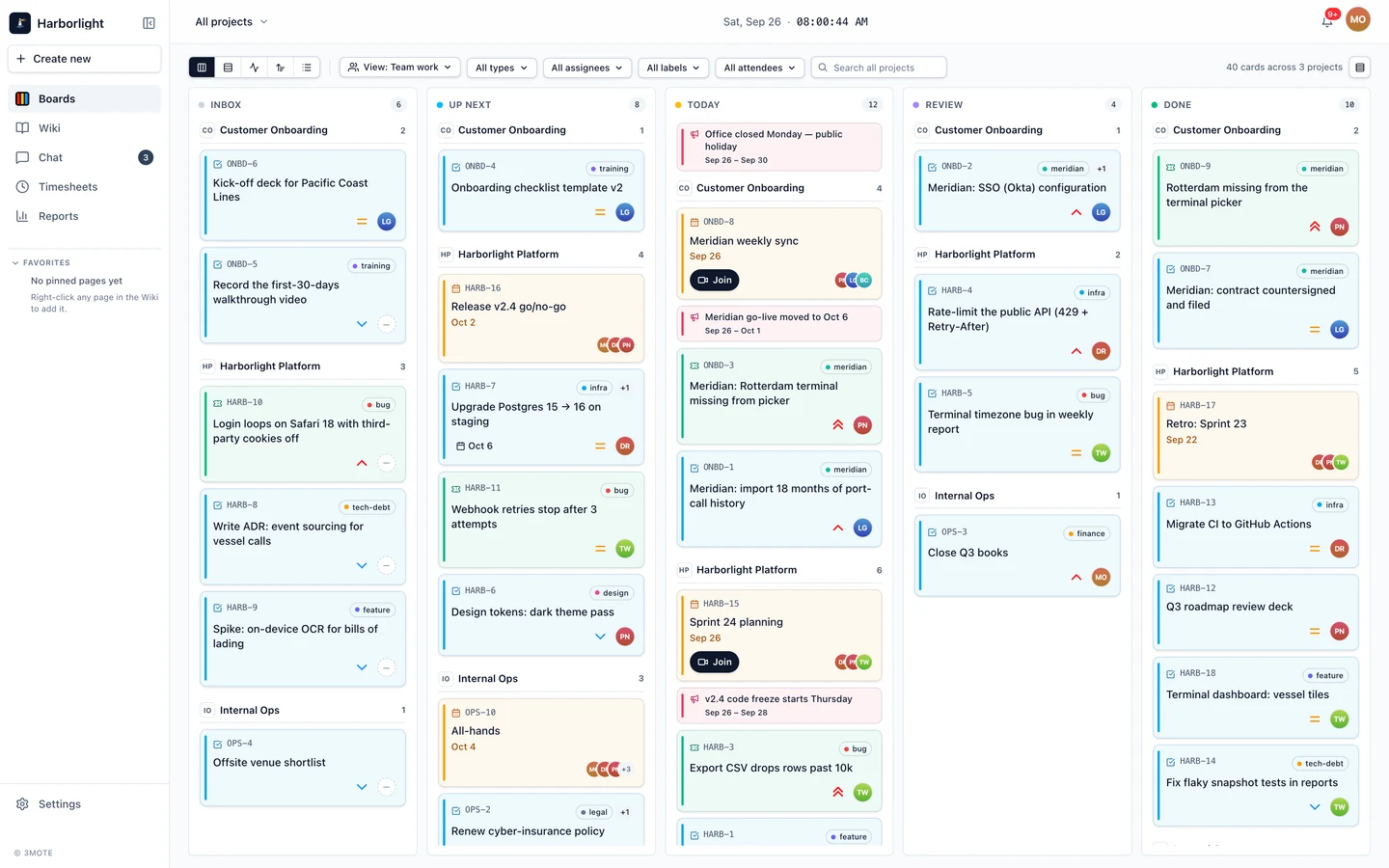
The default view. Cards sit in the same five columns as a project board — Inbox, Up Next, Today, Review, and Done — and within each column they are grouped by project. Each group’s header shows a monogram, the project’s name — a link to that project’s own board — and a count.
How cards are ordered
In Headers and Swimlanes, cards within each project group are sorted for you rather than kept in a hand-arranged order. Events and announcements come first, then tasks and tickets from Urgent down to Low, and within the same priority the oldest card comes first. A project’s own board still keeps the order you arrange by hand.
Swimlanes
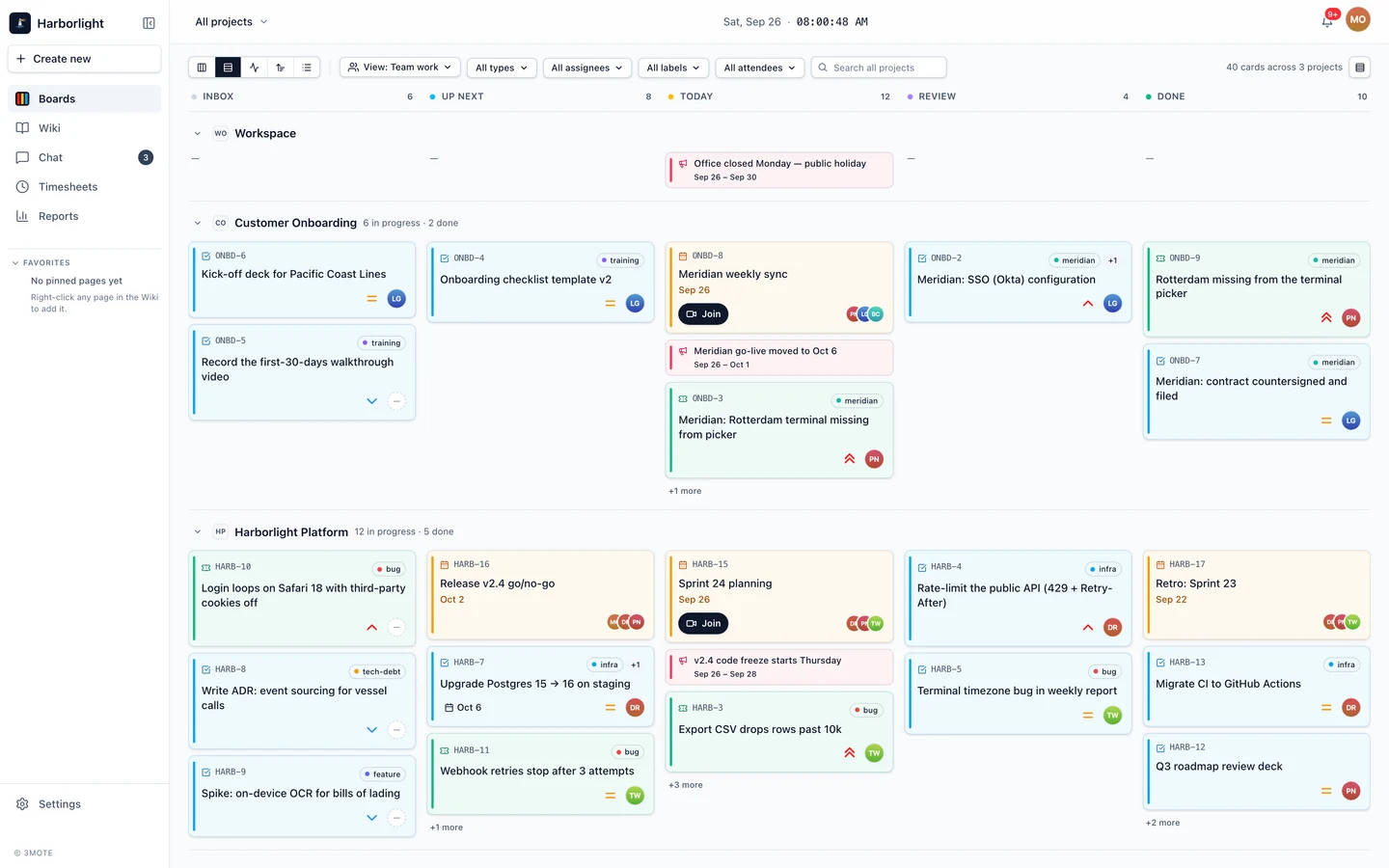
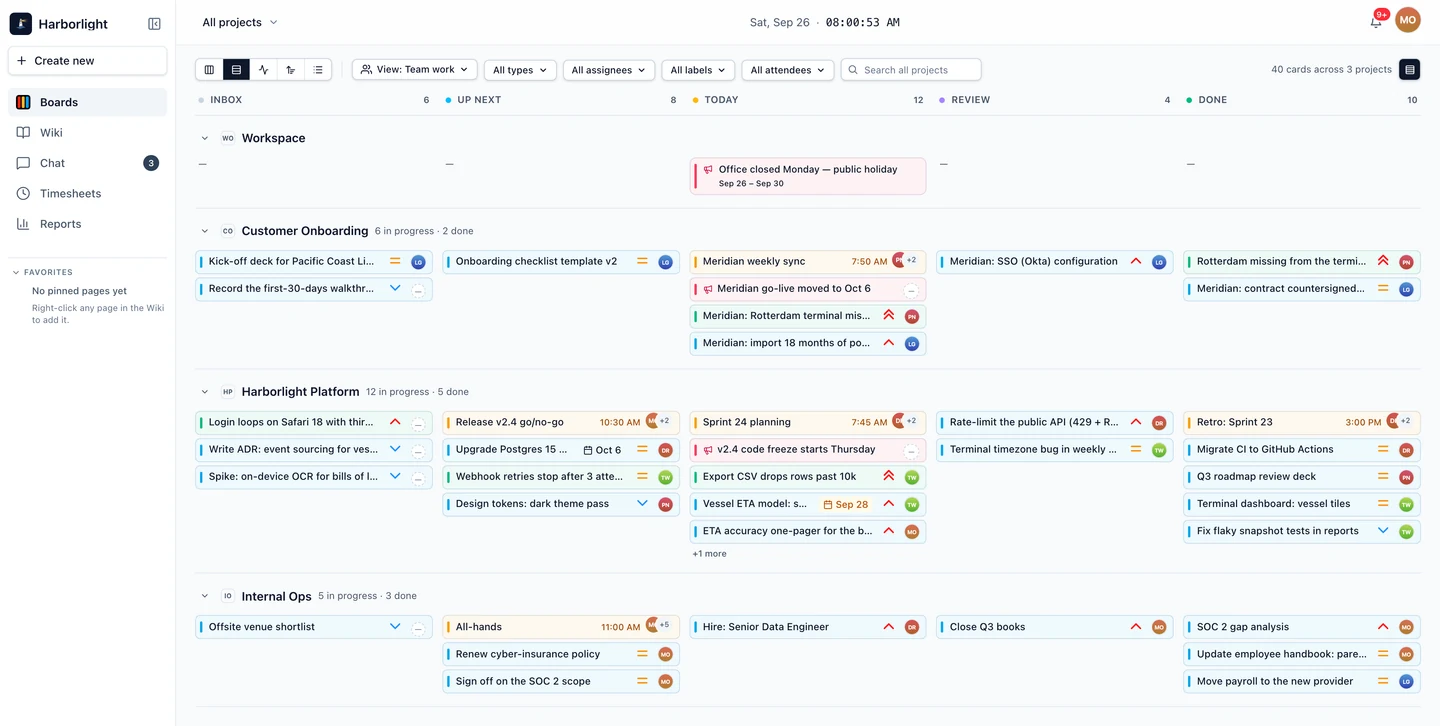
One row per project instead of one column per status. Each project with at least one card gets a lane with five cells across it, one per column, so you can scan a single project’s whole pipeline left to right, or compare several projects’ Today columns straight down. A lane’s header carries a chevron for collapsing it, the project’s monogram and name (also a link to its board), and a summary of how much is in progress and how much is done. A collapsed lane stays collapsed the next time you visit.
A cell shows only its first few cards in sorted order; when there are more, a +N more button expands the cell in place, and Show less collapses it again.
When any workspace-wide announcements exist, a Workspace lane appears first, above the project lanes.
Pulse
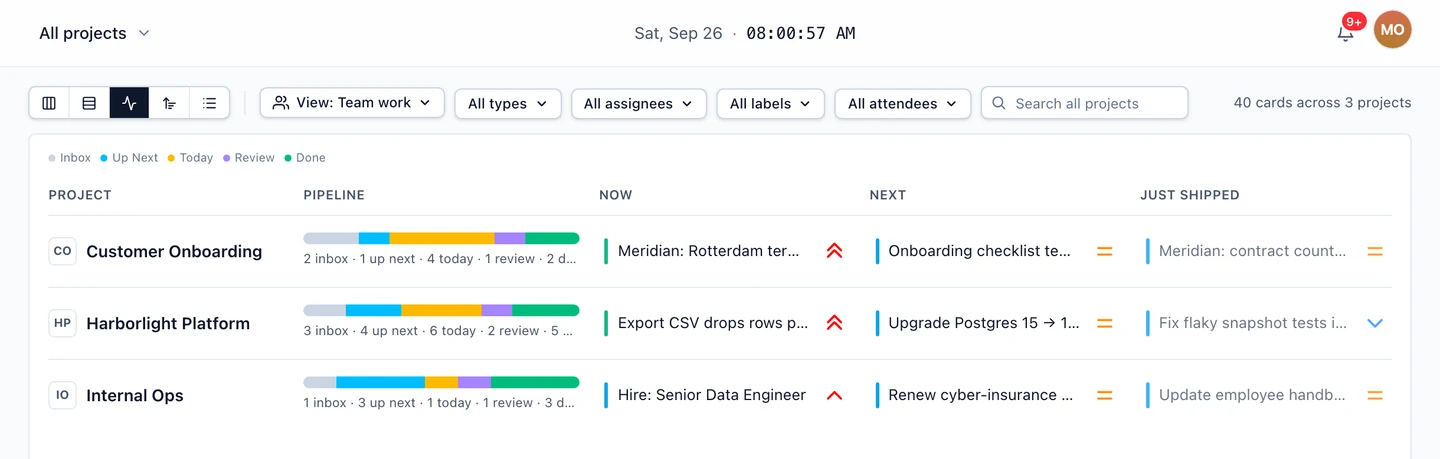
A read-only, one-line-per-project summary — the fastest way to see which projects are healthy and which are stuck. Every project you belong to gets a row, even one with nothing in flight, since an empty pipeline is worth noticing too. Each row shows the project, a proportional bar of how its cards split across the five columns, the top-priority card that’s Now in progress (in Today or Review), what’s Next in line, and what was Just shipped most recently. Click any of those three slots to open that card.
Priority
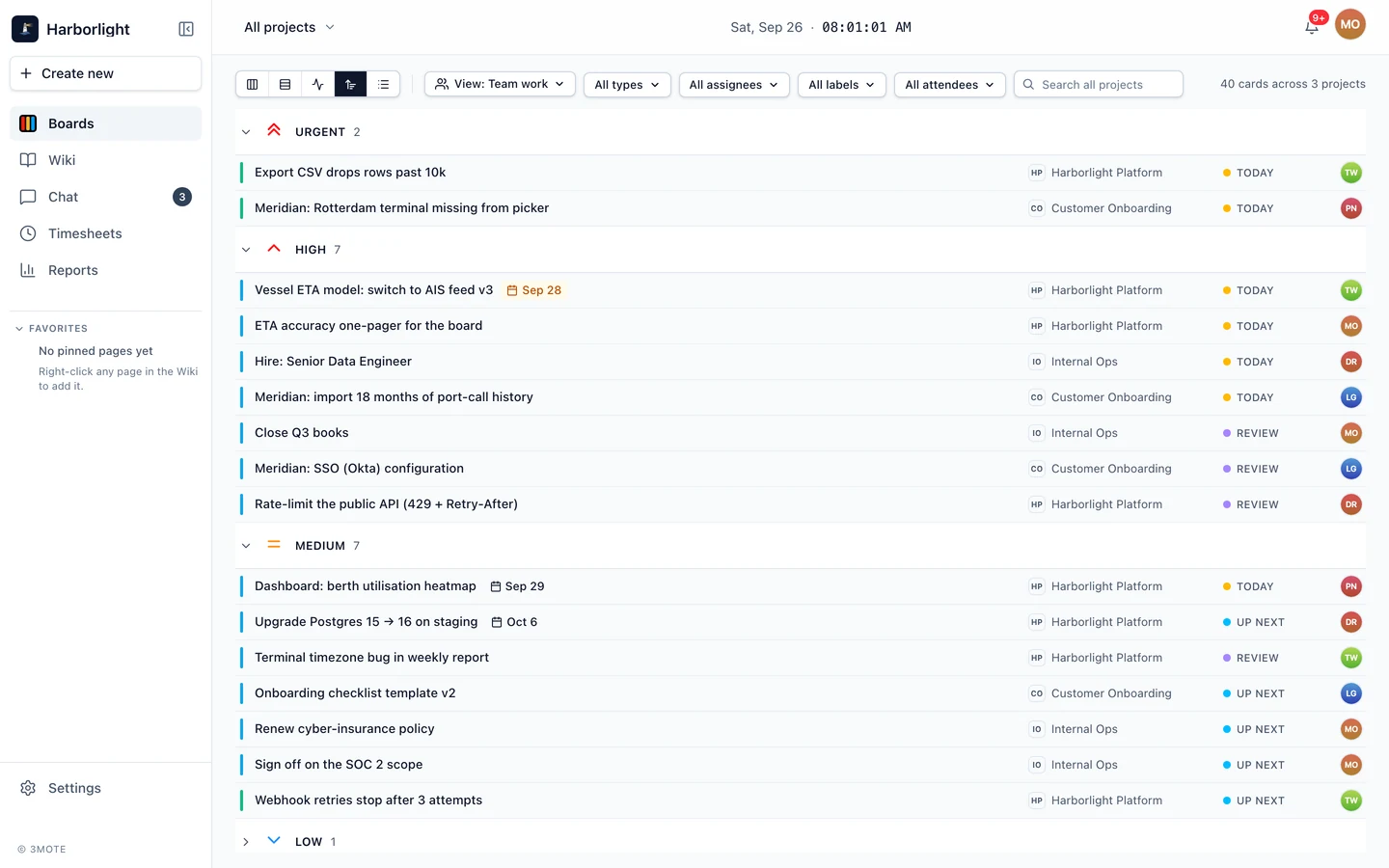
Every in-flight task and ticket across every project, grouped into Urgent, High, Medium, and Low, read-only. In-flight means sitting in Up Next, Today, or Review — Inbox and Done are left out, since this view is about what still needs attention rather than the whole backlog. Events and announcements don’t appear here; neither carries a priority. Low starts collapsed, since it’s usually the longest section, but it’s never hidden — one click opens it. Each row shows the card, its due date, the project it belongs to (a link to that project’s board), its status, and its assignee.
List
The same sortable table described in Finding cards — it’s simply one of the five options on the master board’s switcher, rather than a separate toggle.
Compact
Headers and Swimlanes both offer a Compact toggle beside the card count, shrinking cards to a single dense line — title, a due date or an event’s start time, priority, and a small avatar. Rest the pointer on a compact card for a moment and it opens up to its full size in place, so you can read its details without opening it; move away and it shrinks back. Pulse, Priority, and List have no card face to shrink, so the toggle doesn’t appear for them.
Dragging cards
Headers and Swimlanes both support drag and drop, Compact or not. Drop a card on another status within its own project to move it there — in Swimlanes, that means another cell in the same lane. A card can’t be dropped into a different project. Because cards here are sorted automatically, dragging changes a card’s status but not its place in the list: it settles into its sorted position in the new column. On the project’s own board, it lands at the bottom of that column. Pulse, Priority, and List are click-to-open only.
When the columns don’t all fit on screen, a small map in the bottom corner of Headers and Swimlanes shows which part of the board you’re looking at; click a column in it to scroll there.
Filters
The View, Types, Assignees, Labels, Attendees, and Search filters described in Finding cards apply to Headers, Swimlanes, Pulse, and Priority alike, filtering the same set of cards no matter which of the four you’re looking at. List keeps its own filter bar instead.