Boards
Boards are where the work lives. Every task, ticket, event, and announcement in your workspace sits in a column on a board, and moving it between columns is how you say what is happening to it.
There are two kinds of board: one master board that spans every project you belong to, and one board per project.
The master board
Signing in lands you on the master board — the home of your workspace
at <workspace>.3mote.com. It gathers every card from every project
you are a member of, and its header offers five ways to look at that
work — see All Projects views.
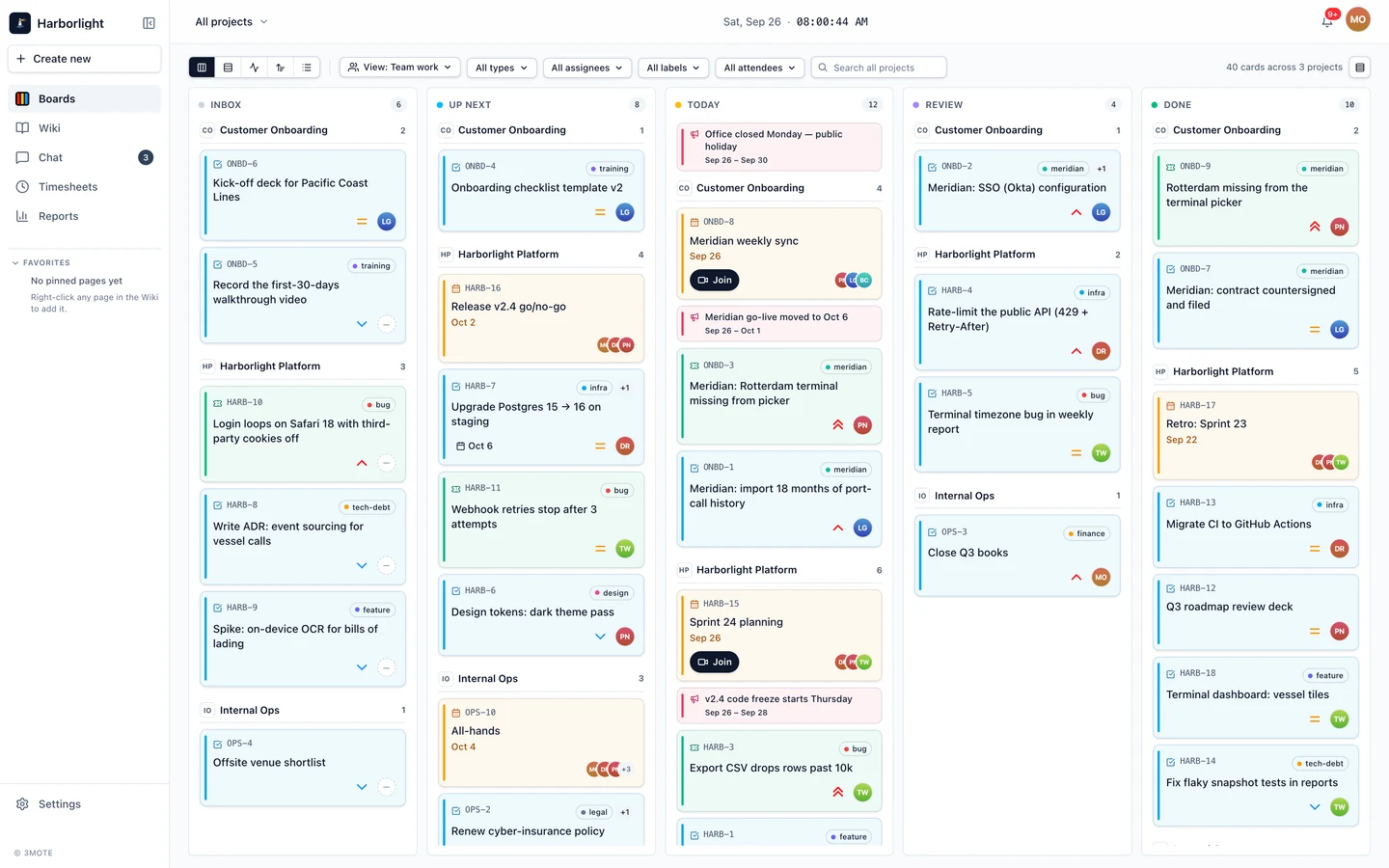
The default, Headers, arranges cards into five columns just like a project board — Inbox, Up Next, Today, Review, and Done — with cards inside each column grouped by project. Every group carries a header line with a monogram, the project’s name (a link to that project’s own board), and a count, so you can scan “what is in Today for this project” without opening anything.
A summary line above the columns tells you how many cards you are looking at and across how many projects. Workspace-wide announcements sit in their own row at the top, since they belong to no one project.
You can drag a card between columns here, but only within its own project — the master board is a triage surface, not a way to move work between projects. Clicking a card opens its details.
Per-project boards
A project board shows one project’s cards in that project’s own columns. New projects start with the same five columns — Inbox, Up Next, Today, Review, Done. Whoever administers the project can rename, recolour, and reorder them in Project settings → Statuses, and on paid plans add columns of their own. Each column also has an Allows timer setting that controls whether cards sitting in it can run a timer. See Projects for the full settings tour.
Because columns can be renamed, 3mote tracks what each column is (an inbox column, a done column, and so on) separately from what it is called. That is how a column you renamed still behaves correctly on the master board and in the Done visibility rules.
Moving between boards
The project name at the top of the window is the project switcher.
Click it, or press ⌘K (Ctrl+K on Windows), to open a searchable
list with Recently visited at the top and All projects below.
Choosing All projects takes you back to the master board. The same
palette has a Wiki tab for finding documents — see
Search and action items.
The sidebar’s Boards entry also returns you to the master board, and Create new opens the picker for making a new card, time entry, or project.
Board view and list view
A per-project board has a Board / List toggle in its header. Board is the kanban layout described above; List is a sortable table of the same work, which is the better surface for finding something specific. See Finding cards.
The master board’s switcher offers five options instead of a two-way toggle — see All Projects views for what each one is for.
What’s in this section
- All Projects views — the five ways to look at the master board: Headers, Swimlanes, Pulse, Priority, and List.
- Cards — the four kinds of card and what each one carries.
- Creating and moving cards — the create modal, drag and drop, cloning, and recurring cards.
- Card details — the detail view, description editor, comments, attachments, labels, and people.
- Finding cards — filters, views, search, list view, and the Done visibility window.