Performance reports
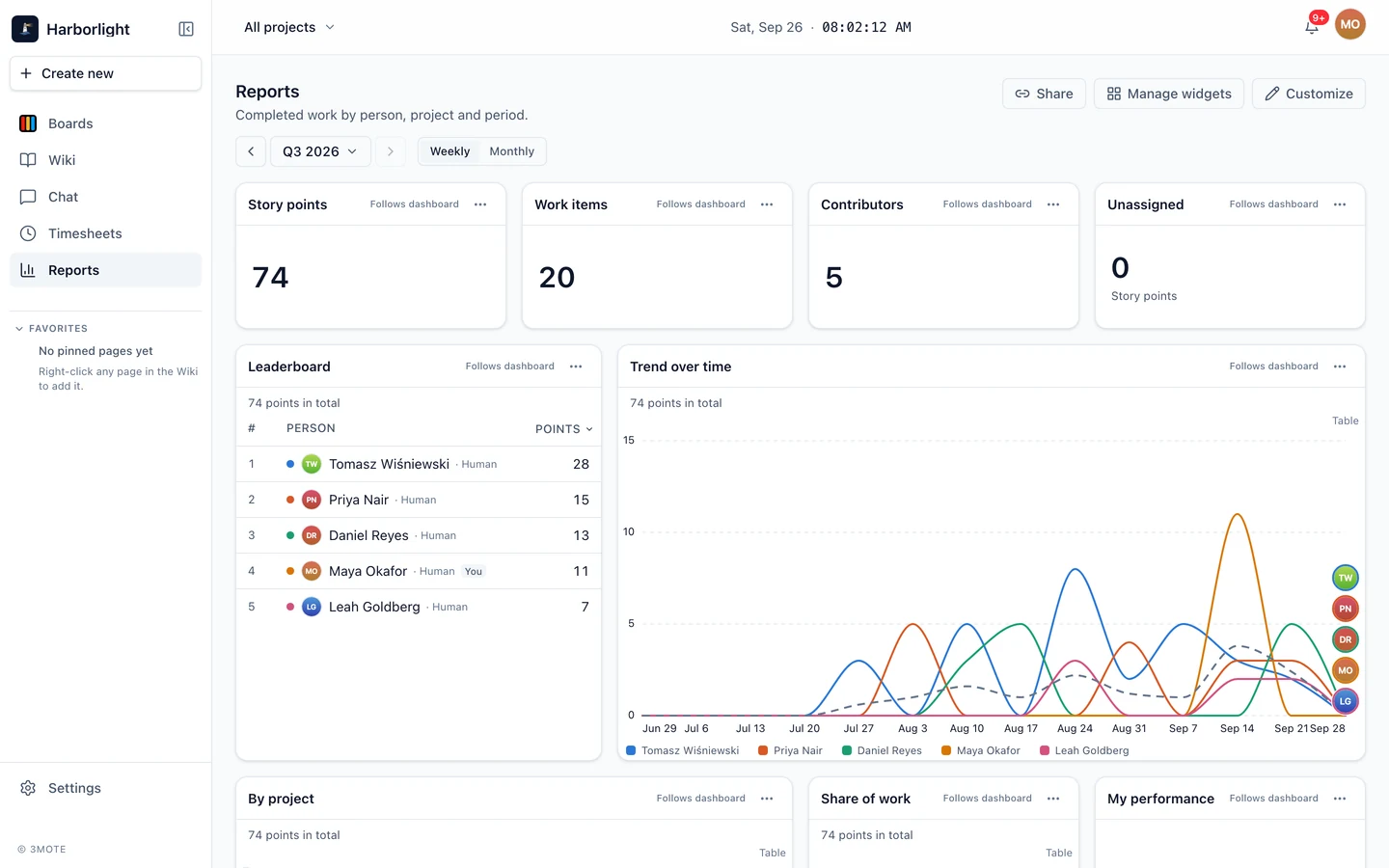
Reports in the left sidebar opens a dashboard of who finished what. It answers one question in several shapes: over a period you choose, how much work was completed, by which people, on which projects.
What it counts
Two measures sit behind every widget:
- Story points — the story points on the cards that were completed.
- Work items — how many cards were completed.
Only tasks and tickets count. Events and announcements aren’t work items with an owner and an estimate, so they never appear here.
A card counts on the day it reaches its project’s Done column. That is the completion date every widget buckets by — not the day it was created, and not the day it was last edited. Move a card back out of Done and it stops counting; move it in again and it counts from that new date.
Credit goes to the card’s assignee. A card finished with nobody assigned still counts toward the totals, shown as Unassigned — but it never appears as a person and never takes a place in a ranking. Widgets that rank people say so in their subtitle when unassigned work exists in the period.
Cards on archived projects, and cards that have been deleted, are left out entirely.
Who can see it
Reports is available to Account Owners, Administrators and Managers out of the box. It’s carried by a single permission, View reports, so an Administrator can widen or narrow that in Settings → Roles like any other permission — see Roles and permissions. People whose role doesn’t hold it don’t see Reports in the sidebar, and the page tells them to ask an administrator if they reach it by link.
Guest accounts never see Reports, whatever their permissions say.
Everyone who can open Reports sees the whole workspace — every person, every project — not only the projects they’re a member of. That is the point of the page: a manager comparing two teams needs both.
Choosing the period
The pill under the page title is the period every widget follows. Click the label to open the picker:
- Today
- This week
- Last week
- This month
- Last month
- This quarter
- Year to date
- Last 12 months
- Custom range — pick a start and an end date, then Apply.
The ‹ and › arrows on either side step the period back and forward by its own length — a month at a time on This month, a week at a time on This week. › greys out once you reach the present.
For a period longer than about a month, a Weekly / Monthly toggle appears beside the pill and sets how the charts over time group their columns. Shorter periods are always grouped by day.
The period lives in the page address, so a reload or a shared link brings back the same window.
The widgets
A dashboard is built from eight kinds of widget. Each one can measure points or items, and each can be pointed at everyone or at a chosen set of people and projects.
- Leaderboard — the ranking: people in order, with their points and their completed items.
- Ranked by person — the same ranking drawn as bars, longest at the top.
- Trend over time — a line per person across the period, so you can see who is rising and who is flat.
- Share of work — a ring showing how the period’s total splits between people.
- Throughput — completed work per day, week or month, stacked by person.
- By project — a bar per person split by the projects the work came from.
- Number — a single headline figure: total points, total items, how many people contributed, or the unassigned total.
- My performance — your own totals and trend, and where you sit in the ranking.
Charts show the top few people by default and group everyone else into a single Others series, so a chart stays readable on a large workspace. How many to show is a setting on each widget — see Customizing your dashboard.
Humans and AI agents
3mote measures AI agents the same way it measures people, so agents appear in Reports alongside everyone else. Each row carries a small label — Human or AI agent — under the name, and every widget can be filtered to one or the other. Someone who has been deactivated still appears if they completed work in the period, marked Deactivated.
Sharing a view
Share copies a link to the dashboard with the period you’re looking at. Anyone you send it to lands on the same window of time — but on their own dashboard, with their own widgets, because a layout belongs to the person who arranged it.