Your timesheet
Open Timesheets in the sidebar, then Time entries. The Timesheet page is the ledger of time you’ve tracked across every project.
Choosing what you’re looking at
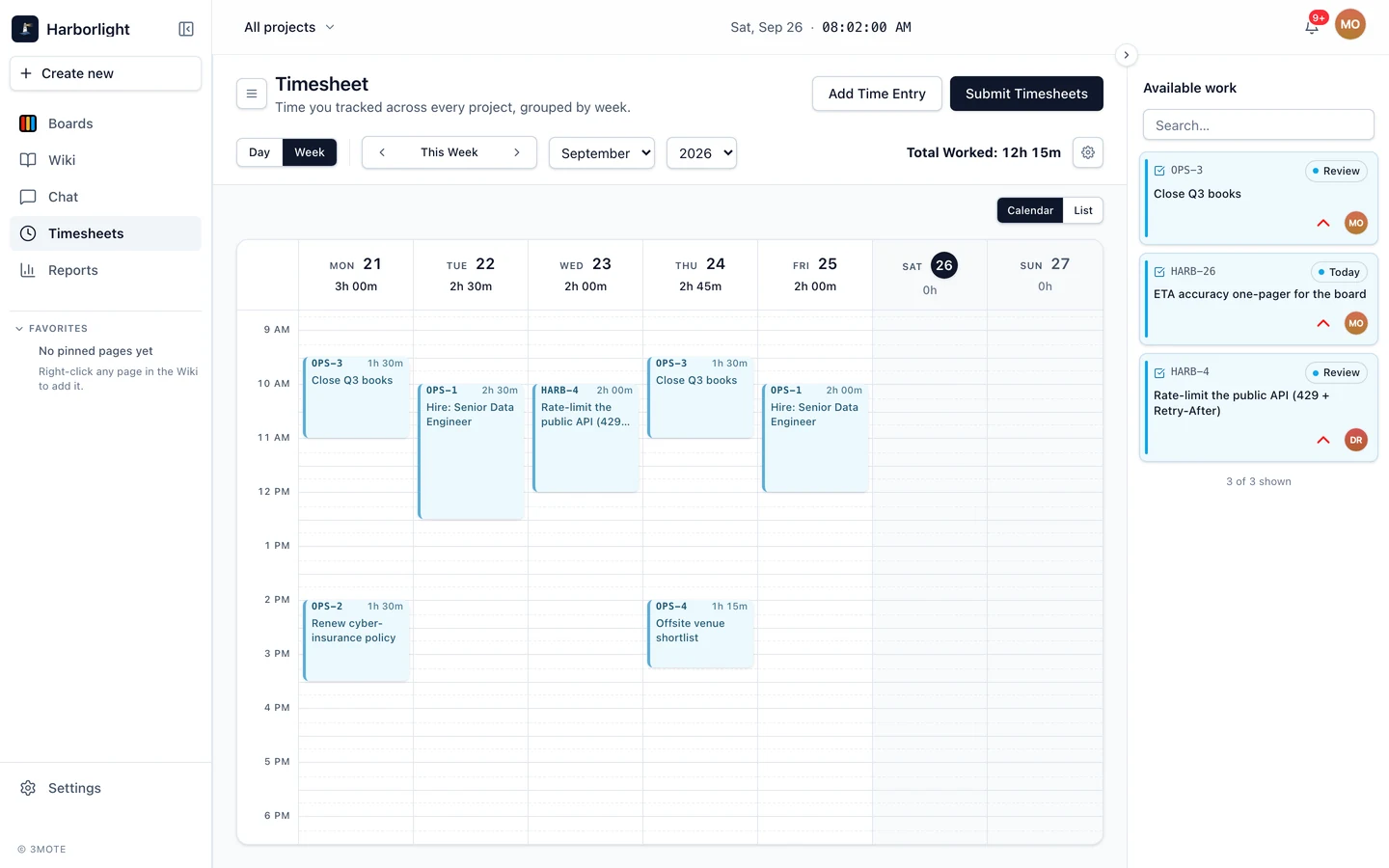
- Day / Week — one day, or a full week side by side.
- The arrows step back and forward; the label between them reads Today or This Week on the current one.
- The Day, Month, and Year dropdowns jump to a date. (The day dropdown only appears in Day view.)
- Total Worked totals whatever range is on screen.
- The gear opens Options: Jump to Today, Jump to This Week, and — in Week view — Hide weekends.
Your choices live in the page address, so a reload or a shared link brings back the same day and view.
Calendar or List
The toggle at the top right of the body switches between Calendar and List.
Calendar is a 24-hour grid. On today, a red line marks the current time and the view scrolls to it when it opens. Blocks take their colour from the kind of card the time is against — tasks, tickets, and events keep the colours they have on your boards — and untagged time gets its own hue.
List groups entries by day, with the date, entry count, and day total in each header. A coloured edge appears when every entry that day was on one project. In Week view the groups collapse with the chevron.
Adding an entry
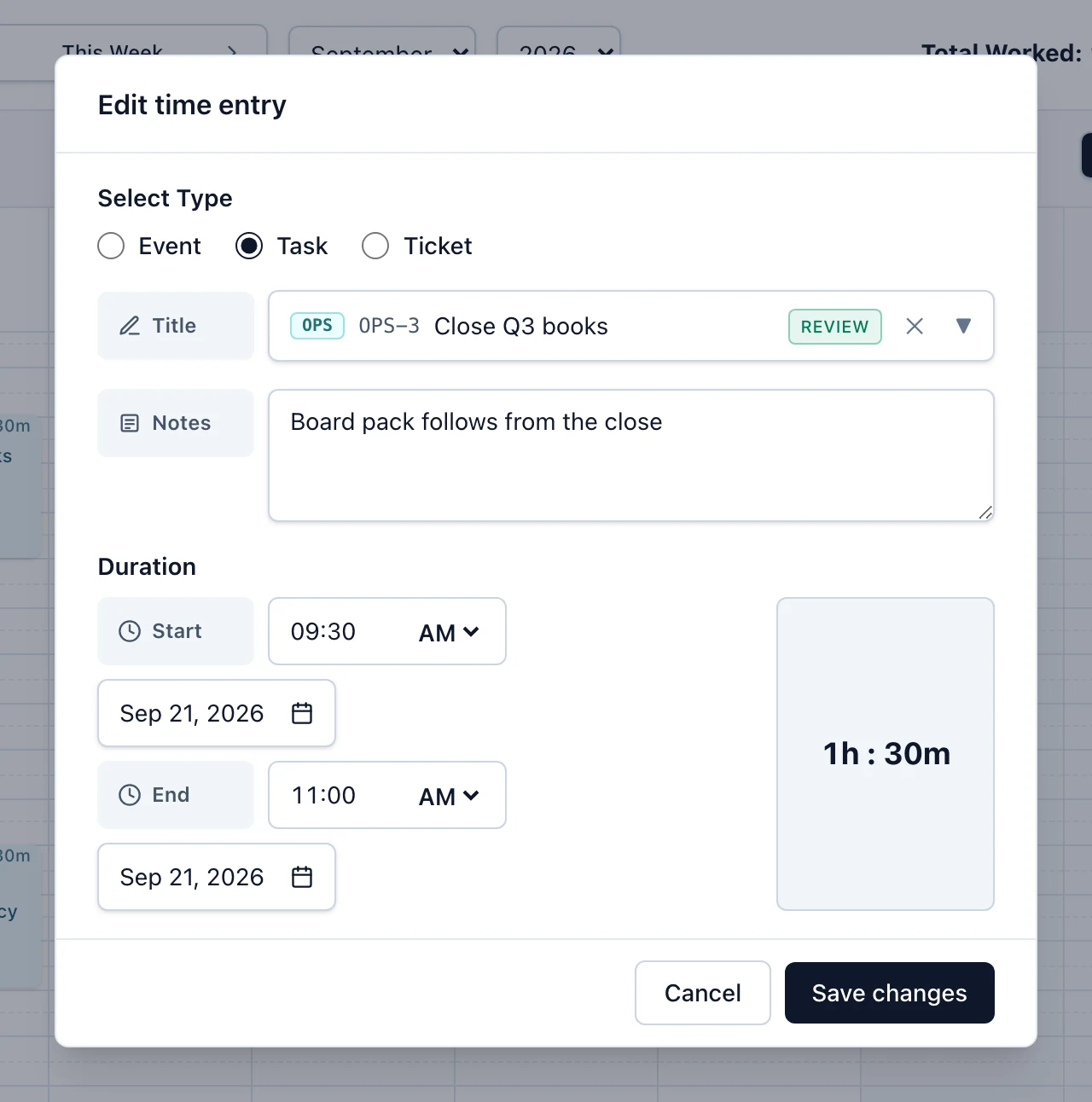
Click any empty 15-minute slot in Calendar view, or use Add Time Entry in the header (which opens the last 30 minutes). The entry asks for:
- Select Type — Event, Task, or Ticket, which narrows the search below.
- Title — search all your projects by shorthand or title words
(
HARB-12,login bug). Leave it empty to log untagged time. - Notes — what you worked on.
- Duration — Start and End, each with a time, AM/PM, and a date.
Then Create entry. The end has to be after the start, and an entry can’t be in the future. You can log time against any card, whichever column it’s in now, and the entry can start before the card was created, since work often begins before anyone files the card. If your workspace rounds time entries, a line under the time shows what will actually be stored.
Editing and deleting
Click a calendar block, or an entry’s title in List view, and a panel opens with the shorthand, title, time range, and duration, plus edit and delete buttons. Editing reopens the form with Save changes and, on the left, Delete; deleting asks you to confirm first. Entries on a day you’ve already submitted can’t be edited or deleted until a manager rejects it.
Dragging work onto the calendar
The Available work rail lists cards you can log time against right now: tasks and tickets in Today or Review where you’re the assignee, a reviewer or a collaborator, plus events starting today (in your time zone) that you created or are attending. Cards you’ve moved to Done recently stay in the rail under Recently done, so you can still log the time you spent on them. They drop out after the same number of days a finished card stays visible on its board, or after 14 days if the board keeps finished cards forever. Search it from the box at the top and page through with Load more.
In Calendar view, drag a card from the rail onto a time slot to create a 30-minute entry against it; drops on a locked day or a future slot are refused. The chevron on the rail’s edge collapses it.
Preferences
First day of the week lives in Settings → My Profile and drives the week calendar’s column order — see Your profile. Hide weekends is in the gear menu, Week view only, and is remembered on this device.
Locked days
Once you submit a day, its entries stop being editable: blocks render muted
with a Submitted or Approved badge, and list rows swap edit and
delete for a view icon and a lock that explains a manager has to reject the
submission first. A rejected day is editable again and shows a Rejected
badge — click the ! beside it to read the reason. See
Submitting and approvals.