Getting started
3mote is one place for the work your team does: kanban boards for the work itself, a wiki for the documents around it, chat for the conversation, and time tracking for the hours. This page explains what a workspace is, how you get into yours, and where each part of the app lives.
Your workspace
Everything in 3mote belongs to a workspace — your company or team. A
workspace has its own address, <workspace>.3mote.com, and its own people,
projects, boards, wiki pages, chat channels and settings. Nothing crosses
from one workspace into another.
If you belong to more than one workspace, each has its own address and you pick between them when you sign in.
Signing in
Sign-in happens at login.3mote.com — one page for every workspace. Enter
your email and password (or use Continue with Google / Continue with
Apple if your account supports it), and 3mote sends you on to your
workspace. Full detail, including password resets, is on
Signing in.
You land on the master board — a single view of every card across every project you’re a member of, grouped into columns and then by project, so you can see what’s in play today without opening each board.
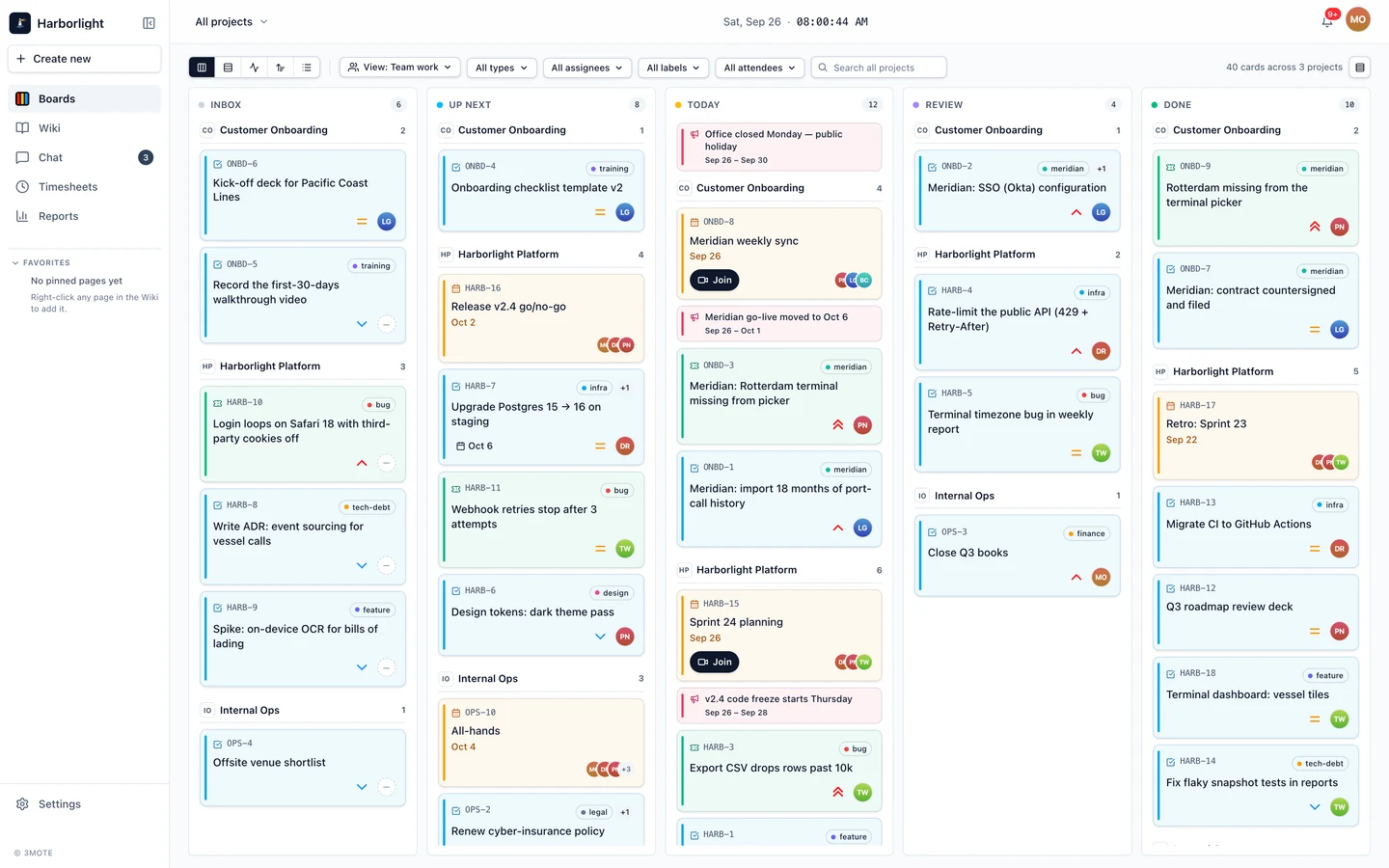
The sidebar
The rail down the left side is how you move between the parts of 3mote.
- Create new — the button at the top opens a picker for the things you can create from anywhere: a task, ticket, event, announcement, time entry or project.
- Boards — the master board and every project board. See Boards.
- Wiki — your workspace’s pages and folders. See Wiki.
- Chat — direct messages and channels. An unread badge sits on this row when you have messages waiting. See Messages.
- Timesheets — time tracking: your timer, your timesheet and submissions. See Time tracking.
- Reports — who completed what, by person, project and period. Shown when your role can view reports; guest accounts don’t see it. See Performance reports.
- Favorites — wiki pages you’ve pinned, so they’re one click away from anywhere. Right-click a page in the Wiki tree to add it.
- Settings — your own profile and, depending on your role, the workspace settings. See Workspace settings.
At the very bottom a small status line shows whether 3mote’s live connection is Live, Connecting…, Reconnecting…, Idle or Offline. That’s the channel that keeps boards, chat and notifications up to date without a refresh.
You can collapse the rail to icons only with the panel button at the top, and expand it again the same way. 3mote remembers which you chose.
The top bar
Across the top, from left to right:
- The project switcher — click it, or press Cmd/Ctrl+K anywhere, to jump to a project or search the wiki.
- The current date and time.
- A running-timer pill, while one of your timers is running, with the card it’s tracking and a stop button.
- The notifications bell. See Notifications.
- Your avatar, which opens the account menu: My profile, Settings and Sign out.
Next steps
- Signing in — passwords, Google and Apple sign-in, resets, and signing out.
- Accepting an invite — your first time in a new workspace.
- Your profile — name, photo, timezone, theme and language.
- Notifications — the bell, unread counts and browser notifications.