Card details
Click any card to open its details over the board. The card code in the
header opens the same view as a full page in a new tab; the copy icon
beside it copies a shareable link. Esc or Close dismisses it.
The people row
Across the top sit the card’s people, each a picker you click:
- Creator — who made the card, read-only.
- Assignee — one person, on tasks and tickets.
- Collaborators on tasks and tickets, Attendees on events and announcements — any number of people.
- Reviewers — tasks and tickets, once the card reaches a Review or Done column.
- Status — a pill on the right. Changing it moves the card just as dragging it would.
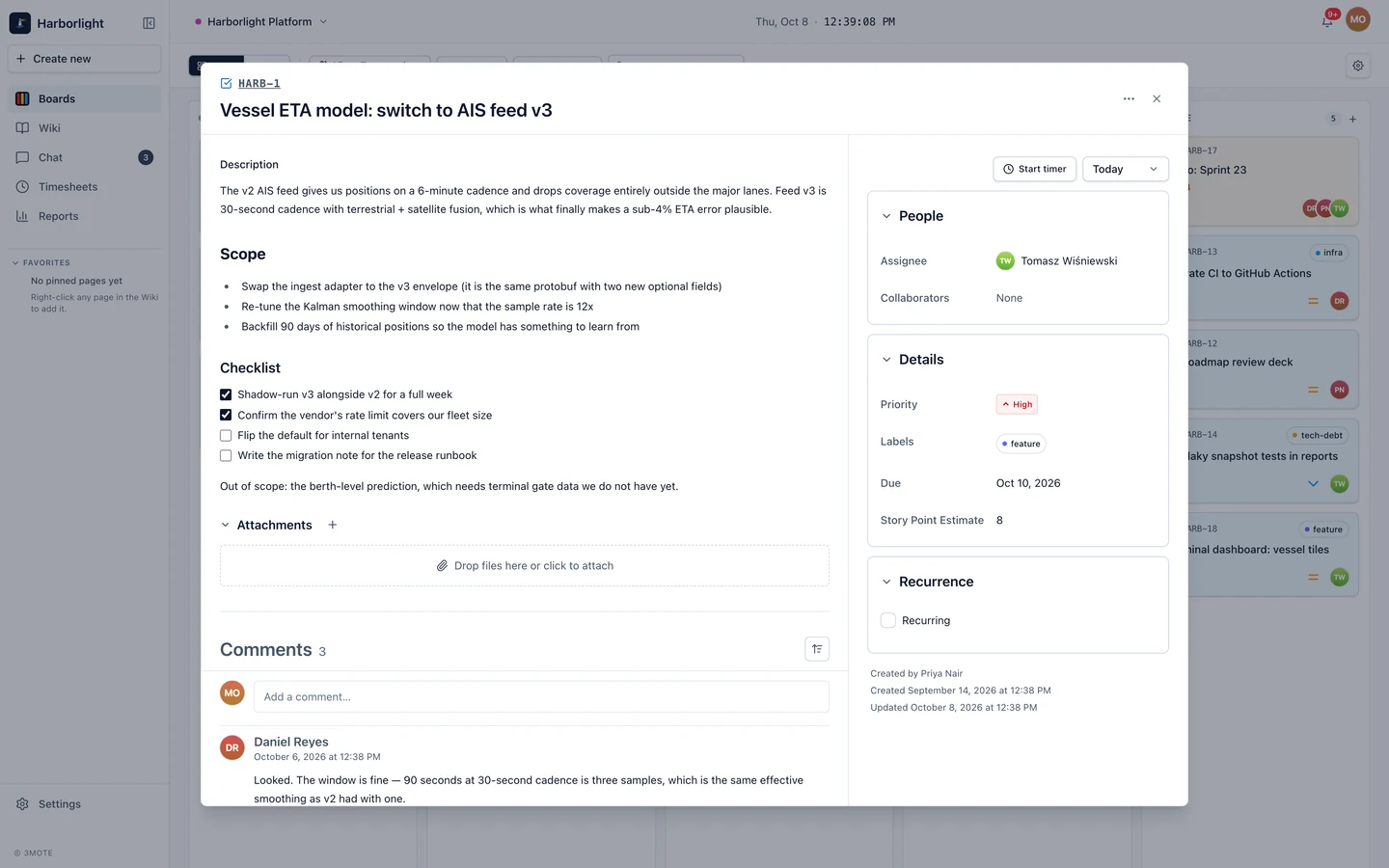
Title and description
Click the title to rename the card. The description is a click-to-edit
rich-text editor with a single-row toolbar: text style, bold, italic,
underline, strikethrough, inline code, lists, task lists, quote, link,
code block, table, Attach file, and emoji. Whatever does not fit
collapses into a searchable More actions (⋯) menu. The
Description (optional) field in the create form is the same editor
with the same toolbar.
Drop a file onto the description while you are editing, or pick one with Attach file, and it goes straight into the text at the cursor. Drop one on the description while you are not editing and the editor opens with the file where you dropped it. Files you add this way join the card’s Attachments only when you Save the description; Cancel discards them along with the rest of your edit. An image shows inline. An MP4, WebM or MOV video becomes a player with the usual video controls and an optional caption you can click to write. Anything else becomes a chip that opens the file. A video your browser cannot decode shows a download card in place of the player, so you can still watch it elsewhere.
Tables behave here exactly as they do on a wiki page, including the cell and table menus, resizable columns, cells that hold several blocks, and pasting a table in from another tool — see Writing pages.
Two things you can type into any description or comment:
@opens the mention picker, and the person you pick gets a notification — see Notifications.- A card code such as
HARB-12, followed by a space or punctuation, becomes an inline reference chip showing that card’s kind, code, title, and column. Only codes 3mote can confirm convert; one that does not resolve stays as typed. The chip’s⋯menu turns it back to text. - Pasting or typing a link to a task, ticket or event makes the same chip — either the card’s own page address or the address of a board with that card open. Only links to cards in this workspace convert, and only once 3mote confirms the card, so a link it cannot resolve stays an ordinary link. Announcements stay links.
Fields
Each field edits in place — click the value, change it, and it saves. Which appear depends on the kind: Priority, Due, Story Point Estimate, Software Version, Start, End, Time zone, Meeting link, Dates.
Labels sits under the description. Click it to open the picker, tick the labels you want, or type a new name and choose Create new label. Labels belong to the project, and whoever administers it maintains the set in Project settings → Labels.
Time tracking carries the start/stop timer, which runs only on cards in a column whose Allows timer setting is on. Your entries live under Timesheets.
Comments
The Comments thread sits at the bottom, beside an Activity tab that logs every change to the card — see Card activity. Write a comment and click Post; a sort control flips the thread between newest and oldest first.
- Reply opens a reply composer pre-seeded with a mention of the person you are answering. Threads stay one level deep — replying to a reply still posts under the same parent, which shows Show replies with a count.
- Edit and Delete appear on your own comments only. An edited comment is marked as edited.
- The add-reaction button opens an emoji picker. Chips sit above the comment’s controls in the order each emoji was first used; you can hold several different emoji on one comment, click your own chip again to remove it, and hover any chip to see who reacted. Anyone who can see the comment can react, a Reader included.
- Comments take attachments and the same
@mentions and card references as the description. Images and videos you add show inline in the posted comment; every other file becomes a chip.
Attachments
Every file on the card is listed under Attachments, a thumbnail grid below the description — click a tile to preview it, or hover it to download it. Most file types are accepted, up to 100 MB each, and MP4, WebM or MOV videos up to 200 MB.
A file reaches the card in one of two ways:
- Through the description — added while editing it, as above, and listed under Attachments once you save. It cannot be removed from Attachments: take the file out of the description and save, and it leaves Attachments too.
- Straight to the card — the + button beside the Attachments heading (Add attachment) or a drop onto the section adds the file to the card without putting it in the description. On a card with no files yet, the section shows Drop files here or click to attach.
Remove appears only to people who can edit the card, and only on files they uploaded themselves; project owners and admins can remove any file not in the description. People who cannot edit the card see the section only once it has a file.
The footer records when the card was created and last updated.