Customizing your dashboard
Your Reports dashboard is yours. Move the widgets around, resize them, add the ones you want and hide the ones you don’t — nobody else’s page changes when you do. Everyone starts from the same default arrangement and edits from there.
Customize mode
Customize in the header unlocks the grid. While it’s on you can drag widgets, resize them, add new ones and remove them; the rest of the time the dashboard is fixed so a stray drag can’t rearrange it.
- Drag a widget by its header — grab the title bar and move it. The other widgets shift out of the way and close up behind it.
- Resize from the handle in the bottom corner. As you drag, a label shows the size you’re about to land on; on release the widget snaps to it. Sizes are Small, Medium, Large and Full width, and not every widget offers all four — a ring can’t be stretched into a ribbon, so it stops at Large.
Widget settings
The ⋯ menu on a widget’s header holds:
- Configure… — the widget’s own settings, below.
- Period… — a period for this widget alone.
- Size — pick Small, Medium, Large or Full width without dragging.
- Move — nudge the widget up, down, left or right a cell at a time.
- Duplicate — a second copy, settings and all, so you can point the two at different teams.
- Remove — take it off your dashboard.
Configure… opens the settings a widget accepts. Not every widget takes every one:
- Measure — count Story points or Work items.
- People — everyone, humans only, or AI agents only.
- Projects — limit the widget to some projects. Empty means all of them.
- Show top — how many people to draw before the rest are grouped as Others.
- Period — Follow dashboard, which is the default, or a period of this widget’s own. A widget on its own period says so with a chip beside its title, so a dashboard where one card disagrees with the rest never reads as a bug.
- Title — your own heading in place of the default one.
Settings changes apply straight away — you don’t need Customize mode to change what a widget measures, only to move or resize it.
Adding and hiding widgets
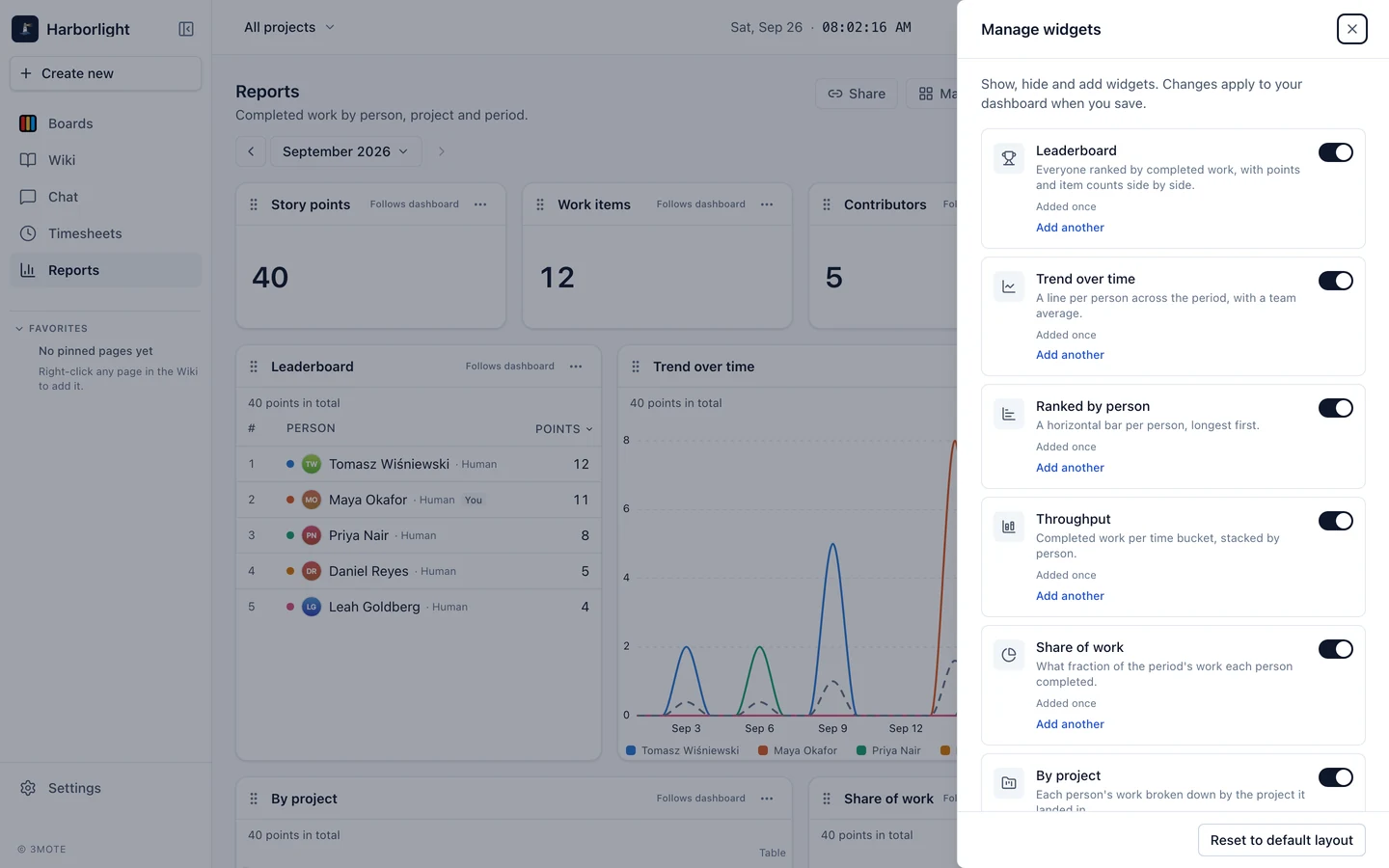
Manage widgets opens a panel listing every kind of widget, with what it shows and how many of it you currently have. Switch one on to add it at the bottom of the dashboard, switch it off to remove every copy, or use Add another for a second one. My performance is the exception — you only ever have one.
Saving, discarding and starting over
Once you change anything, the header shows unsaved changes with two buttons:
- Save changes — store the arrangement. It’s there the next time you open Reports, on any device.
- Discard — throw the changes away and go back to your last saved dashboard. It asks first.
Reset to default layout, at the top of the Manage widgets panel, puts back the arrangement everyone starts with. Like any other change, it isn’t final until you save. If you leave the page with unsaved changes, 3mote asks before letting you go.
Keyboard
The grid is operable without a mouse. Tab to a widget’s drag handle and:
- Arrow keys move it one cell at a time.
- Shift + Left and Shift + Right step its size down and up.
Each move is announced, so a screen reader reads out where the widget landed. The ⋯ menu’s Move and Size entries do the same job from the menu.
On a narrow screen
Below about 1024 pixels wide the dashboard stacks into a single column in the order you arranged it, and becomes read-only: the period controls and each widget’s settings still work, but moving and resizing wait for a wider window.