Drafts and publishing
A wiki page has two states: the draft you’re working on and the published version. A pill beside the title says where you stand — Draft, Unpublished changes, or Published.
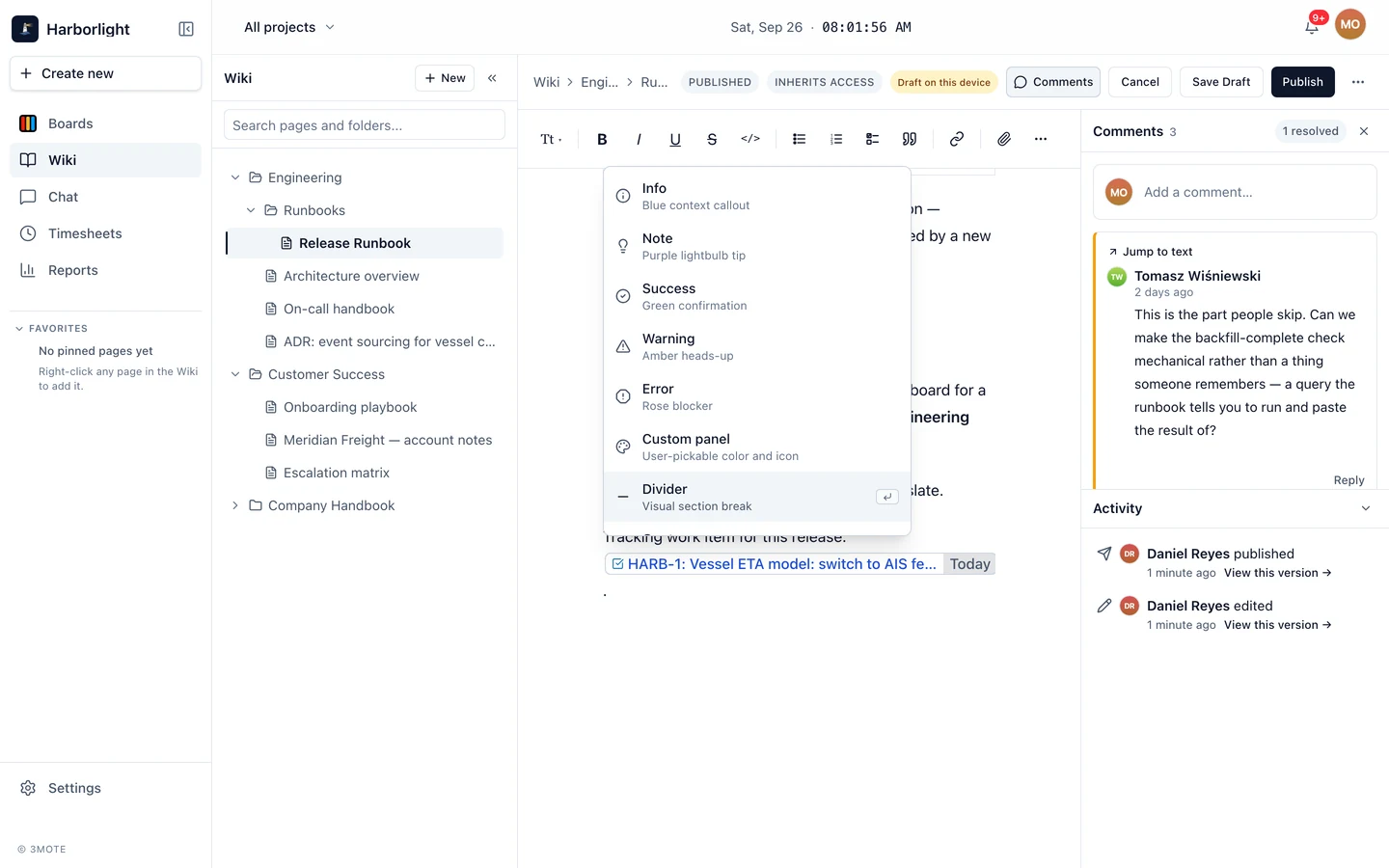
Autosave
Your typing is captured continuously in your browser, so a crash, a sleeping laptop, or a closed tab doesn’t lose work. An indicator near the page title shows the state: Draft on this device, Saving…, or Draft synced.
3mote sends your draft up to the workspace at natural moments — when you switch windows or tabs, navigate away, close the tab, every few minutes while you keep typing, and whenever you click Save Draft or Publish.
The draft banner
A page that has never been published carries a banner: This page is a draft. Publish to make it visible to people with access. Once published, the banner changes to Unpublished changes whenever your draft has moved ahead of the last published version. Dismiss either with its close button.
Until the first publish, only you, anyone you’ve shared the page with directly, and workspace Administrators can open it. Publishing makes it visible to everyone the page’s access settings allow — see Sharing and access.
Recovering unsaved work
If you reopen a page and 3mote finds work on your device that never reached the workspace — a crash, a tab closed mid-sentence — a banner offers Keep or Discard and says when that copy was last edited. Reloading during your own editing session doesn’t prompt you; your work simply carries on.
Save Draft, Publish, and Cancel
In edit mode the header carries three actions:
- Save Draft — saves a snapshot without publishing, then leaves edit mode. It appears in version history.
- Publish — makes the current draft the published version and records it in version history, after a confirmation. The button reads Update from then on.
- Cancel — discards everything you changed this session and returns to reading, after a confirmation; Keep editing backs out.
Closing the page or navigating away keeps your draft — you’ll be asked whether to publish, leave anyway, or stay. Publishing needs the right permission; without it the button is disabled and says so.
Version history
Open View versions from the page’s ⋯ menu. The left pane lists every snapshot, newest first, tagged Published or Autosave; the right previews the one you select, read-only. Restore opens a confirmation with an optional note and two choices:
- Restore as draft — replaces the current draft with that version’s contents. Nothing is published.
- Restore and publish — restores it and publishes it in one step.
Restoring needs edit permission; Restore and publish also needs Publish permission and is hidden without it. Back to page takes you back. How many versions a page keeps depends on your plan — see Plans and storage.
When someone else is editing
Only one person edits a page at a time. If a teammate has it open in edit mode, a banner names them. You can keep reading, and the page updates as they save.
Edit still works — it opens a notice explaining that you can read while they work, with Take over and a Message button for that person. Take over hands editing to you immediately; their unsaved changes stay safe on their device.
If someone takes over from you, a dialog says so and your unsaved work is kept locally as a draft. Editing is released automatically whenever you leave edit mode.
Next: Sharing and access for who can open and edit a page, and Comments and activity for the record of who changed what.