Search and action items
Searching the wiki
Press Cmd/Ctrl+K anywhere in 3mote to open the command palette. It has two tabs — Projects and Wiki — and Tab switches between them. When you’re already on a wiki page, it opens on Wiki.
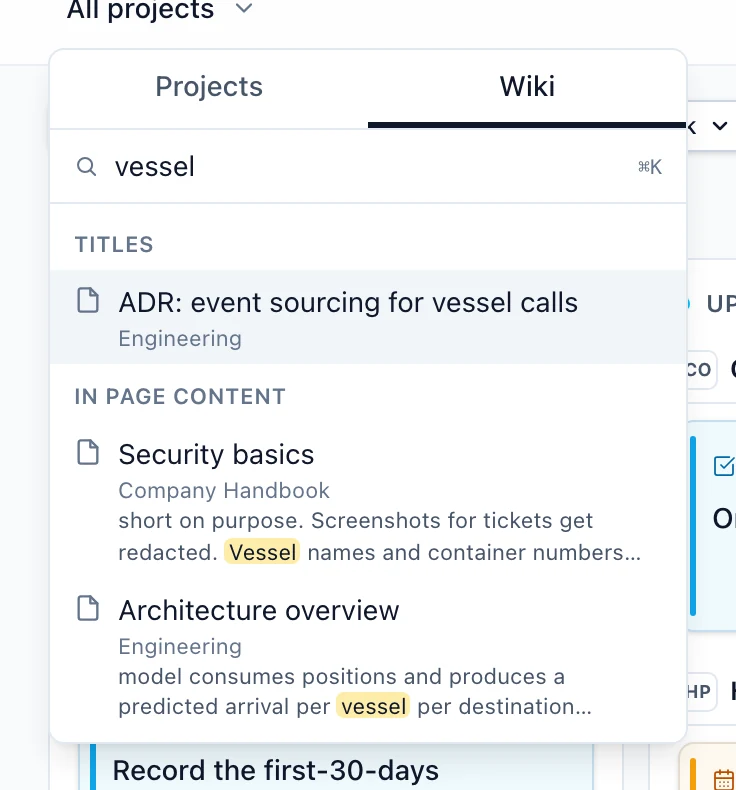
Type in Search docs… and results split into two sections:
- Titles — pages and folders whose name matches. Each row shows its breadcrumb so you can tell two similarly-named pages apart.
- In page content — pages whose body matches, with an excerpt showing the matching text highlighted in place.
Arrow keys move, Enter opens, Escape closes. Results only ever include pages you have access to — a Restricted page you haven’t been shared on never appears.
For narrowing the tree rather than searching it, use the filter box at the top of the wiki rail: type and the rail shows a flat list of matching pages and folders.
Ticking action items
Action items — the checkboxes a page author inserts with /action item — are live while you read. You don’t need to open the editor, and you don’t need edit rights: anyone who can see the page can tick one, Readers included.
Click a checkbox and it saves straight away. Ticking isn’t treated as authoring, so it doesn’t create a version or an activity entry — version history stays a record of writing, not of checkbox traffic.
Two things will refuse a tick, both with a message saying why:
- Someone is editing the page. Their eventual save carries their whole copy of the page, which would quietly undo your tick — so 3mote refuses it and names who’s editing. Try again once they’re done. See Drafts and publishing.
- The page changed underneath you. If the item you clicked is no longer the item that was there when your tab loaded, you’re asked to reload before ticking.
There’s no strikethrough or dimming on a completed item — the checkbox is the signal.
Uploaded files
A file in your wiki tree opens on its own page, with the same breadcrumb, access chip, sharing, comments, and reactions a written page has.
What you see depends on the file:
- PDFs render inline.
- Images display at full width.
- Videos play right on the page with your browser’s own controls. If your browser can’t play the format — some iPhone recordings, for example — the page says so, and Download or Open in new tab still work.
- Anything else shows its icon, name, and size, with download as the way in.
Under the title, a byline gives the size, who uploaded it, and when.
The header carries:
- Download — saves the file under its original name.
- Close — returns you to the wiki.
- A
⋯menu with Open in new tab, Share, and Delete.
Delete asks for confirmation; deleting a file can’t be undone. Download is also available by right-clicking the file’s row in the rail.
Files count against your workspace’s storage allowance; see Plans and storage.
Related
- Wiki — the page tree and the row menu.
- Writing pages — inserting action items, images, and file embeds.
- Comments and activity — discussing a page or a file.