Comments and activity
A wiki page has two places to talk: threads anchored to specific passages, and a flat discussion at the bottom.
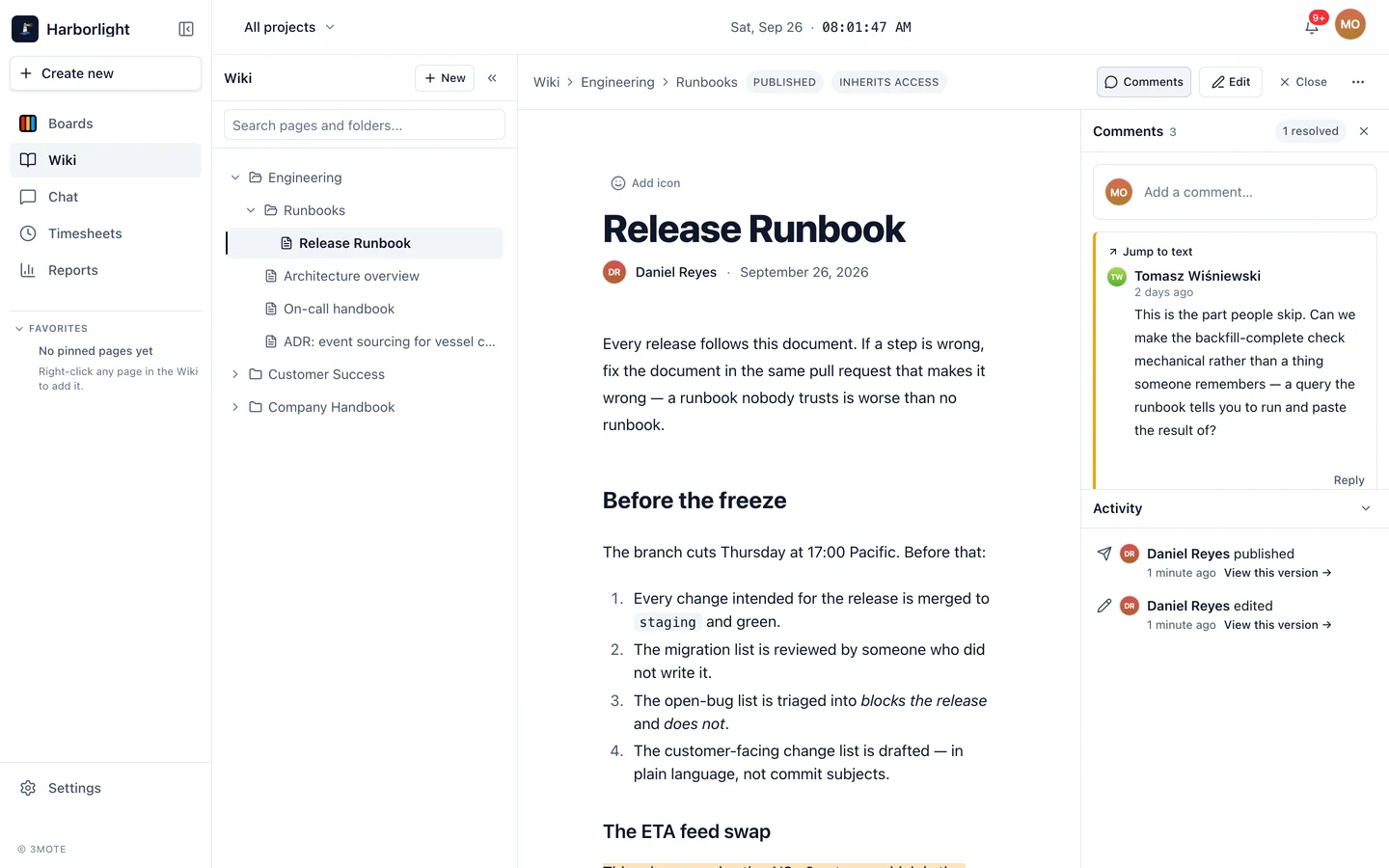
Commenting on a passage
Select some text and a Comment button appears. Click it, write, and Comment: the passage picks up a highlight and the thread opens in the rail beside the page. This works while reading as well as editing — you don’t need edit rights.
Click a highlight to reveal its thread; hover a thread card to strengthen its highlight, or use Jump to text to scroll to the passage. Highlights follow the text as the page changes; if the quoted passage is edited away entirely, the thread is marked Original text changed.
The comments rail
Open the rail with the Comments button in the page header — it carries a count, and a badge for comments you haven’t read. Shift+C and Cmd/Ctrl+Shift+. both toggle it, and opening it marks the threads read. On a wide screen the rail sits beside the page; narrower, it floats over it and Escape closes it; on a small screen the panels stack under the page body under Threads & activity.
In the rail you can:
- Start a new thread with the composer at the top.
- Reply to an existing thread. Threading is one level deep.
- Resolve thread, once it has a reply or has been open a day. Resolved threads collapse into a summary and their highlight goes quiet but stays clickable; Reopen thread brings it back, and a counter at the top of the list shows or hides them.
- Edit and Delete your own comments, from each row’s
⋯menu. An edited comment is marked edited.
Load older pulls in earlier threads, and a pill announces new arrivals.
Page comments
Below the page body sits a flat Comments section — general discussion, oldest first, no threading and no resolving, visible while reading. Anyone who can see the page sees it. Each row has a link icon that copies a direct link to that comment.
Writing a comment
The composer is a light version of the page editor. Select text inside it for bold, italic, strikethrough, link and code; type @ to mention a teammate, who gets a notification pointing at your comment; click the emoji button to insert one. Cmd/Ctrl+Enter posts.
You can attach files too — drag them onto the composer or use Attach file. An attachment-only comment is fine. A failed upload stays in place with Retry and Dismiss, and Post waits until it’s resolved.
Readers can’t comment. Commenters, Members, Managers, Administrators and Account Owners can, on any page they can see; Guests can on pages shared with them. See Sharing and access.
Reactions
Under the page body is an Add reaction button: click it and pick any emoji, and it appears as a chip with a count. Click a chip to add or remove your own reaction; hover one to see who reacted. Every comment carries the same strip. Reacting only needs access to the page, so Readers can react.
Activity
The rail’s Activity panel is the page’s record: who edited, published, restored a version, shared it, removed someone’s access, or moved it, with repeated actions from one person rolled up — click a rolled-up row to expand it. Some rows link straight to what they describe, via View this version or Open share settings. View events are muted and shown only to people allowed to see them. Collapse the panel with the chevron in its header to give the comments more room; your choice is remembered.
Notifications
Mentions, replies to your threads, new comments on your pages, and resolved threads land in the notifications bell and deep-link back to the exact comment. See Notifications and, next, Search and action items.