Getting started with Passwords
Your first visit
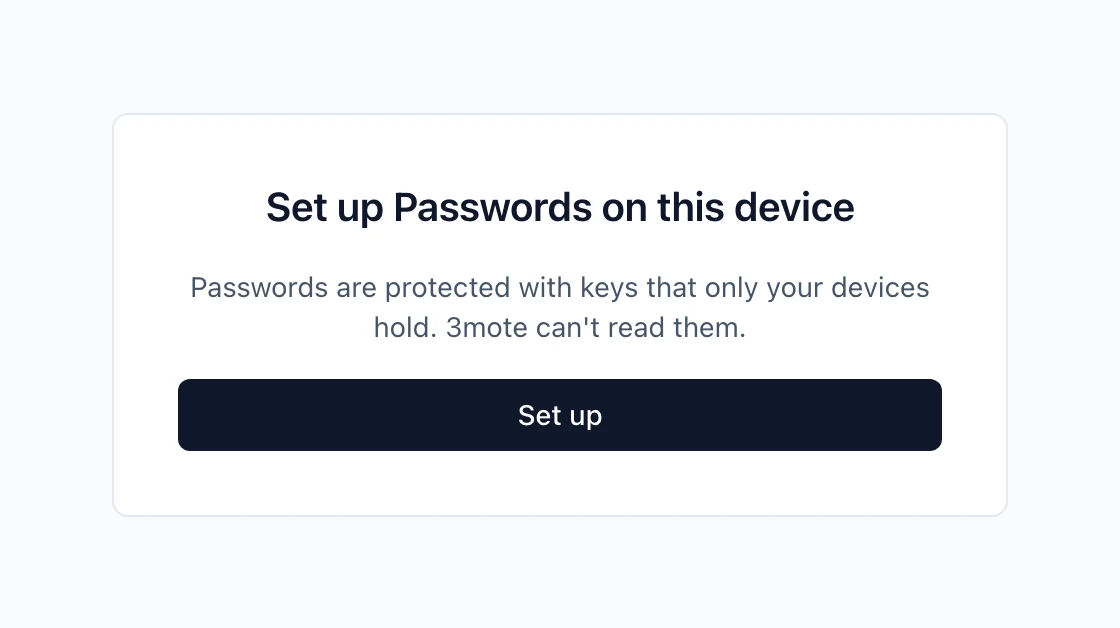
Open Passwords from the sidebar. The first time, you see Set up Passwords on this device. Select Set up: your browser creates your keys, which takes about a second, and your Private vault. Nothing is asked of you at sign-in; setup happens only when you first open Passwords. If your workspace has a Recovery Group, the screen lists who can recover your Private vault, so check that the names are the people you expect.
Passwords needs a current browser: Chrome 137+, Edge 137+, Firefox 130+ or Safari 17+. In a private window the browser will not stay trusted after you close it.
Your Recovery Kit
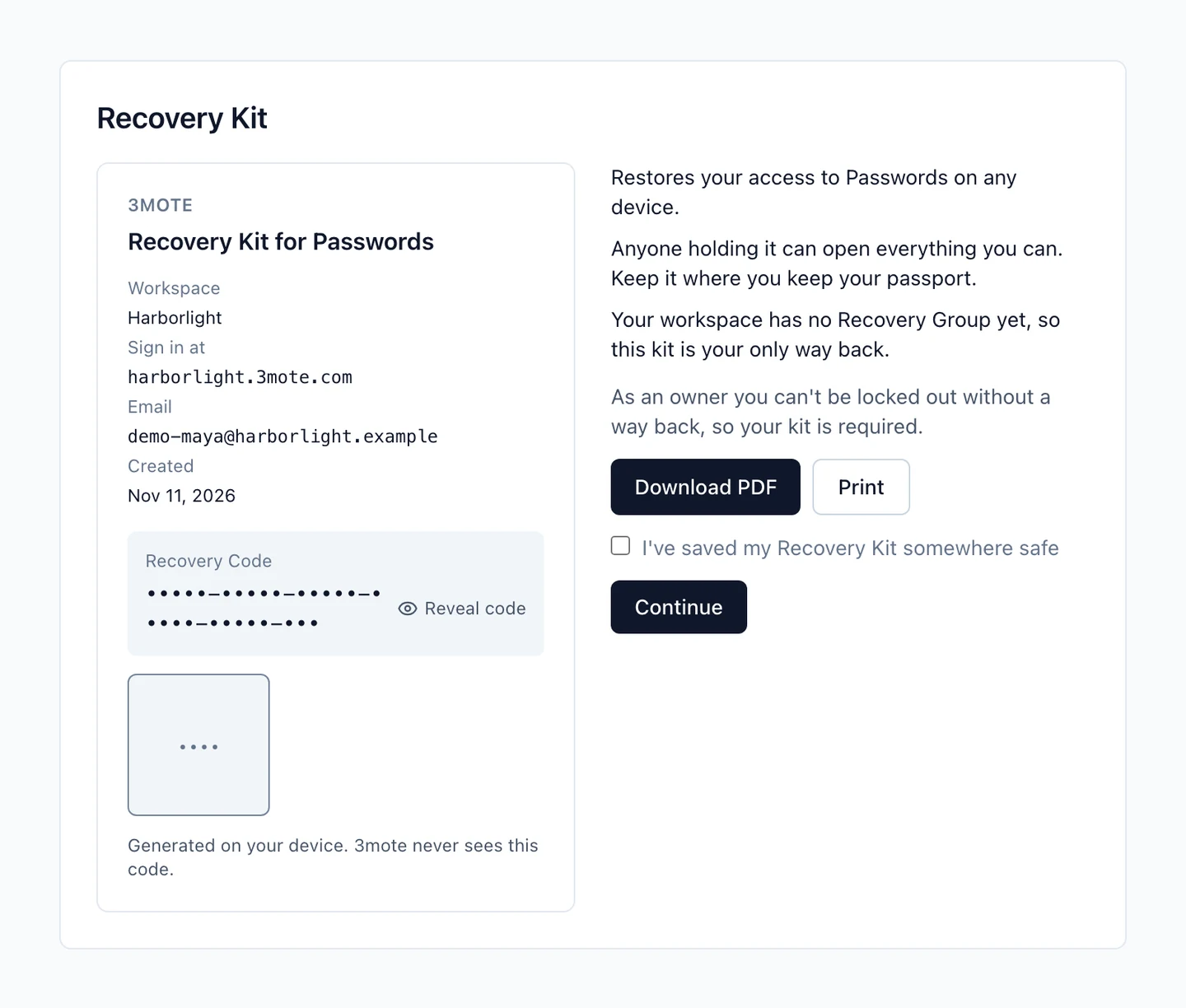
After setup you make your Recovery Kit, a PDF that holds your Recovery Code. Select Download PDF or Print, then confirm I’ve saved my Recovery Kit somewhere safe and Continue. The confirmation unlocks only after you have downloaded or printed.
Keep it where you keep your passport. Anyone holding it can open everything you can, and 3mote never sees the code. Move it out of your Downloads folder, or print it.
Owners and Recovery Group members must make a kit before continuing, because everyone else’s recovery depends on them. Other members can Skip for now and are reminded until they make one.
Trusted devices
A trusted device is a browser profile that can open your vaults. When you open Passwords in a browser that is new, or whose data was cleared, you see Trust this device, Check this device with your other one, with two lines of eight numbered words: This device, which identifies this browser, and Your account, which identifies you. Both devices check both lines, as described below. Choose one of:
- Approve from another device — the default.
- Use my Recovery Kit.
- Ask your Recovery Group — only if your workspace has one.
Approving a new device with the eight words
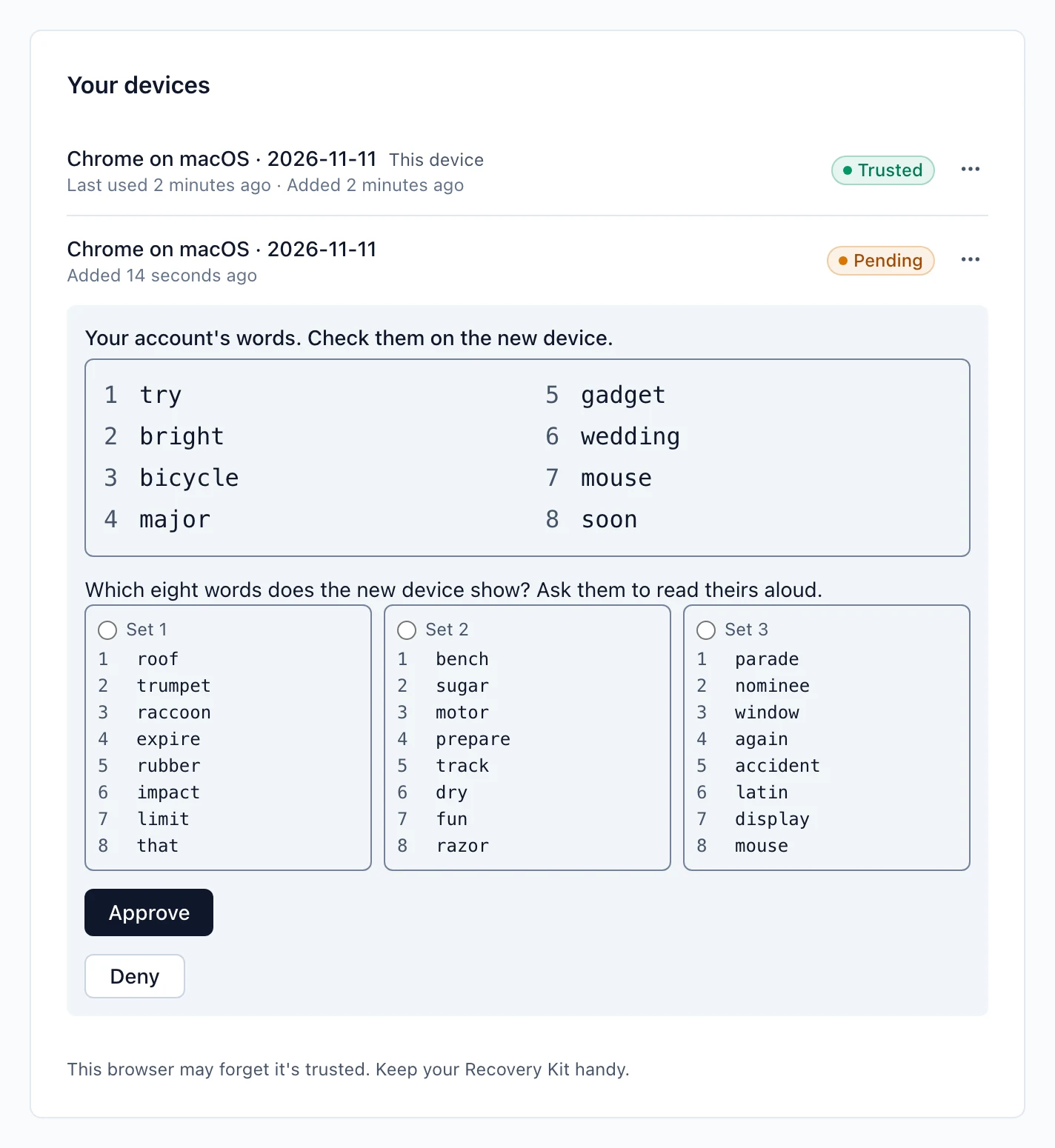
On a device you already trust, a banner and a notification say that a new device wants access. Select Review to open Settings → Passwords → Your devices. The device you approve from needs Passwords open and unlocked first, because it has to show you your account’s words. If it is not, the page says Open Passwords on this device first.
Each device checks one line against the other:
- The new device shows the words for This device. Read them aloud to the person at your trusted device, who picks the matching set of three there.
- Your trusted device shows Your account’s words. Check them on the new device. Read those aloud to the new device, where you pick the matching set of three under Your account, then select These are the account words.
Then select Approve on the trusted device. If the account words do not match, select They don’t match on the new device. That withdraws the new device, and nothing is shared. Select Deny on the trusted device if it is not you, and you are offered Sign out everywhere. A wrong pick on the trusted device ends the attempt, so compare again from the start.
The eight words are always in English, whatever language you use 3mote in. You can see your own under Settings → Passwords → Your recovery words.
What your browser remembers
Your browser keeps what it has checked: other people’s keys it has seen and how far each vault’s signed record has got. That is saved, signed and encrypted so 3mote cannot read it, and kept in sync across your devices, so a second device or a restored kit starts from what you already checked. If it is missing, you see a warning: The saved checks of your other devices are missing. Every vault there is treated as new to this browser until you check with your workspace admin or approve the browser from another device. Start fresh in this browser is the other way out. It asks for a confirmation, because the browser will then trust whatever it is shown next, and that also switches off the warning. Approving from another device is the safer way.
Your devices
Settings → Passwords → Your devices lists every device with its status, Trusted or Pending. Use ⋯ to Rename or Remove one. Removing a device asks whether you still have it, or whether it was lost or stolen. For lost or stolen, your keys are replaced, you are signed out everywhere, and your old Recovery Kit stops working, so you make a new one.