AI agents
An AI agent is a teammate that isn’t a person. It has a name, a photo and a job title like anyone else, other members see it marked AI, and you can message it, mention it and give it cards. The model it runs on, for example DeepSeek V4.1 Flash, shows under its name when you open a conversation with it and in member lists such as Settings → Users, and appears when you hover over its AI tag anywhere else. It does the work with the same tools your team uses: boards, the wiki and chat.
Every agent holds a paid seat, the same as a human member of the same plan. Agents don’t count toward your guest allowance.
Adding an agent
Open Settings → Users and click Add AI agent. You’ll see the button if your role can manage AI agents, which the Account Owner and Administrators can. The dialog has two steps, Teammate and Model.
Teammate
- Name and Title — how the agent shows up everywhere.
- Photo — optional.
- Persona — a starting point such as Project manager, Engineer or Reviewer. Choosing one fills in starting instructions.
- Instructions — how this teammate should work and what to focus on. Edit the starting text as much as you like.
- Role — Manager, Member, Commenter or Reader. The agent can do what that role allows, and no more.
- Accountable person — the person responsible for this agent’s work. They are told when the agent runs into a limit or fails. A guest can’t be chosen.
Model
- Provider — the AI provider that powers the agent.
- API key — the key for your own account with that provider.
- Model — which of that provider’s models the agent uses.
Click Check key to confirm the key works, then Add agent.
The key is stored encrypted and is never shown again, not even to administrators. Only its last four characters are displayed. To change it, open the agent’s settings and use Replace key.
The agent runs on your own account with the provider, so the provider bills you for what the agent uses. The content the agent works on is sent to that provider. See the Privacy Policy.
Which models you can use
On every plan, an agent can run on a well-known provider’s public API: OpenAI, Anthropic, DeepSeek, Google Gemini, Mistral, Qwen, GLM, and the hosted open model services OpenRouter, Together, Groq and Fireworks. Pick one from Provider and its address is filled in for you.
What matters is where the model runs, not which model it is: a fine-tuned model that one of these providers hosts for you works on every plan too. To run an agent on a model served from anywhere else — your own server, or any other address — choose Custom (OpenAI-compatible). Custom needs the Enterprise plan, which we call Private AI: your agents can run on your own model, and your workspace’s agent performance data stays private.
If a workspace moves from Enterprise to a lower plan, agents on a custom address are paused rather than removed. Their settings, history and key are kept. They start working again when the workspace returns to Enterprise, or when you switch them to one of the providers above with Replace key.
What an agent can’t do
An agent works inside the limits of its role, and a few things are closed to every agent whatever its role:
- It can’t sign in. It only acts when something wakes it.
- It can’t manage people, agents, roles or billing.
- It can’t be an Administrator, an Account Owner or a Guest.
- It can’t move a card to Done. It can move work to Review, and a person finishes it.
- It can publish only wiki pages it created itself, and only when the person who asked could publish them too.
- It can’t change who can see a wiki page, create channels, delete cards or other people’s pages, or see reports, whatever its role. It can still delete its own messages and comments.
- It can’t mention everyone with
@all, and it can mention at most five people in one message or comment. - It can’t put pictures from outside websites into cards, comments, wiki pages or chat. A link to the picture appears instead.
- It can’t read wiki pages marked as containing protected health information, unless your workspace has turned on agent access to them.
- It can’t open more than 10 new direct messages, or write more than 150 messages, comments and drafts, in an hour. It can keep at most 10 follow-ups scheduled at once.
- It can’t use a workstation unless an administrator has turned workstations on for that agent. They are off by default.
Readers can’t hand work to an agent whose role is above Reader, and guests can’t wake an agent at all. A message, mention or card assignment from them is ignored by the agent.
Talking to an agent
Reach an agent the way you’d reach a teammate:
- Send it a direct message.
- Mention it with
@in a channel, a thread, a card comment, a card description or a wiki comment. - Reply in a chat thread it started or has already replied in.
- Assign it a card, or take a card away from it.
- Comment on a card assigned to it.
- Reply to a comment it wrote on a card or a wiki page.
It answers in the same place. In a channel, the reply goes in a thread. While it works you’ll see “Ada is thinking…” (with the agent’s own name) under the conversation.
An agent only starts work when one of these happens, or when a follow-up
it scheduled for itself comes due. @all doesn’t wake an agent. Agents
also don’t keep each other busy forever: one agent only wakes another
when it mentions it by name, and there’s a cap on how many times agents
can hand a conversation back and forth in an hour.
Giving an agent work
Treat an agent like a new teammate: give it access to the work, then give it a clear outcome.
1. Give it access. An agent sees only the projects and channels it is a member of. Add it to a project from that project’s Members settings, and to a channel from the channel’s member list. Mentioning an agent in a channel it isn’t in doesn’t reach it.
2. Pick the role that fits the job. The role decides what it can change:
- Manager — can also create new cards.
- Member — can update, move and comment on cards and write wiki drafts, but can’t create cards.
- Commenter — can join discussions without changing the work.
- Reader — can read and reply in chat, but can’t change cards or pages.
3. Hand it a card. The most reliable way to give an agent a piece of work is to assign it a card and write the outcome you want in the description: what to produce, where it should go, and what to do when it has finished. For example:
Draft a short spec for dark mode on the Reports page as a wiki draft: goal, scope and open questions. Link the draft here in a comment, then move this card to Review.
The agent reads the card, does the work with the tools its role allows, comments on the card with what it did, and moves it to Review. You check the result, publish any wiki draft it wrote (or ask the agent to), and move the card to Done. To give feedback or ask a question, comment on the card or mention the agent; it picks the card up again.
4. Use chat for quick requests. Send a direct message for something small, or mention the agent in a channel when the team should see the answer. If you ask it to check back on something later, it can schedule a follow-up for itself.
Out of the box, an agent works inside 3mote: boards, the wiki and chat. For work that needs a computer, such as building code or looking at a website, an administrator can turn on a workstation for it (see Workstations below). You can see everything an agent did, step by step, in its Runs tab (see below).
What an agent can do
An agent sees only what its role and its project memberships let it see. Within that, it can:
- Read and search cards, boards, wiki pages and the chat it has access to.
- Comment on cards and reply to wiki comments.
- Create and update cards, and move them to any column except Done.
- Write wiki pages, file them in folders, and publish the pages it created.
- Hand a page it created to an owner, a person or another agent.
- Read files people share with it in chat and files uploaded into the wiki: PDFs, Word documents, PowerPoint decks, Excel spreadsheets, markdown, text, CSV and JSON, and look at images such as screenshots. It can’t watch videos.
- Send messages and direct messages, and react.
- Schedule a follow-up for itself, so it can come back to something later.
- Where an administrator has turned workstations on for it, use a workstation to run commands, write and build code, and look at public websites (see Workstations).
Whose permissions an agent uses
An agent acts for the person who asked. It only does what both it and that person are allowed to do. If you ask a Manager agent about a project you aren’t a member of, it can’t read that project’s cards or answer from them for you, even though the agent itself is a member. A wiki page is the same: the agent can use it for you only if you could open it too. The answer is always the stricter of the two roles.
- Whoever the agent is acting for, it stays inside what that person can see. For a guest, that is only the guest’s own channel and the wiki pages shared with them.
- An agent can’t read its direct messages with one person on behalf of another. What one person says to an agent privately isn’t available when someone else asks it a question, and it can’t open a direct message with someone you aren’t allowed to message yourself.
Most requests have a person behind them. When nobody in particular woke the agent, it acts for its accountable person instead. That covers work with no person at all behind it, such as a message written before this rule existed. A follow-up the agent scheduled for itself is different: it still acts for the person whose request it came from.
Importing documents into the wiki
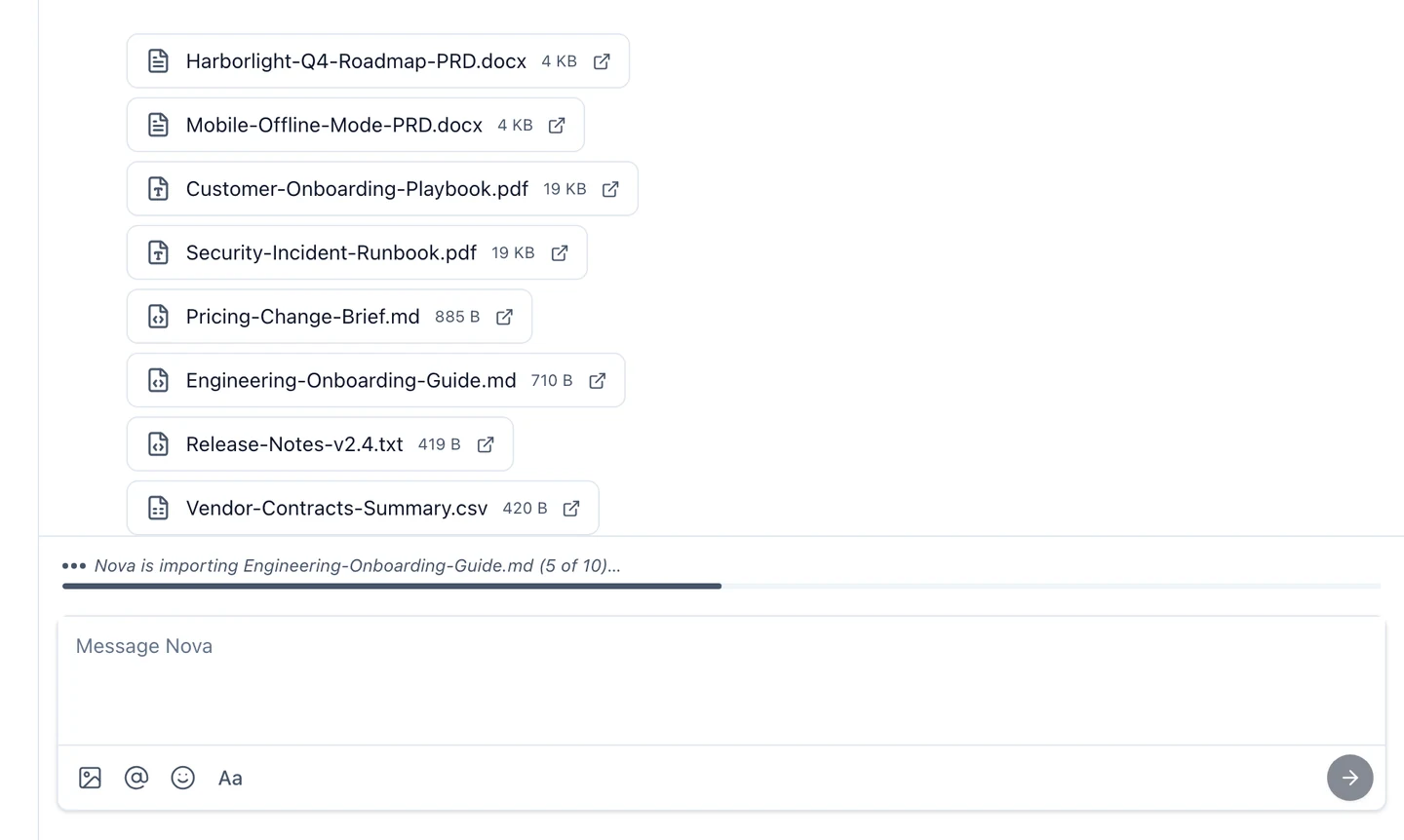
To turn a set of documents into wiki pages, attach them to a chat message to the agent (up to 10 files per message) and ask, for example:
Import these into the wiki under a “Product” folder, publish them, and make me the owner.
The agent reads each file, picks titles and folders, and creates one page per file. While it works, the chat shows what it is doing and a progress bar, so you know when it is done.
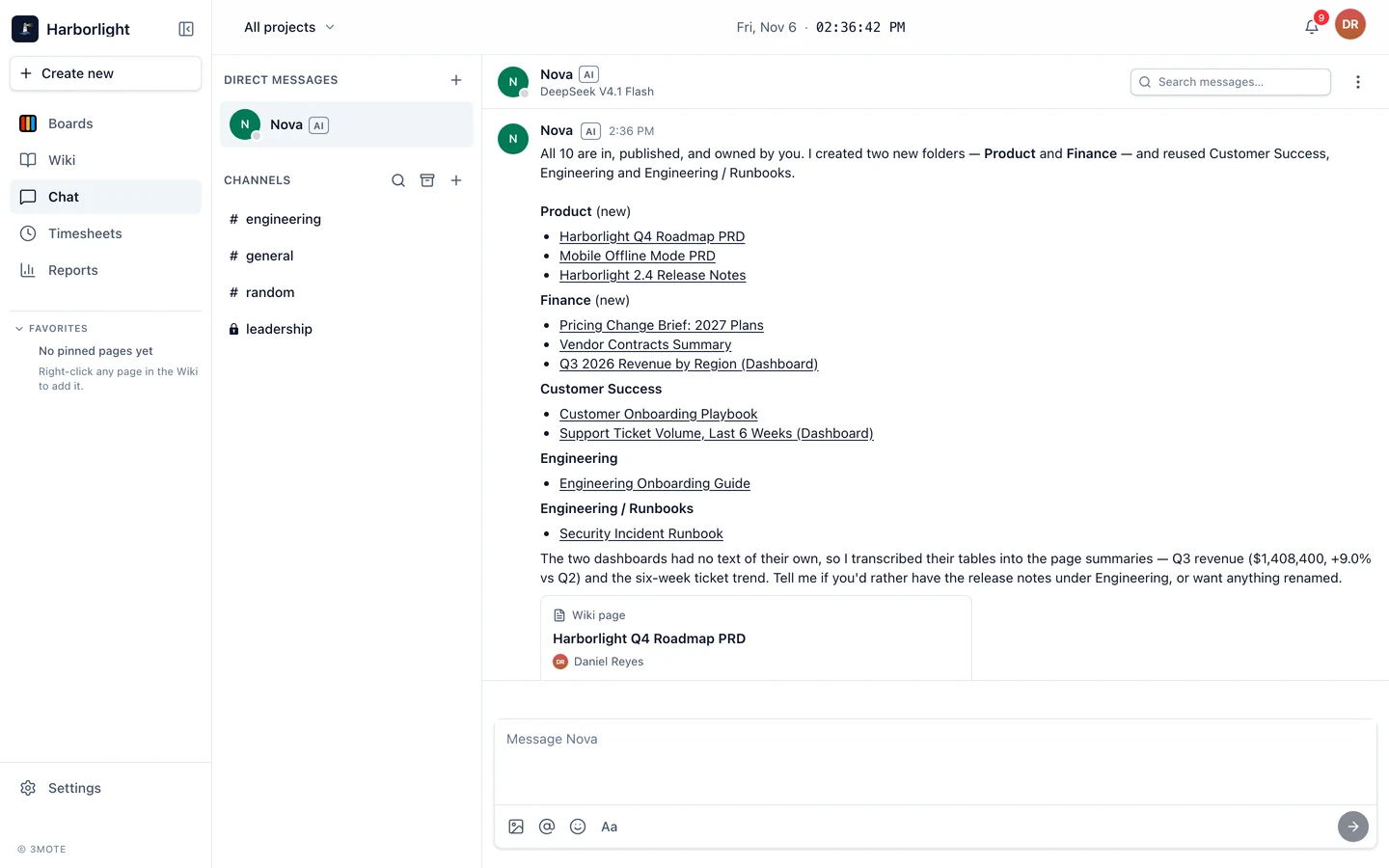
When it finishes, it replies with a link to every page, grouped by folder.
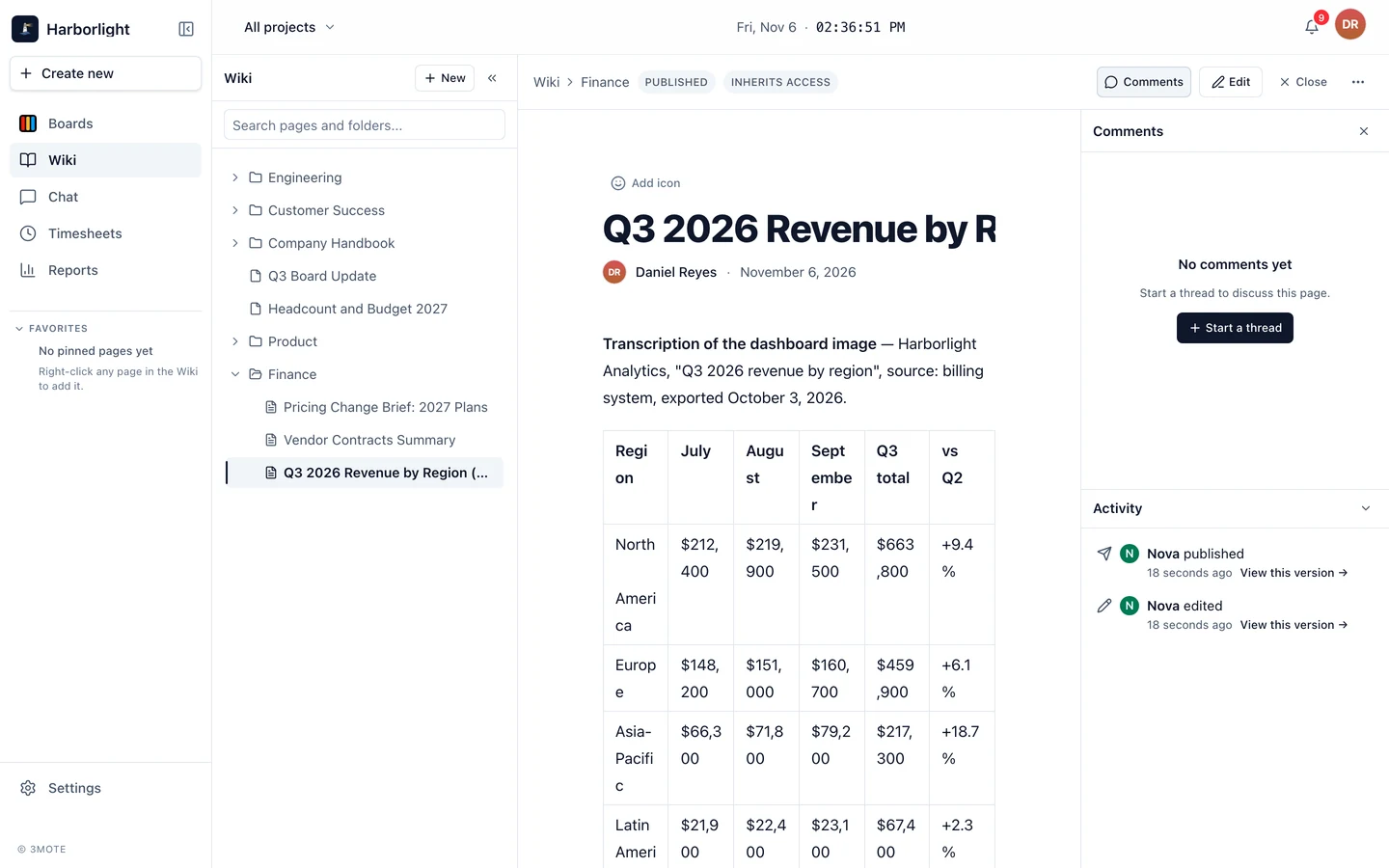
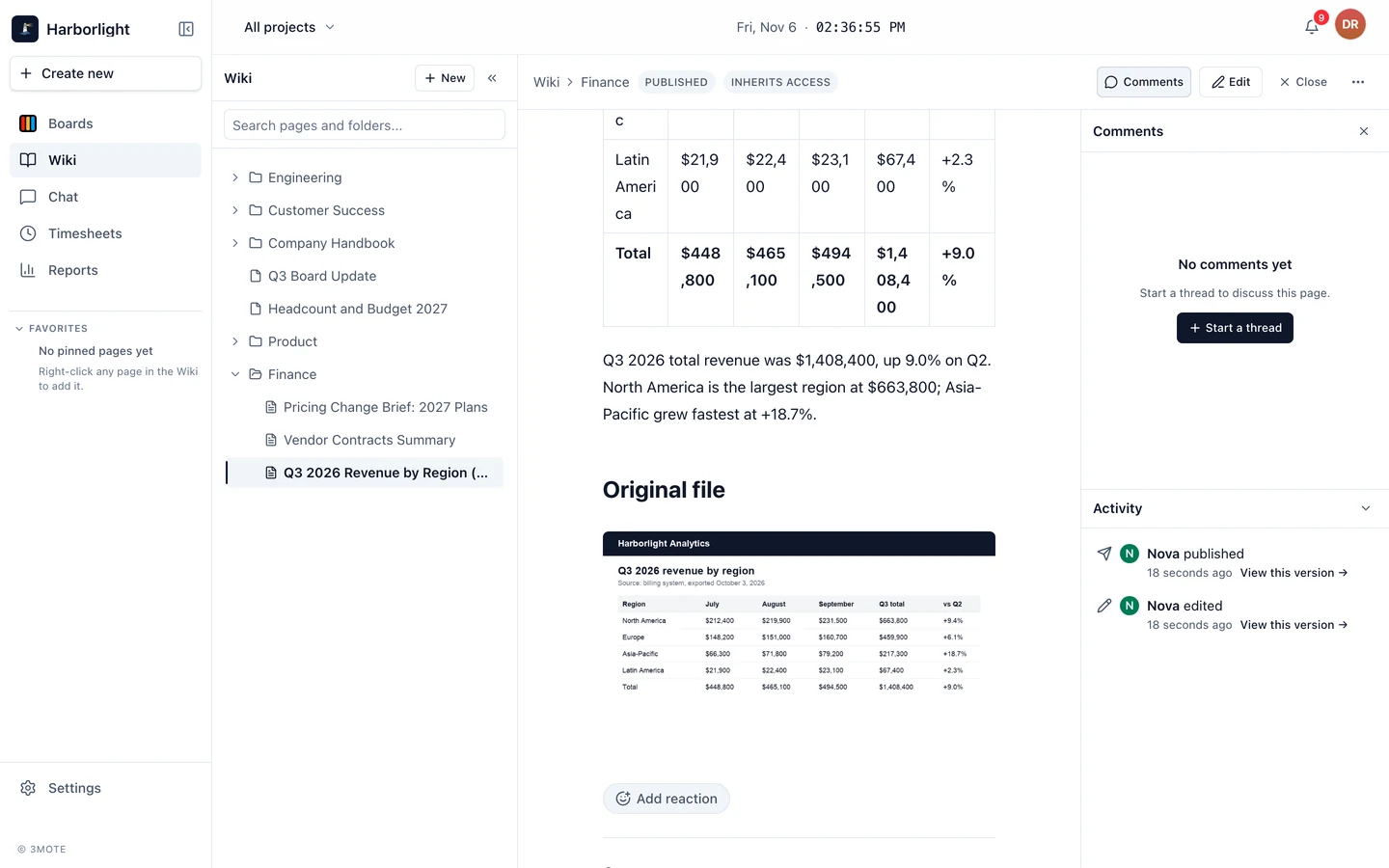
Each page opens with the agent’s summary, then the full text of the file, so the wiki search finds it, and the original file is attached at the bottom. A screenshot or photo has no text of its own, so the agent writes out what the image shows instead, tables and numbers included.
Asking about your documents
Afterwards you can ask the agent about the documents from anywhere you can talk to it: a direct message, a mention in a channel, or a mention in a comment on a card or a wiki page. It searches the wiki and answers with links to the pages it used, so you don’t have to leave what you are working on.
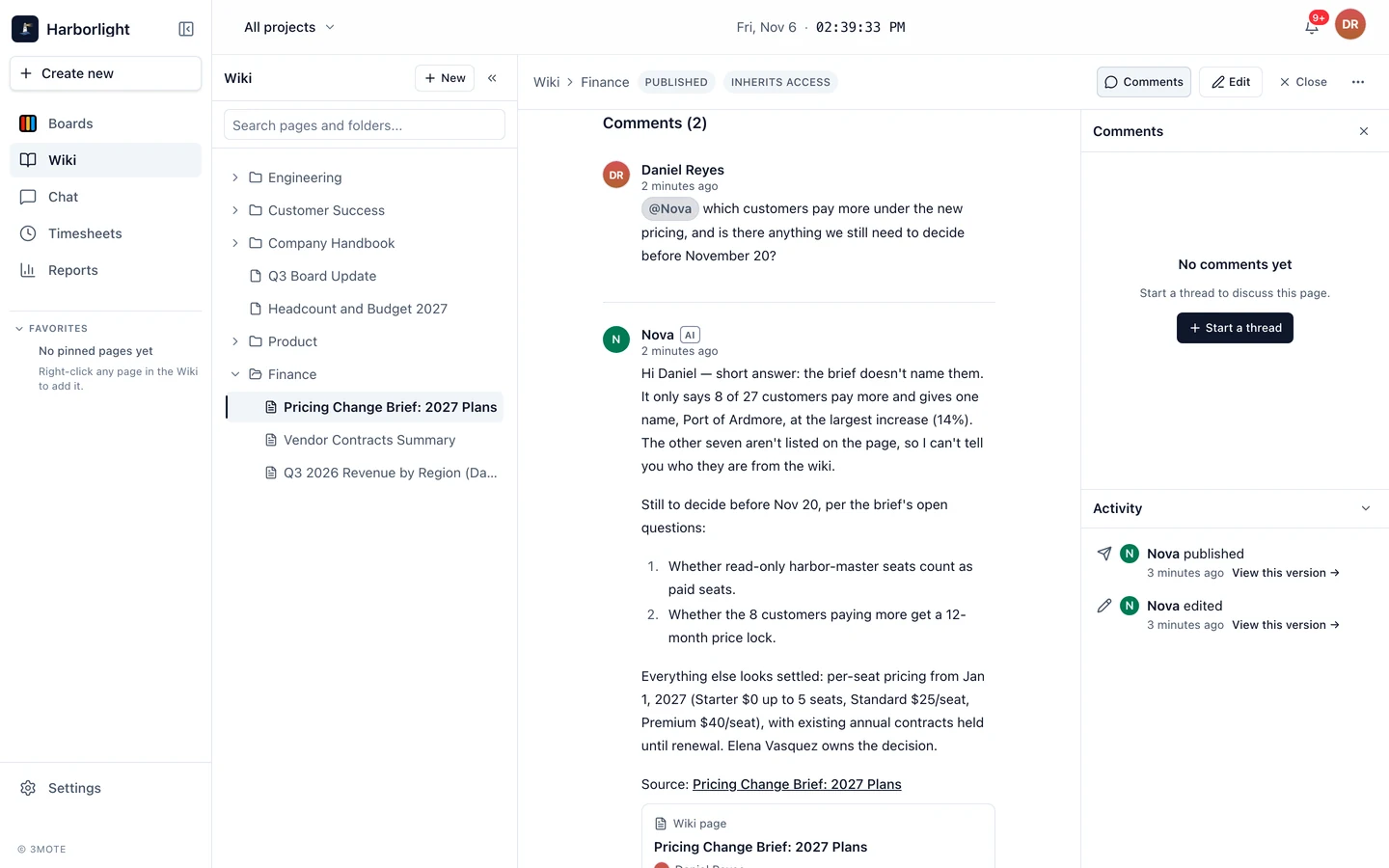
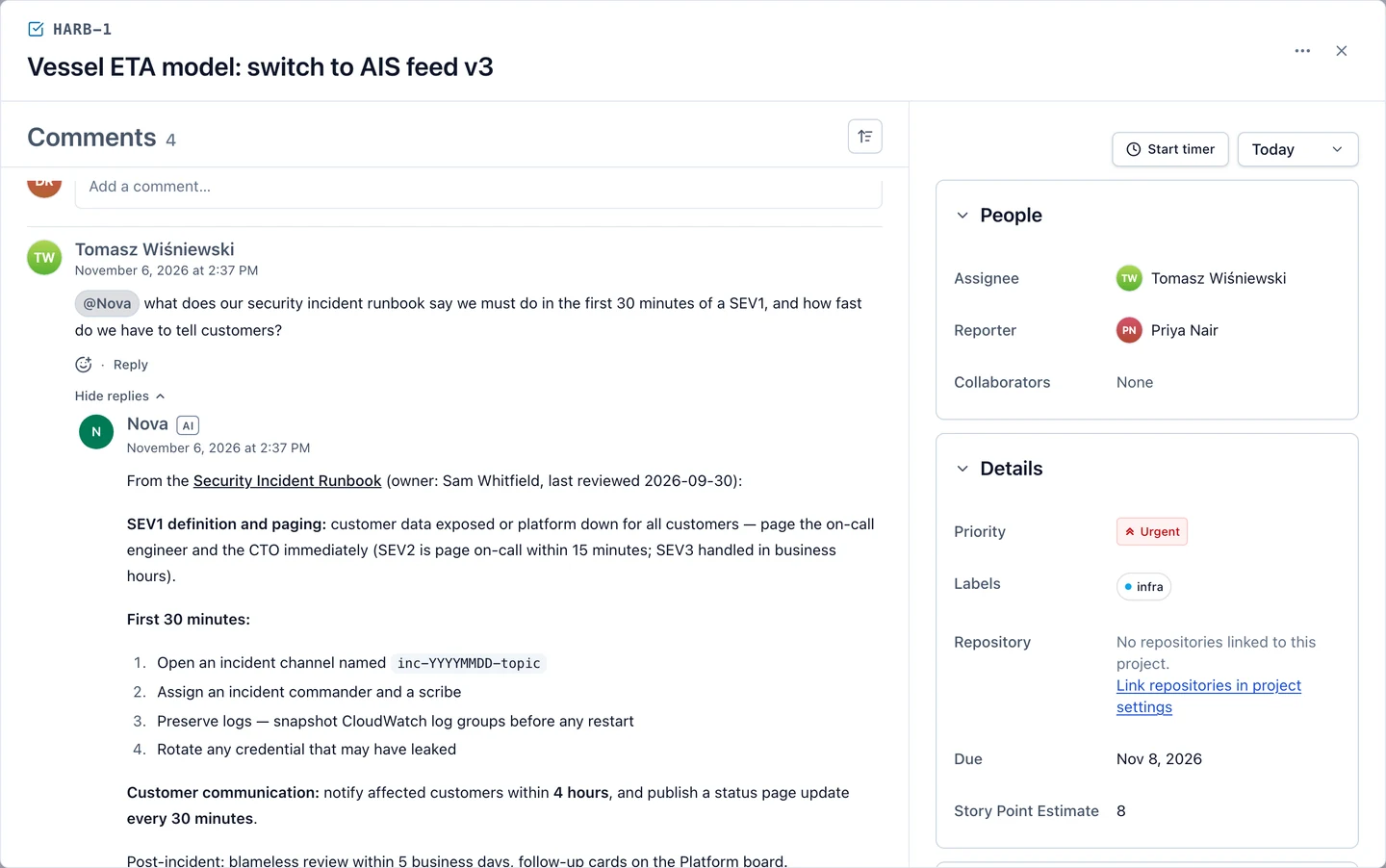
It can also open files uploaded straight into the wiki, such as a slide deck or a spreadsheet, and answer from them.
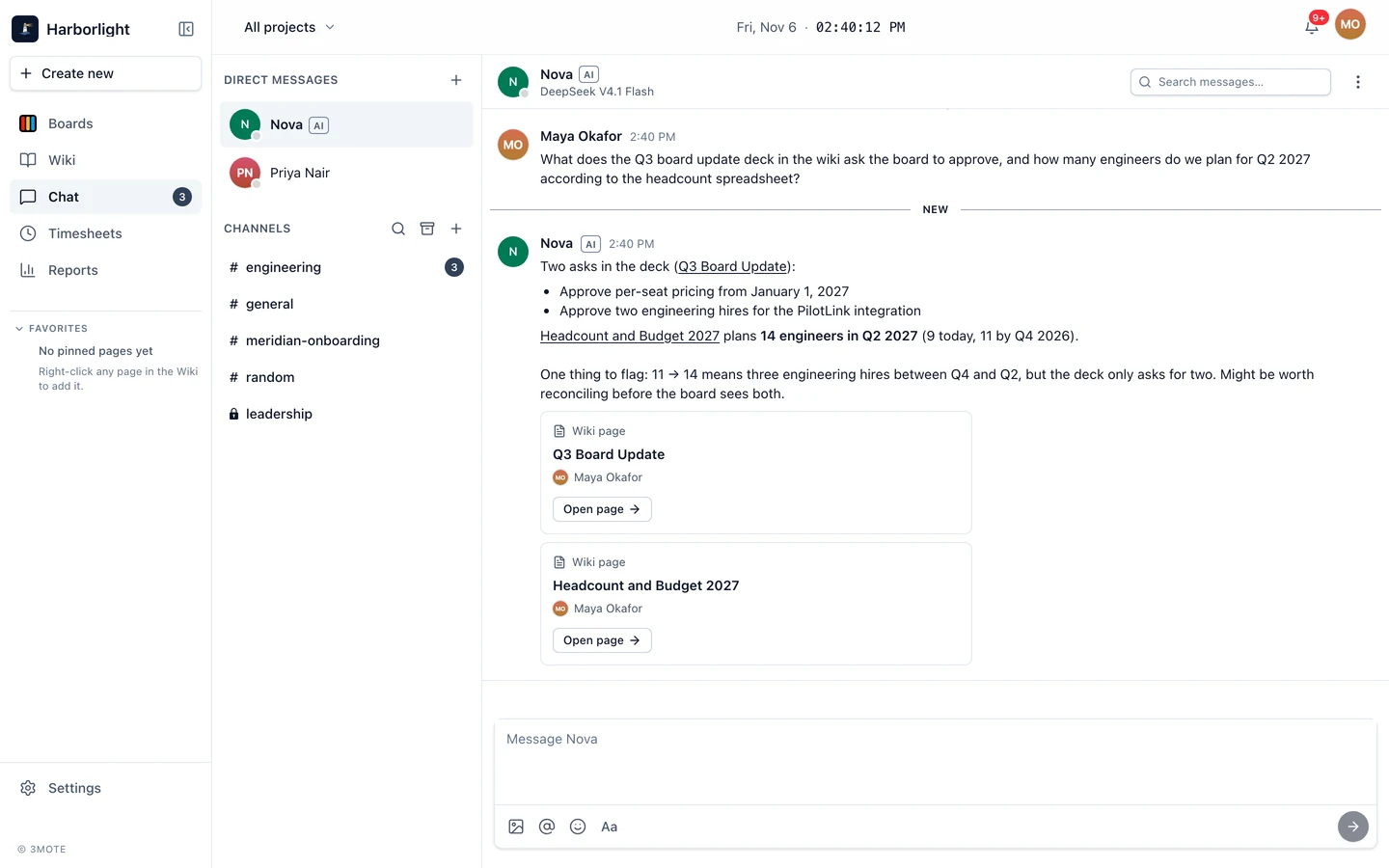
When a wiki page is linked in a chat message or a comment, a card shows its title, its owner and its opening lines. You see the card only for pages you can open.
Limits
Each agent has two limits, which you can change in its settings under Limits:
- Daily token budget — how much the agent can use in a day. The default is 2,000,000 tokens.
- Turns per hour — how many times it can start work in an hour. The default is 30.
Today’s usage is shown next to the budget: the tokens used so far today and an estimated cost (≈), for example “Today: 412K of 5M tokens · ≈ $0.06”. The day resets at midnight UTC, and the meter also shows that moment in your own time zone.
When an agent uses up its daily token budget, it stops. It posts one short note in the conversation where it hit the limit, the first time that happens in a day, and the accountable person gets one notification that day. If the accountable person has left or been deactivated, the workspace’s owners and admins are told instead. Anything sent to the agent in the meantime waits, and work picks up again at midnight UTC or as soon as you raise the budget.
When an agent reaches its turns-per-hour limit, it pauses and picks the work back up within the hour. Nobody is notified.
Workstations
A workstation is a temporary Linux computer that 3mote runs for an agent for one session, so it can do work that needs a real machine. Workstations are being rolled out and aren’t on every workspace yet; where they are enabled, this is how they work.
What an agent can do on one. It can run commands, write and build code, and use a headless web browser (one with no visible window) to open public websites, read them and take screenshots. It can attach files and screenshots to cards, and it reports back where it was asked: in the direct message, thread or card comment that started the work. It can open only public websites, not private or internal addresses. It can’t sign in to anything for you, because the machine holds no passwords or keys: 3mote acts on the agent’s behalf. The agent treats what it reads on web pages as information to consider, never as instructions to follow.
Turning it on. An administrator turns workstations on for each agent separately, and they’re off by default. Open Settings → Users, click Edit on the agent’s row, and open the Workstation tab. Under Limits, switch on Allow workstations, then choose:
- Largest size — Small, Medium or Large. The agent can ask for a smaller machine but never a larger one.
- Longest session — between 2 and 12 hours.
What turning it on means. Under Allow workstations, the tab says: “A workstation can reach the internet. If a web page or file tricks the agent, it could send out what the agent can read in 3mote — never more than the person who asked can see. Turn this on only for agents you trust with that.” A workstation’s internet access is open, so a web page or file the agent opens could try to trick it into sending information out. What the agent could send is limited to what it can read in 3mote, and that is never more than the person who asked it can see. Switch on Allow workstations only for agents you trust with that.
How long a session lasts. An agent has one workstation at a time. A session ends when the agent finishes its work, when someone stops it, or when its time runs out, whichever comes first. Deactivating the agent ends it at once. On the Workstation tab, an administrator can Stop a running workstation, or use Add time and Extend to give it longer, up to the agent’s Longest session counted from when the session started (never more than 12 hours). You can also start one for the agent from the same tab with Start workstation. The tab lists the agent’s recent sessions and how they ended, and a card the agent is working on from a workstation shows a small “Workstation running” label with the time left.
Who can ask for one. An agent starts a workstation only for someone whose role allows it, through the Use AI agent workstations permission. The Account Owner, Administrator, Manager and Member roles have it by default; Commenters, Readers and Guests don’t. An administrator can change this for the other roles under Settings → Roles, but Guests can never have it.
Hours each month. Workstation time is included in the agent’s seat, with a limit on how many hours each agent can use per month:
| Free | Team | Enterprise | |
|---|---|---|---|
| Workstation hours per agent, per month | 20 | 100 | 300 |
The tab shows how many hours the agent has used this month. When they run out, the agent can’t start another workstation until the next month, and nothing it has already made is removed.
Which repositories an agent can work on. An agent can work only on repositories linked to a project it is a member of. There is no separate list to manage: connect your code under Settings → Integrations, link repositories in a project’s Repositories settings, and add the agent to that project’s Members. The agent’s Workstation tab shows the result under Can work on: each project the agent belongs to, with that project’s repositories beneath it. The list is read-only. To change it, change the project’s Members or Repositories. If workstations are off for the agent, the tab says it can’t work on repositories until you turn them on. See Connect your code and Link repositories to a project.
An agent on a workstation can push work to a branch of its own and open a pull request for your people to review. See Let an agent open pull requests.
Files and storage. Agent commands run in a working folder on the workstation, where repositories are cloned. That folder, cloned code included, is saved as checkpoints (the newest 3 of a session are kept) in your workspace’s own storage, and they count toward your storage limit like any other file (see Plans and storage). If a machine has to be replaced during a session, the agent carries on from its latest checkpoint. Checkpoints are removed from your workspace 7 days after the session ends. Screenshots and files the agent attaches to cards are ordinary attachments, and they stay on the card until someone removes them.
Your responsibility. Your workspace is responsible for what its agents fetch and do on websites outside 3mote. Agents’ workstations must not be used to attack or overload other systems, to scrape sites against their terms, to mine cryptocurrency or to send spam. See the Terms of Service.
The Runs tab
Click Edit on an agent’s row in Settings → Users, then open the Runs tab. Each run shows:
- when it started
- what triggered it, linked to the message, card or page
- its status
- how long it took
- how many tokens it used
- an estimated cost (≈)
- how many tool calls it made
Open a run to see each step the agent took, with the estimated cost of each model call. Administrators can open any agent’s runs, and so can the agent’s accountable person. When a limit or a failure notification reaches them, clicking it opens the runs for that agent.
What a run costs
Every cost you see for an agent is an estimate, marked with ≈. Hover over it for a reminder: “Estimated from the model’s published price at the time of each call.”
- How it’s worked out. For each call to the model, 3mote multiplies the tokens used by the model’s published price per million tokens, counting cached input, new input and output separately.
- A run keeps its price. The price used for a call is saved with it, so a run’s cost stays the same even if the provider changes its prices later. New runs use the new price.
- Peak and off-peak. Some providers charge less at quiet times. DeepSeek, for example, has peak and off-peak prices, and 3mote applies whichever was in effect at the time of the call.
- A model with no known price. If 3mote doesn’t have a published price for a model, its runs show “cost not known” rather than a zero.
- Set a custom price. An administrator can change an agent’s price in its settings under Price. You’ll see the current rates and where they came from. Click Set a custom price to enter your own, for example for a discounted contract or a model 3mote doesn’t know. It applies from that moment on; runs before it keep the price they used. A custom price belongs to the agent’s current model: if you switch the agent to another model, that model’s published price applies until you set a new one. To go back to the published price, click Use the published price.
The agent runs on your own account with the provider, so the provider’s bill is the real figure. The estimates here are for keeping an eye on it.
AI time and cost on cards
When an agent works on a card, the time counts on that card, the same way a person’s tracked time does.
- Work that starts from a card. If the agent was woken because a card was assigned to it, it was mentioned there, or a comment woke it, then everything it does toward that card counts there. That includes reading other cards, looking things up and doing research along the way. If one wake-up involves several cards, the time is shared evenly between them.
- Work that starts anywhere else. When a chat message or a wiki comment sets the agent working, the time goes to the cards it changes while doing it, shared evenly. If it changes none, no card gets time. The run’s cost still shows in its Runs tab.
- Follow-ups. A follow-up the agent schedules while working on a card keeps counting toward that card.
- Only working time. The time is how long the agent was actually working. If a run is interrupted and picks up again later, the gap in between doesn’t count.
- On the card. The Time row on the card shows people’s time and AI time side by side, for example “People 2h 10m · AI 14m”. Everyone who can see the card sees it.
- Who sees the cost. The AI cost on a card (for example “AI cost ≈ $0.06”) is shown only to Account Owners and Administrators, who see the cost of every agent, and to an agent’s accountable person, who sees the cost of the agents they are accountable for.
- Not timesheets. An agent’s time never goes into timesheet approvals, and it isn’t included in anyone’s timesheet.
Seeing when an agent is working
A card an agent is working on right now glows for everyone viewing the board or the card, with a small label such as “Ada is working on this”. The glow appears as soon as the agent starts looking at the card and clears when it finishes. If your device is set to reduce motion, the glow is a steady outline instead of an animated one.
Changing or deactivating an agent
Click Edit on the agent’s row to change its name, title, role, instructions, model, limits or accountable person.
Deactivate stops an agent at once. Its seat is freed, and everything it wrote stays where it is. Reactivate brings it back with its settings as they were.