Recovery
I lost a device
Remove it under Settings → Passwords → Your devices and choose It was lost or stolen. 3mote replaces your keys, signs you out everywhere and makes your old Recovery Kit stop working, then you make a new kit. Your other devices stay trusted, because your replaced keys are re-issued to them, but you are signed out of 3mote everywhere, so each one needs a normal 3mote sign-in again.
A stolen key can act as you until it is replaced, so afterwards you see Review what your old key signed. It lists changes made with the old key since the lost device was added that this browser did not make, such as people added to a vault. The list can also include changes you made on your other devices. For each one, choose I made this change, or Remove them and re-key, which removes the people it added and replaces the vault’s keys. The list stays until you have dealt with it.
I lost everything but have my kit
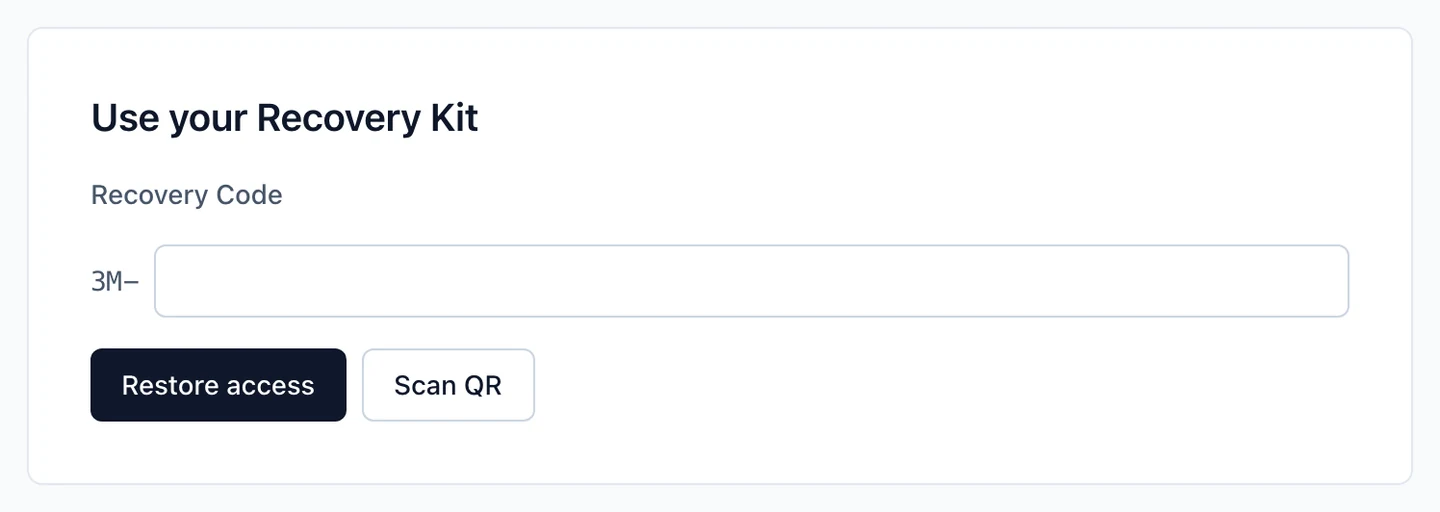
Go to Passwords and choose Use my Recovery Kit. Type the Recovery Code, or select Scan QR, then Restore access. You are asked whether someone else could have seen your kit; if yes, Yes, make a new one. Your other devices are notified that the kit was used.
I lost the kit too
Choose Ask your Recovery Group. You are shown new eight words for this request and the people who can help. Select Send request, keep the page open, and one of them will compare the words with you before restoring your access. Afterwards you make a new Recovery Kit.
If you still have a trusted device, the request waits 24 hours first. Your other devices and your email are notified, and This wasn’t me — cancel stops it.
Confirm your Recovery Group
Before your browser locks any vault for the Recovery Group, you confirm the group by comparing one member’s account words with them. That member must have signed an entry in the group’s record under those keys. Until you do, nothing is locked for the group, adding or removing members and changing the Private vault option wait, and a vault that has a change made by the group shows a prompt to Confirm the Recovery Group, with a button. Your Private vault says that the group can open it only after you confirm it with one member’s words. If nobody in the group has signed anything you can check yet, you are told to ask the person who set it up.
Check who restored you
When a Recovery Group member restores you, your new device does not trust anything yet. It shows Check who restored your access, with the member’s name. Ask that person to read their eight account words from Settings → Passwords → Your recovery words, and pick the set that matches, then select These match. The page also lists who was in the Recovery Group when your access was approved, and who is in it now, so you can spot a change you did not expect.
This check exists because a fake request could otherwise trick a new device into trusting the wrong person. Until you confirm, the device stays locked and keeps no keys it was told about.
If the words do not match, you see This recovery couldn’t be confirmed. The device stays locked and has trusted nothing. Select Start again to send a new request, and make sure the words are read by the person you asked. If the check could not reach the server, you see We couldn’t check yet and Try again: nothing was decided.
Reloading the page or closing the browser is fine. Come back to Passwords in the same browser and the request picks up where it left off, with the same words and the same waiting time. Only a browser that has lost its saved data (cleared site data, or a different browser) cannot continue: it shows Your request is still waiting (or This request was lost), and you select Start again to send a new one. Starting again withdraws the old request and clears this device.
What a Recovery Group member does
Members see Requests under Settings → Passwords → Recovery Group. For each request, call or meet the person and ask them to read their eight words, pick the matching set, then select Restore access, or Decline. Then read your own account words (Settings → Passwords) to the person, so they can check you too. A member cannot restore their own request. Owners with permission to manage vaults set up the group (Set up recovery) and add members the same way: by comparing the candidate’s words. A member is removed by another member, never by themselves, and a deactivated member stays listed until someone removes them. Keep at least two members who each have a device and a kit.
The group is kept as a signed record. Every change (setting it up, adding or removing a member, a member replacing their keys, a restore) adds one entry signed by a member, and your browser checks the whole record before it trusts the group. If a browser that has checked the group before is shown none, it says so and does not let you set up a new one: tell a workspace owner. See How Passwords keeps your data safe.
When someone leaves
A deactivated person’s Private vault is kept and locked. A Recovery Group member can start Take over…; owners, admins and the person’s email are told, and the take-over can be completed after 24 hours unless an owner cancels. It moves the items into a new shared vault the member manages. Shared vaults left with no manager are listed under Vaults with no manager, and a member can Adopt… them the same way. You cannot deactivate the only member of the Recovery Group.
Private vaults and the workspace option
Owners can turn off Private vaults can be recovered by the Recovery Group in Settings → Passwords. When it is off, people who lose every device and their kit lose their Private vault for good, and nobody can take over a departed person’s vault.