Sharing a vault
Open a shared vault, then ⋯ → Share… (people with Can manage). Who can open this vault shows the same list read-only to every member. The vault’s badge tells you what kind of vault it is: Zero-knowledge, or Agents can use anytime · key held by 3mote for an Automation vault.
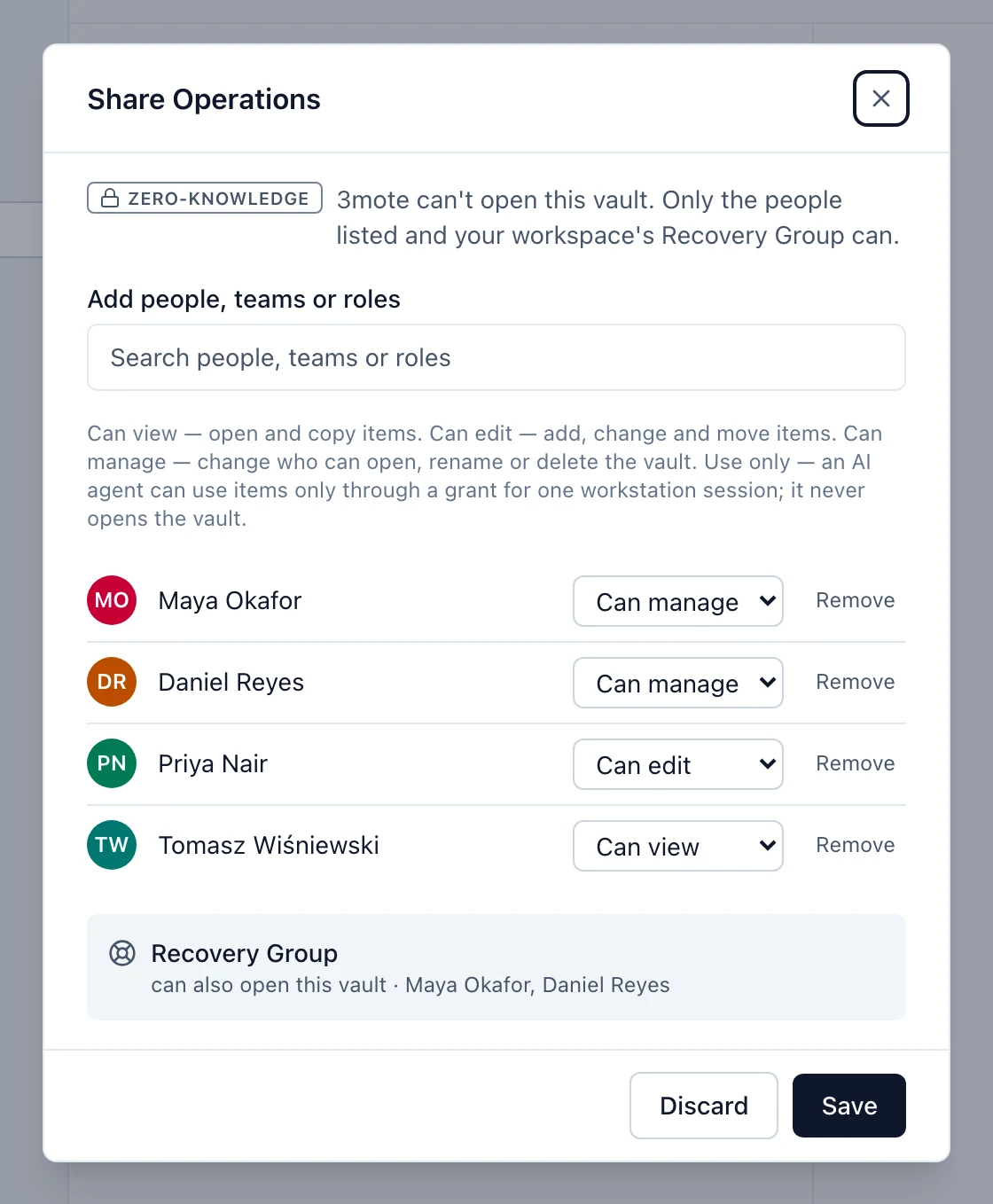
Permissions
- Can view — open and copy items.
- Can edit — add, change and move items.
- Can manage — change who can open, rename or delete the vault.
A vault always needs someone who manages it, so the last manager’s permission is locked.
Who holds a vault’s key is kept in a signed record that your browser checks, so your browser notices if 3mote’s list differs from what was signed. A vault whose record could not be checked shows Checking… or Not verified instead of a badge. See How Passwords keeps your data safe.
People, teams and roles
Use Add people, teams or roles. Guests cannot be added to vaults. Everyone in a team or role gets access now; people who join later get access the next time someone who manages the vault opens it.
Before anything is shared, you see Give these people access? with each person listed by name. A person your browser has not seen before is marked New to this browser. To give someone Can manage, who can change who has access, you must first select Compare …‘s words, check their account words with them, and select The words match. Then select Give access. Nothing is shared until you do.
If someone has not set up Passwords yet, you can still add them. They show as Pending until they have set it up and a manager has given them access (see below). They are notified when they have it.
Pending access
When someone is added, their access is prepared on a manager’s device, because 3mote cannot do it. Until then they show as Pending, and managers see a banner: “3 people are waiting for access”. Select Give access. Each person is shown by name first, and the same words check applies to managers. If a person’s security keys changed in a way nobody has confirmed, you are told to compare their words before giving them access.
When someone is removed
Remove a person with Remove, then Save. They could have copied what they saw, so the dialog says: change the important passwords at their websites. Update this vault’s keys now replaces the vault’s keys straight away; otherwise it happens the next time a manager opens the vault. If the server says someone no longer has access, a manager is asked to confirm This re-key removes people before the new keys are made; removing a manager or more than three people needs that click.
AI agents in the share dialog
AI agents are listed under Agents (use only), with the AI tag. They can only be added to shared vaults, only at Use only, and the row reads Can use with a grant. On an Automation vault the row reads Can use anytime, and a line, 3mote’s agent key, shows that a key 3mote holds can also open the vault. See AI agents and Passwords.
The Recovery Group row
Every shared vault lists the Recovery Group as able to open it, to restore access. It cannot be edited from the share dialog. See Recovery.
Plan limits
Free workspaces can have 3 shared vaults. Team and Enterprise are unlimited.