Importing and exporting
Importing
Open the rail’s ⋯ menu and choose Import…. Supported sources:
- 1Password (CSV, 1PUX)
- Bitwarden (JSON, CSV)
- LastPass (CSV)
- Chrome, Edge and Safari (CSV)
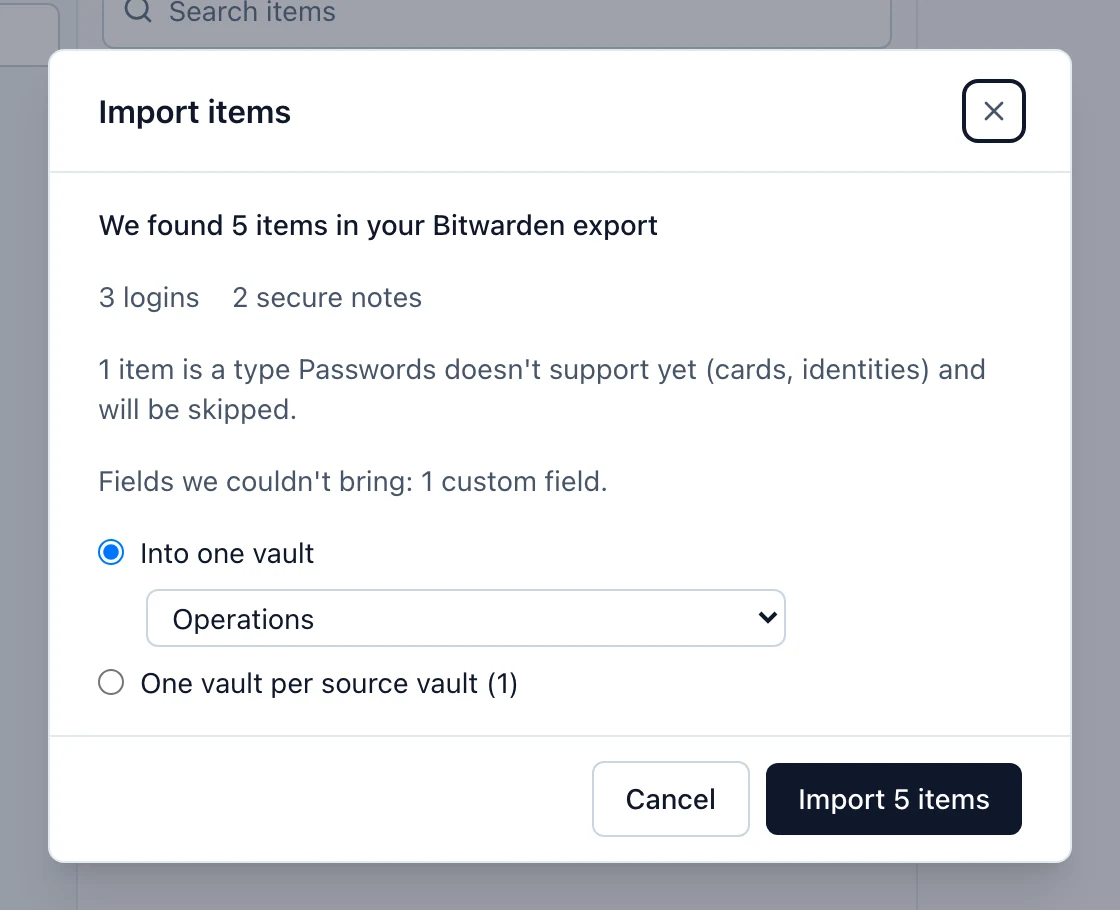
Your file is read on your device and never uploaded. You see how many items were found per type, and a destination: Into one vault, or one vault per source vault when the file has several (these count toward your plan’s shared vaults). Then select Import.
Not imported: cards and identities, and anything Passwords has no place for. The preview tells you, for example “Fields we couldn’t bring: 12 custom fields, 3 attachments”.
Exporting
Open the ⋯ menu and choose Export…. Export is for people who manage a vault, plus everyone for their own Private vault; for anyone else the entry is disabled. Pick a vault, tick Include my Private vault if you want it, and select Export CSV.
The file is not encrypted. Anyone who opens it can read every password in it, so delete it when you’re done. Each export is recorded in the vault’s Activity.